
If a workspace archival job fails in Orchestry, administrators can restart the process after addressing the underlying issue. Use the steps below to reset the workspace status and trigger the archival policy again.
Before You Begin
Ensure the root cause of the failure has been identified and resolved. Restarting an archival job without fixing the issue may result in repeated failures.
For assistance, contact Orchestry support: success@orchestry.com.
Orchestry admins can also review the Archival job logs can be found from Workspace Details to determine why the job failed.
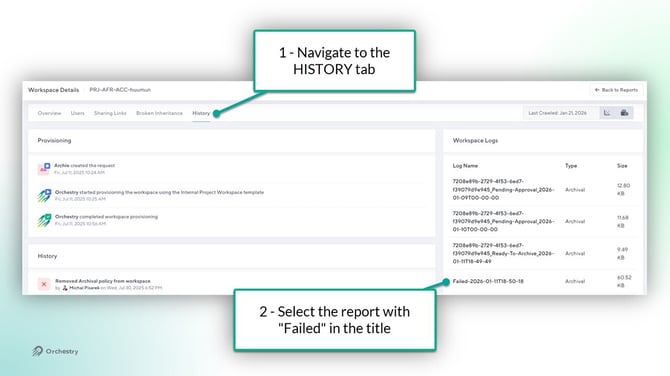
Step 1 - Reset the Workspace Status to ACTIVE
-
Go to Workspaces > Reports
-
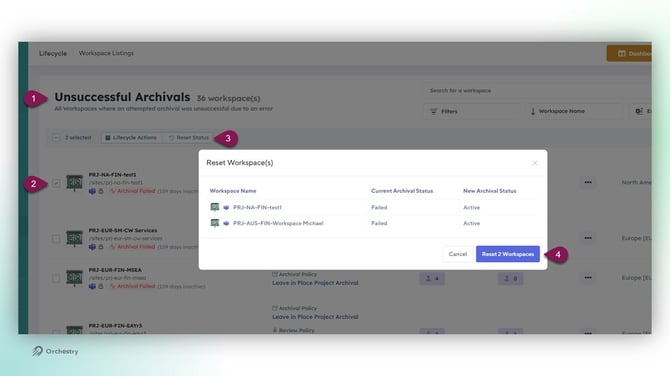
Open the “Archivals Unexpected Event” report. This report lists any workspaces with the "Archived Failed" status
-
From the table, select one or more workspaces and click 'RESET STATUS' from the toolbar
-
In the 'Reset Workspace(s)' window, verify the list of workspaces you've selected and then click RESET WORKSPACES
Step 2 - Retrigger the Archival Policy
-
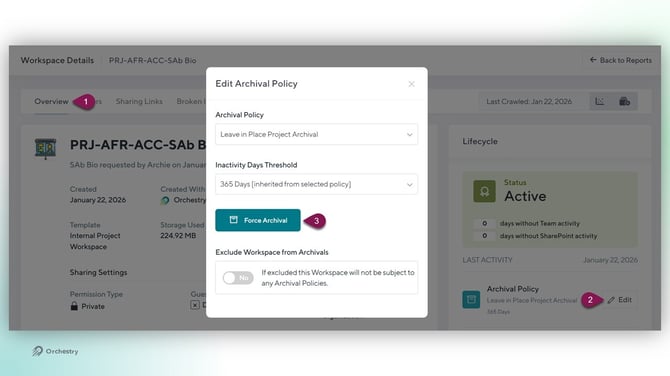
Navigate to the 'Overview' tab in Workspace Details
-
Click EDIT for the 'Archival Policy'
-
Trigger the archival job
TIP: If managing multiple failed jobs, consider exporting the report and reviewing changes over time to identify patterns or confirm that restarts are working effectively.