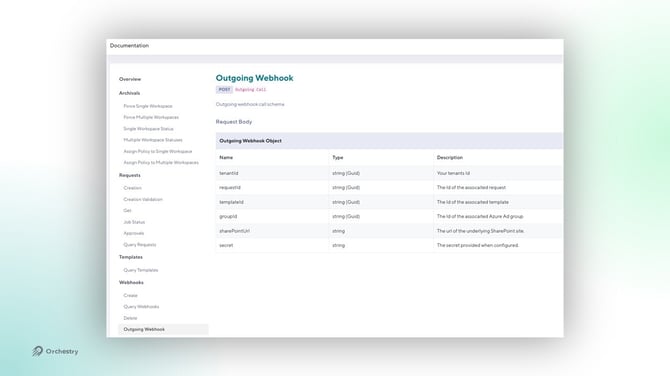
How to Create a Subscription to Events Orchestry Provides Outgoing Webhooks
To register, use a simple HTTP call with the desired configuration and Orchestry will send out data each time your required event fires. Once you've set one up with the right configuration, this webhook will pass a payload to your desired URL.
There are five webhooks that you can register within Orchestry:
- Workspace provisioning has been requested
- When workspace provisioning has been completed
- When workspace approval has been approved
- When workspace approval has been rejected
- Workspace approval has been requested
To subscribe to one of these webhooks, you need to send an HTTP request to Orchestry with the API endpoint provisioning slash webhooks. Third-party apps such as Postman are useful to make these requests.
In order to authenticate, you first need to fetch an access token.
Retrieving a Token
These parameters follow the common pattern when interfacing with registered apps and they include the following:
- Client ID - which will be the client ID associated with the Orchestry API app registration
- Client Secret - which you will create within the Azure portal for the app registration page, under Certificates & Secrets. This will be the client secret value, not its ID
- Scope - the value is shown on the https://app.orchestry.com/clientAPI/connections page under Client Credentials Flow Scope.
- Grant type - the value will be client_credentials
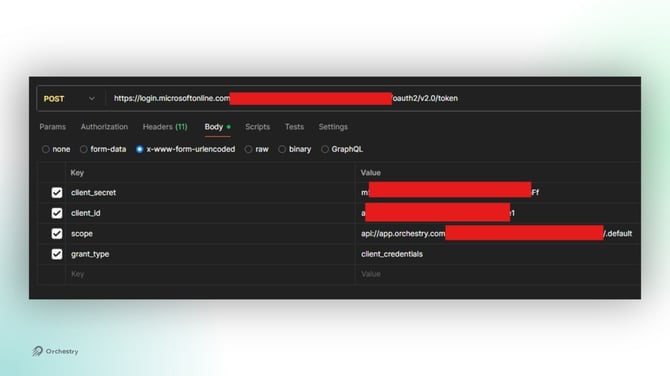
The URL to make this request to will be:
login.microsoftonline.com/{your tenant ID}/oauth/V2.0/token
This request will return an access token will used to authenticate the request to create your webhook subscription within Orchestry
Creating a webhook subscription
Creating a web host subscription involve sending a request to the Orchestry API as a POST call with the body including the information on the subscription you want to create.
The parameters are:
- NAME, which would be a unique name you can use to identify the webhook you create,
- an optional DESCRIPTION,
- the EVENT, which of the available events you wish to subscribe to,
- the URL where you would like the webhook to post the information, and
- an OPTIONAL SECRET. If provided, Orchestry will provide the secret in a property in the JSON body and as a header.
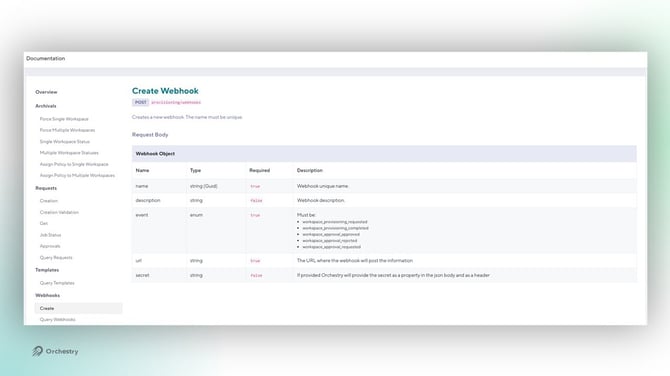
The post call must include the token from the step above as a bearer token in the header.
The URL to make this request to will be:
https://api.orchestry.com/v1/provisioning/webhooks
The Outgoing Webhook Payload
- tenantId - Your tenants Id
- requestId - The Id of the associated request
- templateId - The Id of the associated template
- groupId - The Id of the associated Azure Ad group if relevant
- sharePointUrl - The url of the underlying SharePoint site.
- Secret - The secret provided when configured.