The 'Reports' page in Orchestry allows you to view all of your existing workspaces, assign policies and review detailed insights on them.
To help you find the workspaces you're looking for in the moment, Orchestry offers:
- Prebuilt reports to show workspaces that meet specific criteria, and
- Built-in search and filter to manually find certain workspaces
How to Use Orchestry's Pre-Built Workspace Reports
Orchestry's pre-built workspace reports allow you quickly query for workspaces that meet certain criteria, such as ownerless workspaces, inactive workspaces, and much more.
To access the list of pre-built workspace reports:
- Open the workspace 'Reports' page or 'Dashboard' page
- Click the REPORTS button found on the top-right of the page
- In the 'Workspace Reports' window, click on a report to launch it on the 'Reports' page
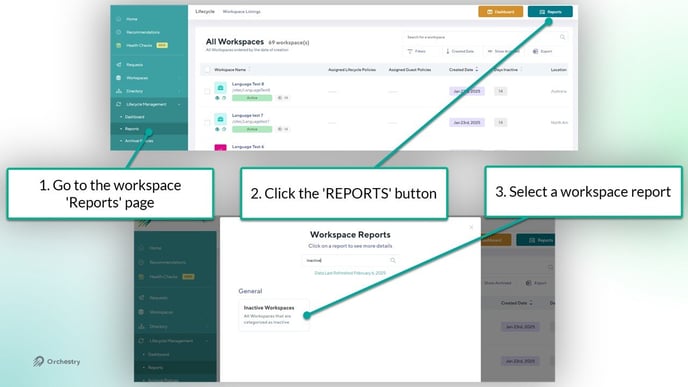
TIP: The REPORTS button can also be found on the workspace 'Dashboard' page.
TIP: Use the search bar to find a specific report faster
TIP: Different reports show different properties about your workspaces. Try them all!
How to Search and Filter for Workspaces
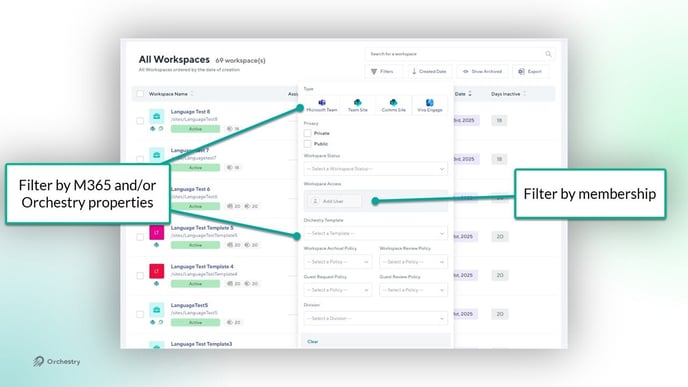
The search and filter tools on the 'Reports' page can help you find workspaces based on their names, and various M365 and Orchestry properties.
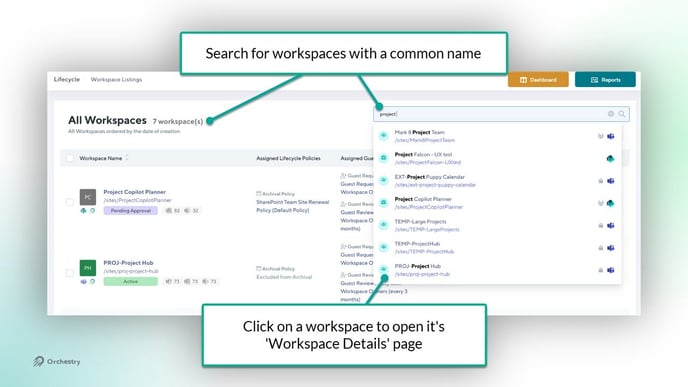
Use the search bar to find workspaces with a common name:
Use filters to locate workspaces that share common properties, such as workspace type, workspace template, policies assigned and more.