At this time, only the People and Tasks web parts support guest access.
With the release of Orchestry's V2 web parts, M365 admins will need to create a dynamic group that will allow guest and external users to view Orchestry web parts.
These steps apply to Orchestry web parts V2.0 and higher.
Step #1: Start a New Security Group
Create a new 'Everyone' group using dynamic membership. To learn more, read: Rules for Dynamically Populated Groups Membership.
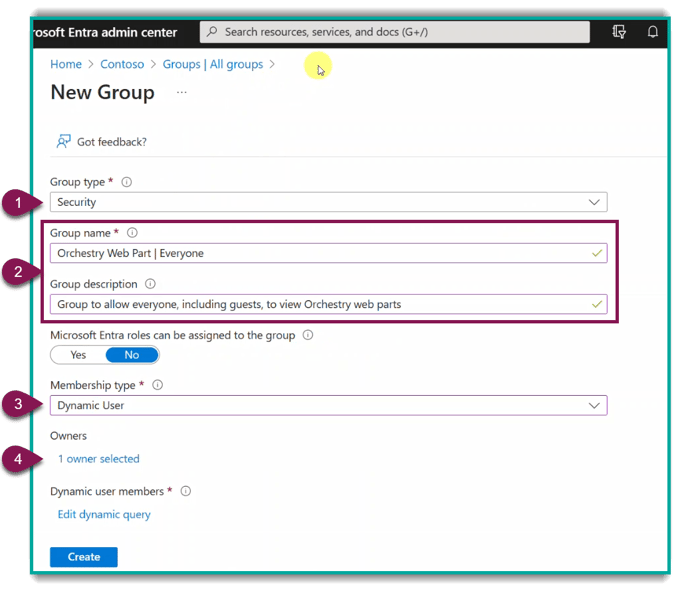
- From the "New Group" form, choose the 'Security' Group type
- Give your name a clear name and description, i.e.: 'Orchestry Web Part | Everyone'
- Choose 'Dynamic User' as the Membership Type
- Assign a group owner
- Do NOT click 'Create' just yet.
Step #2: Add the Dynamic Query to Pull All Users and Guests
From the same page:
- Click 'Edit dynamic query' to open the 'Dynamic membership rules' page.
- Click EDIT to launch the rule syntax editor
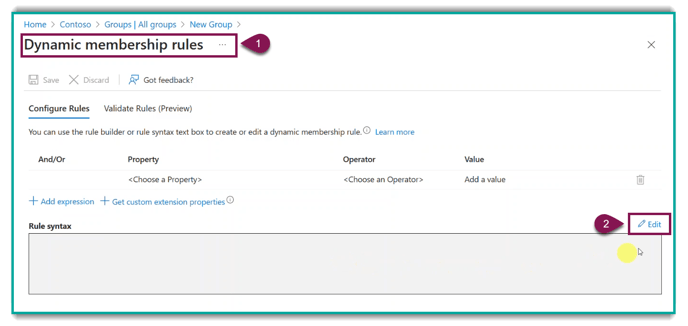
Next, (1) paste the following syntax into the text box and then (2) click OK:
user.objectid -ne null
.png?width=688&height=403&name=KB-Mar03-5-min%20(1).png)
Then click SAVE to save the Dynamic membership rule and return to the 'New Group' window.
Step #3: Save Your New Dynamic Security Group and Wait
Click the Create button to save and create your new security group.
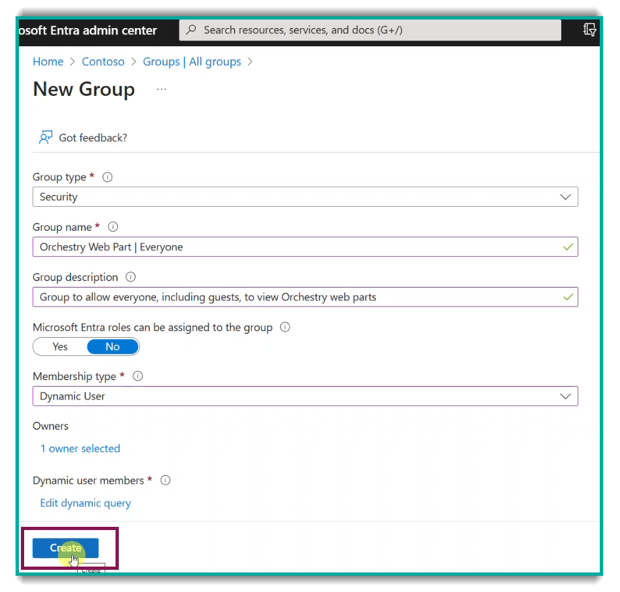
Next, you will need to wait until the new rule and propagated. This can make moments in small organizations, but expect longer wait times if you have hundreds or thousands of users.
You can review the status of the new group from the Group audit logs:
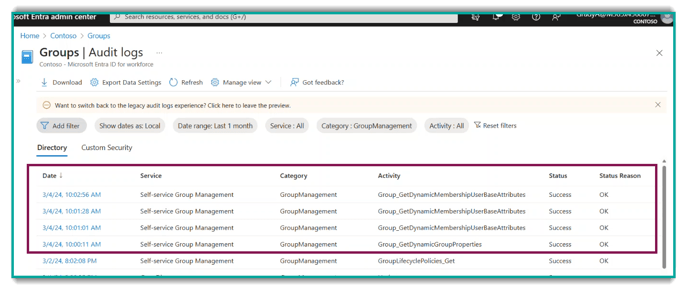
Step #4: Add Security Group to App Package with 'View-Only' Permissions
From the SharePoint App catalogue page in SharePoint admin, locate the Orchestry Web parts app and share view-only access with your new security group.
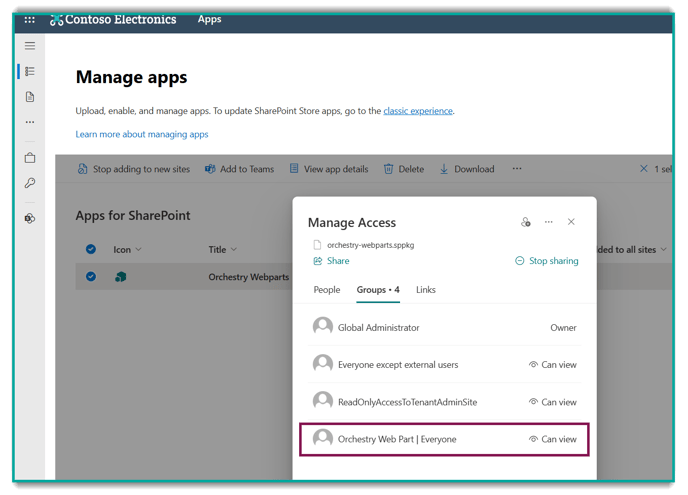
Sharing in 'Classic' SharePoint Tenants:
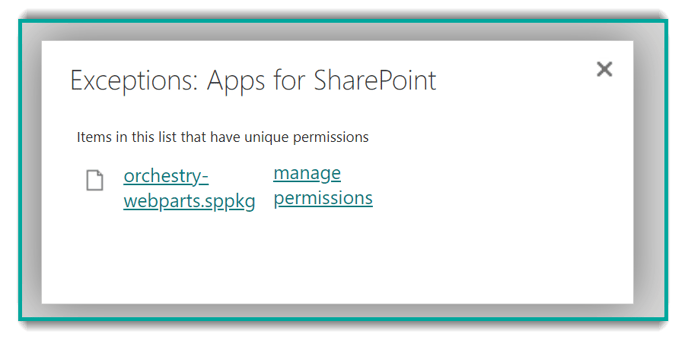
Locate the web part package and click 'manage permissions'
Next, add your new security group to the list with 'Read' permissions.
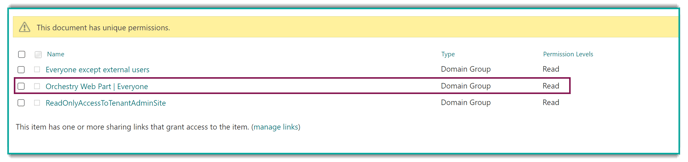
Step #5: Test with Guest Profiles
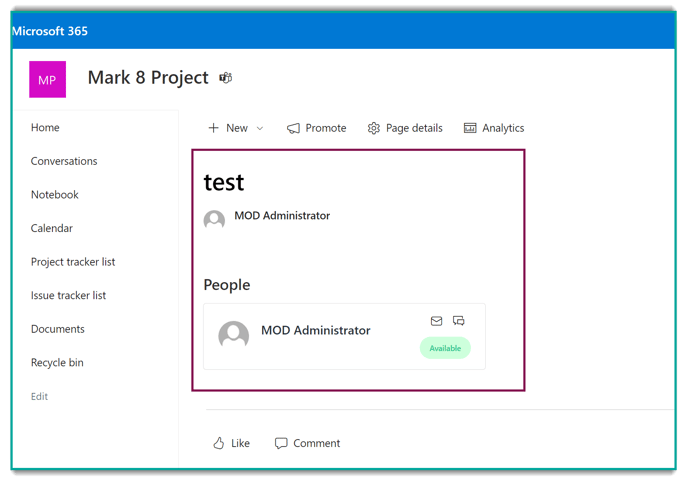
Login to a SharePoint site with a Guest profile to verify that you can see and interact with both the 'People' and 'Tasks' Orchestry web parts.
Alternative Method: Grant Existing Guests Access to App Catalogue at the Site Level
If creating a security group isn't an feasible option, you can grant existing guests access to apps via the SharePoint admin center.
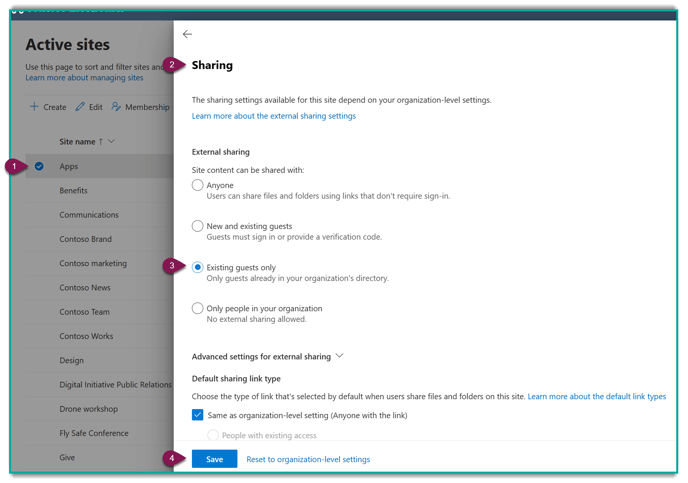
- Locate the 'Apps' site in SharePoint Admin and open the details panel
- Open up the Sharing page (Setting > More sharing settings)
- Choose 'Existing Guests only' as your external sharing setting.
- Click 'Save' to lock in your changes