Your Workspace Review policies can be configured to also handle ownerless workspaces. When a policy is triggered, it can either
- reassign the Workspace Review (task) to the most active members of the group/workspace, or
- reassign the Workspace Review (task) to specific users, defined within the policy
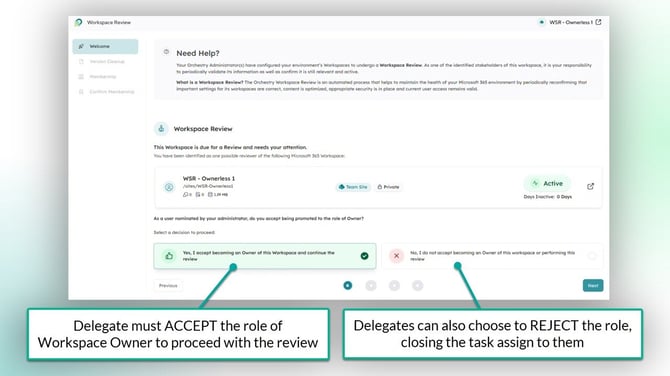
When you configure your Workspace Review policy to handle ownerless workspaces, the recipient(s) will be prompted to accept the role workspace owner before proceeding with the review
How to Reassign Workspace Reviews to Active Group Members
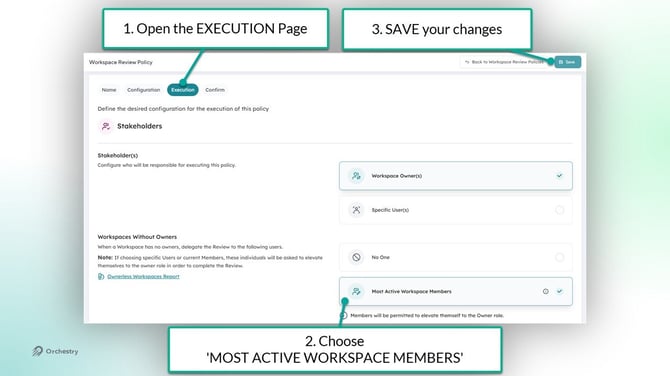
To configure your Workspace Review policy to reassign the policy task to active workspace members:
- Go to the 'Execution' page of your policy
- Select "Most Active Workspace Members' under the section "Workspaces without Owners"
- SAVE your changes
Guests are not counted as 'active group members' and cannot be assigned this task
How to Reassign Workspace Reviews to Specific Users
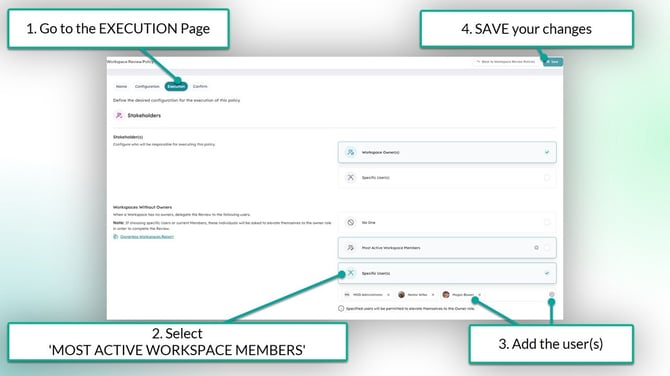
To configure your Workspace Review policy to reassign the policy task to specific users of your choice:
- Go to the 'Execution' page of your policy
- Select 'Most Active Workspace Members' under the section "Workspaces without Owners"
- Add your delegate users and/or service accounts
- SAVE your changes
Questions and Answers
How Do I Find my Ownerless Workspace in Orchestry?
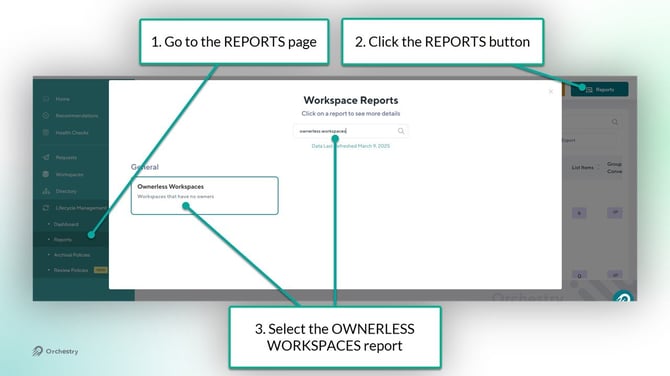
The Orchestry report 'Ownerless Workspaces' is available to help you quickly identify which workspaces are missing owners.
- Go to the Reports page (Workspaces > Reports)
- Click the REPORTS button
- Select the 'Ownerless Workspaces' report from the list.