
When rolling out Orchestry you can easily control who has access to the Orchestry Teams application by using Microsoft App Permission Policies.
This can help you limit who has access to Orchestry so that you can control who can see the Orchestry Application and interact with it.
Option #1: Make Orchestry Available to Everyone (Default Config)
By default, when you install Orchestry it is added as a Custom Teams Application that makes it available for all users to add to their Teams side bar.
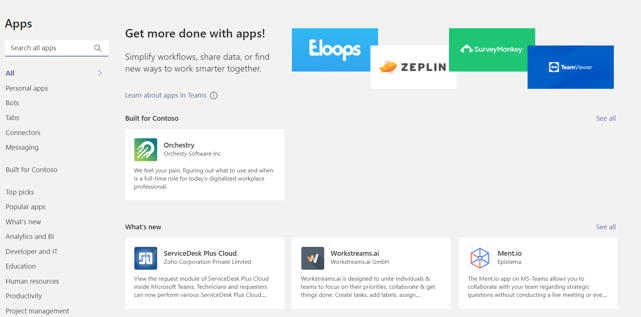
There might be cases where you want to limit who can access the Orchestry application. You can accomplish this as a global admin using the Microsoft App permission policies discussed later in this article.
Option #2: Global App Permission Policy
The default Global app Permission policy allows for any custom app to be available for all users in the organization.
To block the Orchestry application for all users, click on the Global policy:
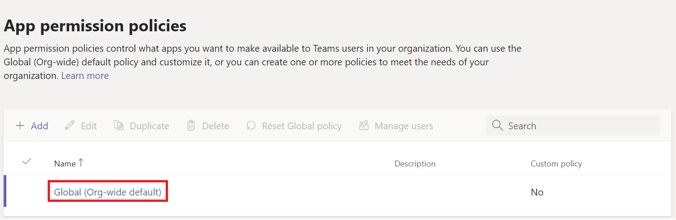
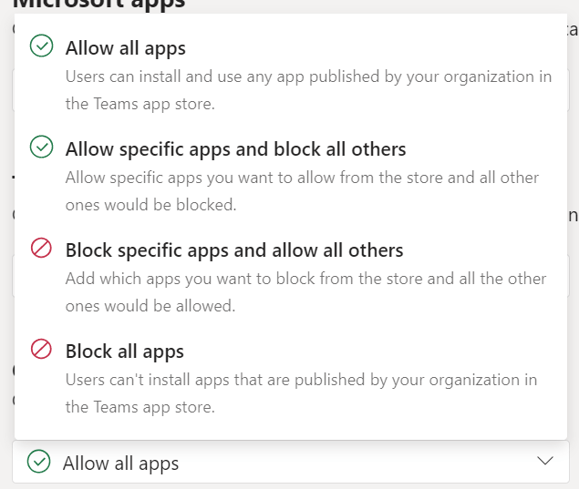
Orchestry is a custom app so you can change the custom apps configuration from "Allow all apps" to either 'Block all apps" which will block all custom apps in your tenant or, the "Block specific apps and allow all others" option:
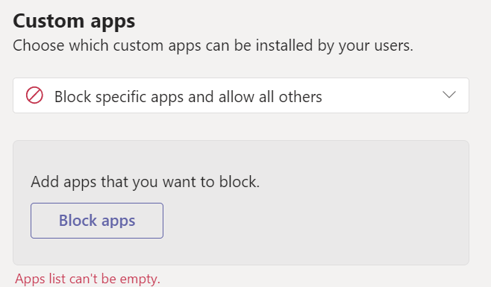
You can add Orchestry to the list of blocked apps which will block Orchestry for all users:
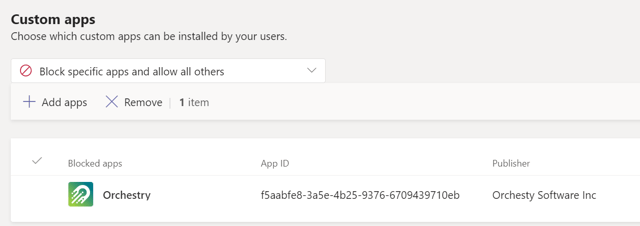
No user will be able to access the Orchestry Teams app but administrators will be able to access Orchestry in a web browser using the https://app.orchestry.com URL.
Option #3: Limiting Access to Orchestry Using a Custom App Permission Policy
The other option is to create a custom app permission policy and then assign users to that policy. In this case, follow the steps above choosing how you would like to configure the policy for custom apps:
You can then assign users to this App Permission Policy and control exactly who has access to Orchestry.