If your tenant has workspaces with sensitive and/or confidential information that should not be seen by anyone outside of the group, including Orchestry admins - you can disable content scanning for the workspace.
Considerations of Disabling Content Scanning on a Workspace
Should you block a workspace from being scanned, the following features will no longer function:
- Workspace Details - Sharing Links tab
- Workspace Details - Broken Inheritance tab
- Workspace Reviews - Sharing Link Review
- Teams Information Tab/ Workspace Information Web Part - Sharing Links tab
How to Disable Content Scanning for a Workspace
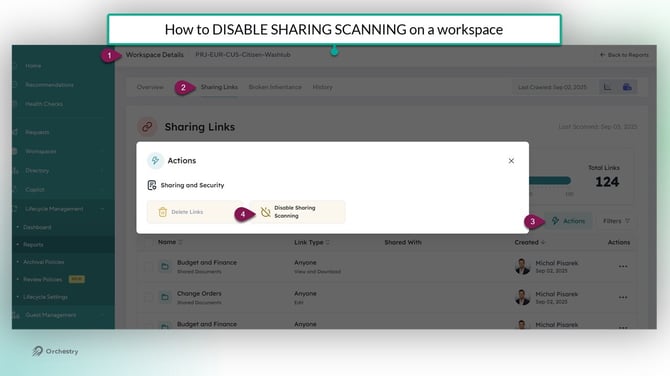
- Open the 'Workspace Details' page for the workspace
- Open the 'Sharing Links' tab
- Click the ACTIONS button
- Select 'Disable Sharing Scanning'
NOTE: Any links shown from previous scans will be removed from Orchestry when the Content app runs again.
How to Re-Enable Content Scanning for a Workspace
Should circumstances change, you can always re-enable content scanning. From the 'Sharing Links' tab, click the 'Enable Sharing Scanning' button.
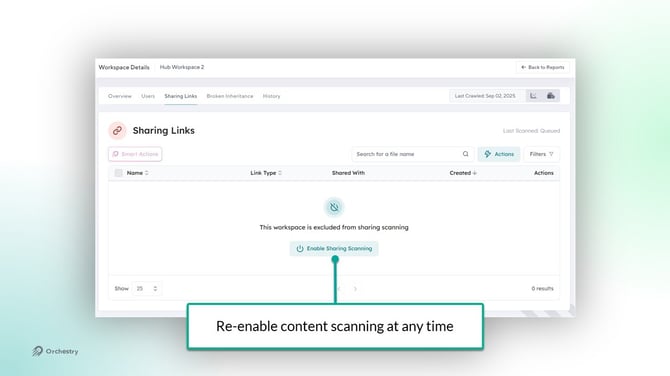
NOTE: Links will not be re-populated until the next overnight scan of the Content app. It may take longer if the Content app has a lot of workspaces to scan.
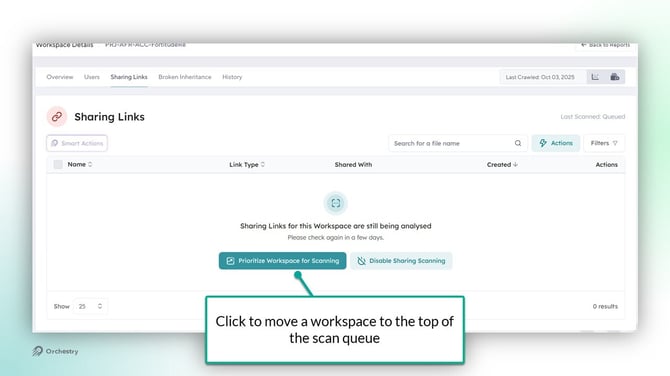
TIP: When a workspace is in queue to be scanned, click the 'Prioritize Workspace for Scanning' button to ensure it's near the top of the list for the Content app's next scan.