
This article is only applicable to organizations that work with an Orchestry partner.
If your partner is responsible for helping you monitor and manage Orchestry in your tenant, we recommend you identify your associated partner in the Partner Settings page (Settings > Partners). This will aid your partner's ability to assist you with Orchestry.
Note: Associating yourself with a Partner is only relevant within the context of Orchestry and does not grant the partner any additional privileges within Microsoft 365 or its administration portals.
How to Configure Your Partner Association:
There are two ways to associate your tenant with a partner:
- During the Orchestry installation, on the Partner Association step
- Post-installation, on the "Partners" settings page (Settings > Partners)
Method #1: Associate When Installing Orchestry
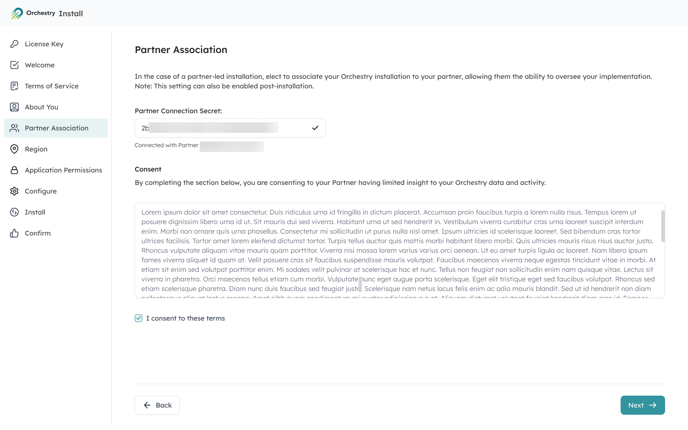
When installing Orchestry, there is a 'Partner Association' page that allows you enter the partner's secret connection key and review terms and conditions.
This is optional during install. See method #2 to create the connection from Orchestry settings.
Method #2: Associate After Installing Orchestry
You can add, edit or remove partner associations any time from the 'Partners' settings page.
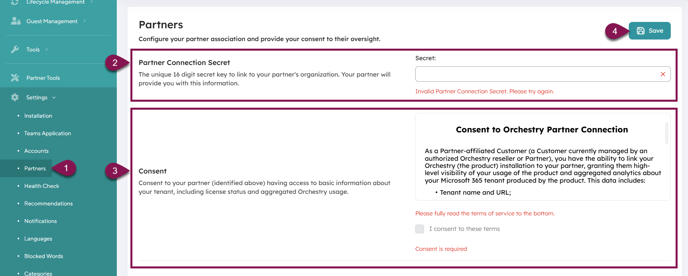
- To the 'Partners' page (Settings > Partners)
- Enter the unique partner connection secret provided by your partner
- Review and consent to the terms of service
- Save your changes.