
How to Assign Archival Policies to Existing Workspaces
You can assign policies to your existing Teams, SharePoint Team site and Communication sites, even if they weren't created through Orchestry.
The instructions below will show you how you can assign policies to one-off workspaces, and how to assign policies in bulk.
How to Assign Archival Policies from the Workspace Details Page
From the Lifecycle Management 'Reports' page:
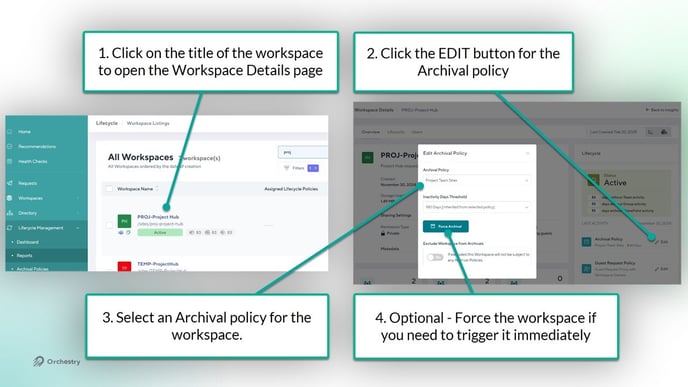
- Click on the TITLE of a workspace to open it's details page
- Click the EDIT button for the archival policy
- Select a policy for the workspace
- OPTIONAL - Force the policy if you need it to trigger it immediately
Want to learn more about the Workspace Details Page?
Check out the article: Workspace Details Page Overview
How to Assign Archival Policies from the Reports Page
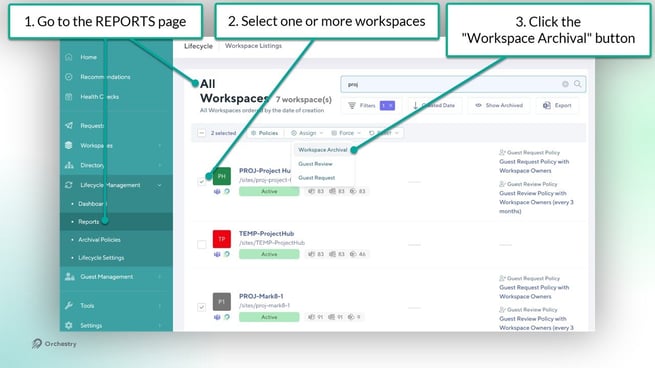
- Go to the Reports page (Lifecycle Management > Reports)
- Select one or more workspaces from the table
- From the toolbar that appears, click ASSIGN > WORKSPACE ARCHIVAL
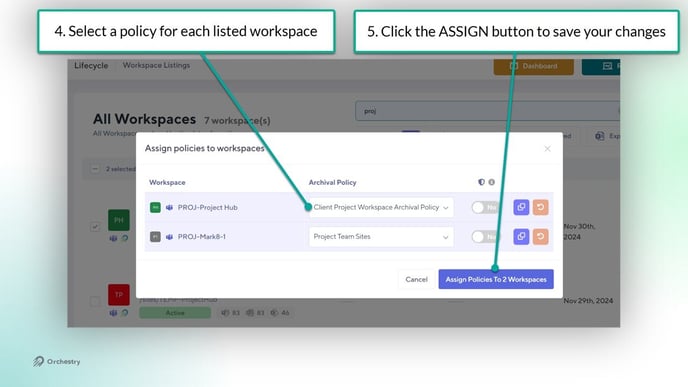
- In the dialogue window that appears, choose an archival policy for each workspace you've selected
- Click ASSIGN to apply the policies to your workspaces
How to Assign Default Archival Policies
When you designate a policy as a default, Orchestry will automatically assign it to any workspace that does NOT already have an archival policy. This can help you close gaps by ensuring all workspaces have policy assigned to them.
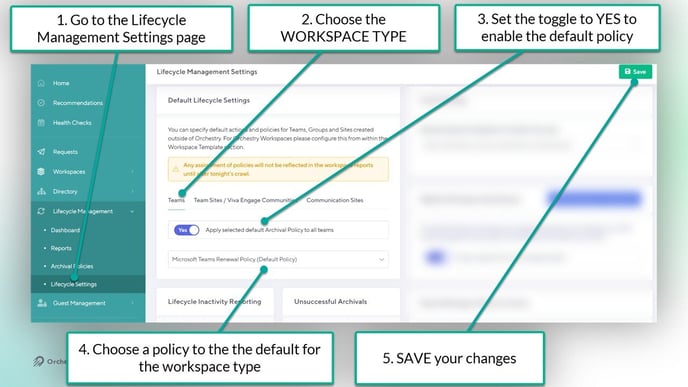
- Go to the Lifecycle Management Settings page
- Choose a Workspace Type
- Set the toggle to YES to enable the default policy option
- Choose the archival policy to be the default for that workspace type
- SAVE your changes
How to Assign Archival Policies to Workspace Templates
You can proactively ensure workspaces created through Orchestry have archival policies by adding them to the workspace template.
- Open the workspace template from the 'Templates' page
- Go to the 'Policies' tab
- Add your archival policy
- SAVE your changes
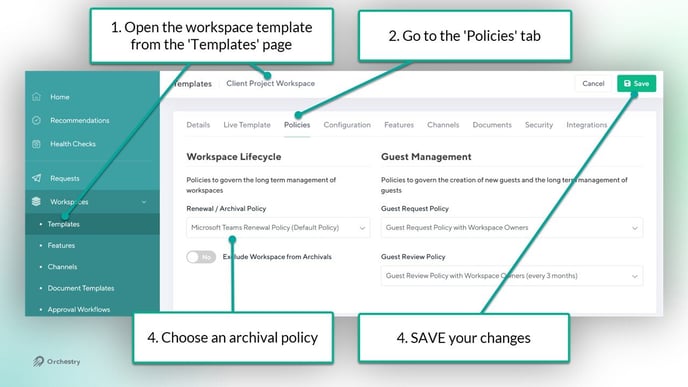
Assigning policies to workspace templates does NOT retroactively assign policies to existing workspaces.