There may be workspaces that you do not want to be subject to a Archival policy. In Orchestry, you can ensure that certain workspaces are not subject to archival.
A few examples of such workspace are:
| Intranet Sites: | You don't want to ever archive your Intranet as want these sites to live in perpetuity. |
| Organizational Teams: | Teams that are organizational-wide should be kept as the audience of the Team is so large |
| Historical Content: | Workspace that might not be actively used but required to exist should be kept. |
| Department Workspaces: | Workspaces for organizational departments are often designed to be permanent |
How to Exclude Individual Workspaces from Archival
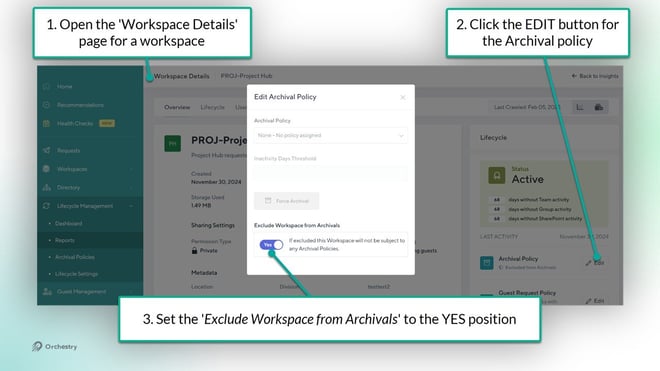
To exclude an individual workspace:
- Open the Workspace Details page of a given workspace
- Click on the EDIT button for the Archival policy
- Set the 'Exclude Workspace Review from Archivals' toggle to YES
Your changes will be saved automatically.
How to Exclude Individual Workspaces from Archival in Bulk
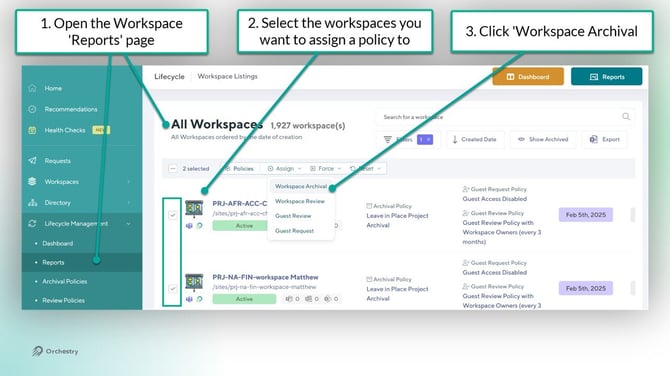
Step #1: Select multiple workspaces to assign a policy to
- Navigate to the workspace 'Reports' page
- Click the checkbox for the workspaces you wish to assign a policy to
- Click Assign > Workspace Archival
- Once selected press the 'Assign Policy' button to bring up the dialogue window
Step #2: Assign a policy to each selected workspace
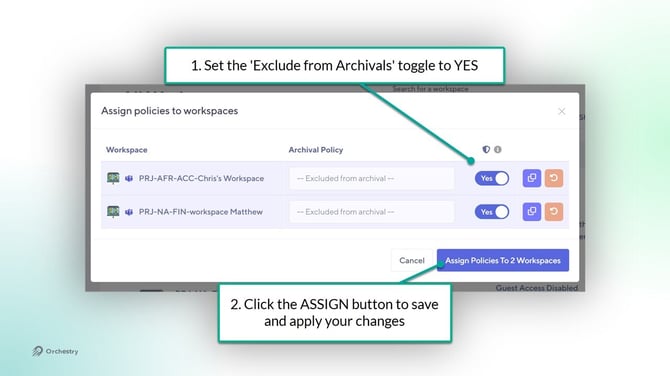
In the 'Assign policies to Workspaces' dialogue window:
- Set the 'Excluded from Archivals' toggle to YES for all selected workspaces
- Click the "Assign Policies to X workspaces" button to SAVE your changes
How to View Workspaces Excluded from Archival
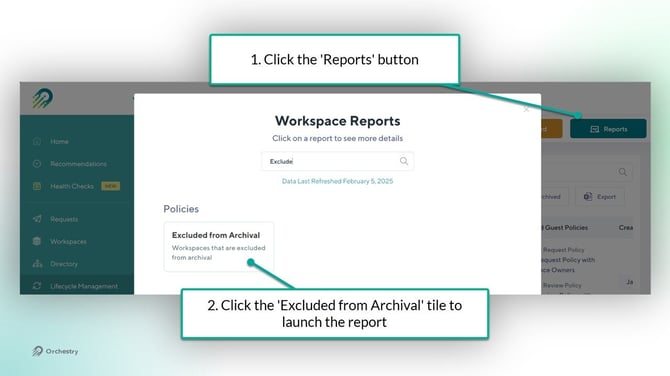
Orchestry has a built-in report to help you quickly find all workspaces that are excluded from archival.
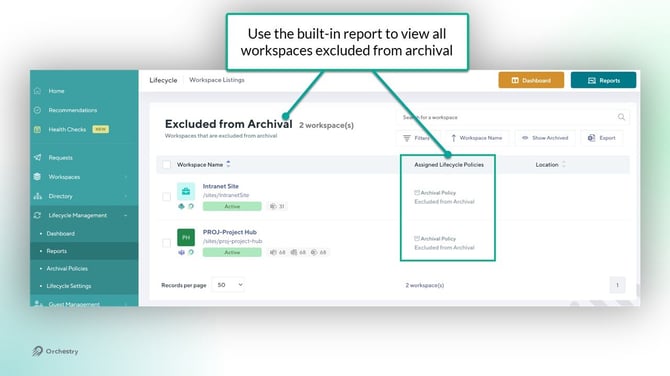
To locate the report: