
Table of Contents
> Understanding Your License Data
> Early Access Context
> Accessing License Management
> Dashboard Overview
> Available Reports
> Settings & Configuration
> Important Data Considerations
> Current Early Access Limitations
> FAQ & Troubleshooting
> What's Coming Next
> Need Help?
Understanding Your License Data
Microsoft 365 licensing data is inherently complex, with multiple subscription states, trial periods, and administrative configurations that can make optimization challenging. Rather than overwhelming you with every license entry in your tenant, Orchestry provides a streamlined view focused on actionable optimization opportunities.
The key to getting value: Use the Settings page to customize what you see. Every organization has different needs - some want to exclude trial licenses, others need to filter out development environments, and many prefer to focus only on specific license types that matter to their budget.
Early Access Context
License Management is currently in Early Access.
✅ What you get now :
- Microsoft 365 license inventory
- User assignment analysis
- Optimization reports (unassigned licenses, inactive/disabled users)
✖️ What's not included yet:
- Pricing integration and cost savings estimates
- License overlap detection
- Advanced consolidation recommendations
What to expect:
- Data comes directly from Microsoft Graph API
- Complex license states are excluded from optimization recommendations but remain visible in full inventory
- Dashboard tiles update daily, but reports reflect settings changes immediately
⚠️ Important: Use findings as directional guidance. Always validate major changes in the
Microsoft 365 Admin Center before removing or reassigning licenses.
Accessing License Management
- Log into your Orchestry dashboard.
- Select License Management from the main navigation.
🕰️ Initial data processing may take up to 24 hours on first load.
After that, updates run daily.
Dashboard Overview
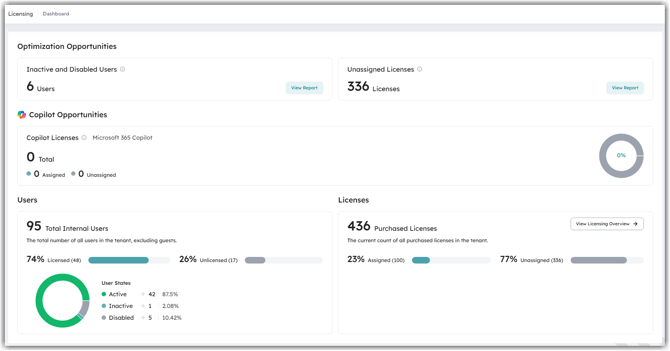
The dashboard provides a high-level snapshot of your licensing environment:
Optimization Opportunities
- Inactive & Disabled Users: Licenses assigned to inactive or disabled accounts (includes "View Report" link to detailed breakdown)
- Unassigned Licenses: Purchased licenses not currently assigned to users (includes "View Report" link to detailed analysis)
Copilot Licenses
- Total Copilot Licenses: Complete inventory in your tenant
- Assignment Breakdown: Assigned vs. unassigned with visual indicators
Users Section
- Licensed vs. Unlicensed: Visual breakdown with percentages
- User States: Donut chart showing active, inactive, and disabled users
- Total Internal Users: Complete count excluding guest accounts
Note: Current user counts include shared mailboxes, which are intentionally unlicensed and may make your unlicensed percentages appear higher than expected. We're developing smarter filtering to provide cleaner user categorization.
Licenses Section
- Purchased Licenses: Total license inventory
- Assignment Overview: Assigned vs. unassigned breakdown
- View Licensing Overview: Link to detailed License Overview Report
Available Reports
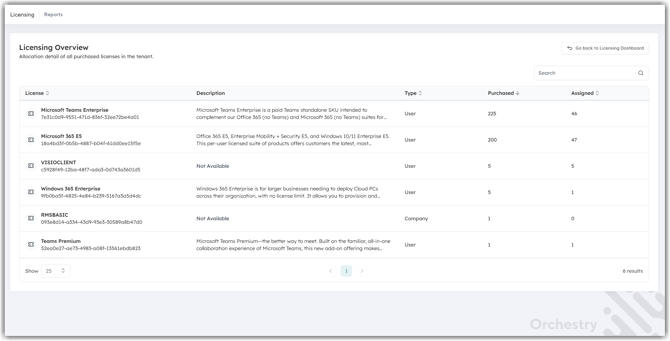
License Overview Report Complete inventory of included licenses with details on license names, descriptions, commitment counts, and assignment status. Shows only products that respect your include/exclude settings. Use this for your day-to-day license management view.
Unassigned Licenses Report Identifies purchased licenses not assigned to any users among clean, actionable licenses. These represent direct waste since you're paying for unused capacity.
Inactive/Disabled Users Report Shows users who are inactive or disabled and hold licenses. Clear optimization opportunities for license reallocation.
Note: This report may include users with licenses from complex subscription states that are filtered out elsewhere in the system.
Settings & Configuration
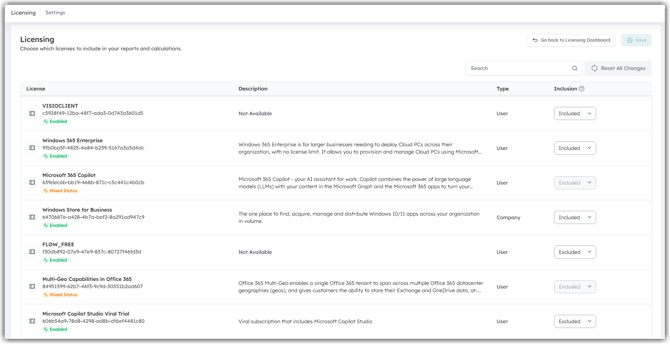
Use the License Management Settings page to:
- Include/Exclude License Types – Filter out trial, dev/test, or bundled licenses (in addition to automatic exclusions)
- View All Products – See the complete license inventory with exclusion information
- Customize Analysis Scope – Settings apply across all tiles and reports
- Pricing Configuration (Coming Soon)
Organizations typically exclude additional license types:
- Trial licenses that don't represent actual costs
- Development/testing licenses not part of production spend
- Licenses managed by different departments
Important Data Considerations
Data Sources and Updates
- Data comes primarily from Microsoft Graph API, enhanced with additional metadata sources
- Updates occur daily, not real-time
- Initial sync may take up to 24 hours
- Cross-reference with Microsoft 365 Admin Center for critical decisions
How Orchestry Handles Complex Licenses
To keep recommendations accurate, Orchestry automatically excludes certain license states.
What Gets Auto-Excluded
- Mixed Status Products: Licenses marked as "enabled" but containing suspended, warning, or locked-out licenses. When Microsoft's API shows conflicting statuses under the same product, we take a conservative approach and exclude the entire product to ensure accuracy
- Impossible State Products: Licenses where assigned count exceeds enabled count due to data inconsistencies
- Non-Enabled Products: Licenses that are not currently active or available for assignment
Where Auto-Exclusions Apply
-
Unassigned Licenses calculations (dashboard tile and report)
Where Auto-Exclusions Don't Apply Yet
- Users dashboard tile
- Inactive & Disabled Users dashboard tile and report
Where All Licenses Appear
-
License Settings Page: Complete inventory including auto-excluded licenses with exclusion information
Where Filtered Licenses Appear
- License Overview Report: Shows only included products (respects your include/exclude settings)
- Optimization reports: Show only clean, actionable licenses
Note: Dashboard tiles update daily while linked reports update immediately when you change settings, which may create temporary differences between a tile and its report.
User Status Classifications
Users flagged as inactive based on:
- Account disabled in Azure AD
- Extended periods without sign-in activity (90+ days of inactivity)
Current Early Access Limitations
These are areas we're actively refining based on real customer data and usage patterns. Your feedback on data accuracy, filtering logic, and optimization recommendations helps us fine-tune the product for General Availability.
If you notice discrepancies or have suggestions, please reach out to our team.
Inactive/Disabled Users Filtering: The Inactive/Disabled Users Dashboard tile currently displays all users regardless of your include/exclude filter settings configured on the License Management Settings page. All other dashboard tiles and reports properly respect your filtering preferences. We're working to extend filtering functionality to this specific tile in an upcoming release.
Users Dashboard Tile: The Users dashboard tile may occasionally show user percentages that don't add up to 100% due to "Unknown Users" that can't be definitively categorized as licensed or unlicensed from Microsoft's API data. We're implementing improvements to provide clearer user status categorization and ensure percentages total correctly.
Inactive/Disabled Users Report: Some user names may display as "N/A" in the Inactive/Disabled Users Report due to a data processing issue. This does not impact license counts or optimization recommendations. We're implementing a fix in an upcoming release.
🎯 FAQ & Troubleshooting
Data Accuracy & Sources
Q: How accurate is the license data?
A: Data comes directly from Microsoft Graph API. Complex subscription states are automatically excluded from optimization calculations to ensure accuracy. Cross-check with Microsoft 365 Admin Center for critical decisions.
Q: Why do my dashboard counts seem lower than expected?
A: Microsoft's licensing data often includes administrative artifacts, trial licenses, and conflicting subscription states. Rather than overwhelming you with potentially misleading information, Orchestry focuses on clean, actionable optimization opportunities. Your complete inventory is always visible in the Settings Page.
Q: Why does Microsoft show millions of licenses for my small organization?
A: Microsoft's API includes all license types in your tenant - including free services, administrative licenses, trial periods, and organizational-level entitlements. A 50-person company might show thousands of "licenses" that are actually free services or administrative artifacts. Orchestry filters these to show only paid, user-assignable licenses relevant to optimization.
Q: How often does data refresh?
A: Dashboard tiles update daily, but reports reflect settings changes immediately.
Understanding License Optimization
Q: What counts as "unassigned" licenses?
A: Clean, actionable licenses that are purchased but not assigned to any users. Mixed status licenses are automatically excluded to prevent misleading recommendations.
Q: What makes a user "inactive" for license purposes?
A: Disabled accounts or extended periods without sign-in activity (90+ days of inactivity).
Q: Should I immediately remove licenses from inactive users?
A: Validate first with HR/management. Consider temporary leave situations, seasonal employees, or users needing mailbox access during transitions.
Q: What happens if I disagree with a license being excluded?
A: Visit the Settings page to see all excluded licenses with explanations. While you cannot override automatic exclusions (which protect against data inconsistencies), you can include/exclude licenses based on your organization's needs.
Contact our support team if you believe a license is incorrectly categorized.
Q: How do I know if my optimization numbers are conservative or aggressive?
A: Orchestry takes a conservative approach - we'd rather show you smaller, reliable savings than overstate potential waste. When pricing is added, we'll use lowest commercial pricing and add clear disclaimers about estimation methodology.
Q: Can I trust these recommendations for budget planning?
A: Use findings as directional guidance for identifying optimization opportunities. Always validate major changes in the Microsoft 365 Admin Center and consult with HR/management before removing licenses from users, especially for inactive accounts that might be on temporary leave.
Q: Which Copilot licenses are being counted in the Copilot section?
A. The following Copilot licenses are counted:
- Copilot Studio Viral Trial,
- Copilot Studio User License,
- Copilot Studio,
- Power Virtual Agent (Copilot Studio),
- Microsoft 365 Copilot,
- M365 Copilot Preview,
- M365 Copilot GCC,
- M365 Copilot Education Faculty,
- M365 Copilot for Sales"
- M365 Copilot for Service,
- M365 Copilot for Finance,
- M365 Copilot for Finance (Preview), and
- Microsoft Sales Copilot"
What's Coming Next
Future releases will include:
- Cost calculations and savings estimates
- License overlap detection
- Consolidation recommendations
- Enhanced filtering capabilities
- Improved handling of complex license states
Need Help?
For Early Access support or feedback, contact the Orchestry Product Team directly:
- David Francoeur | David.Francoeur@orchestry.com
- Cristiano Orsi | Cristiano.Orsi@orchestry.com