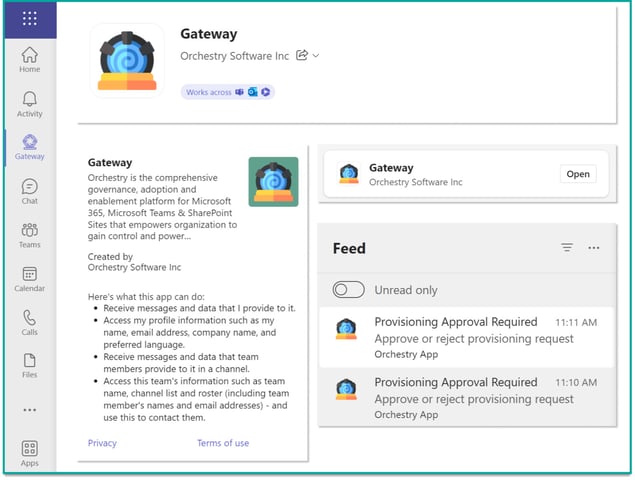
You can customize the Orchestry app's name and icon to be more familiar to your end users. This can be especially useful if you're transitioning from a different provisioning tool or process.
Configuring the Teams App
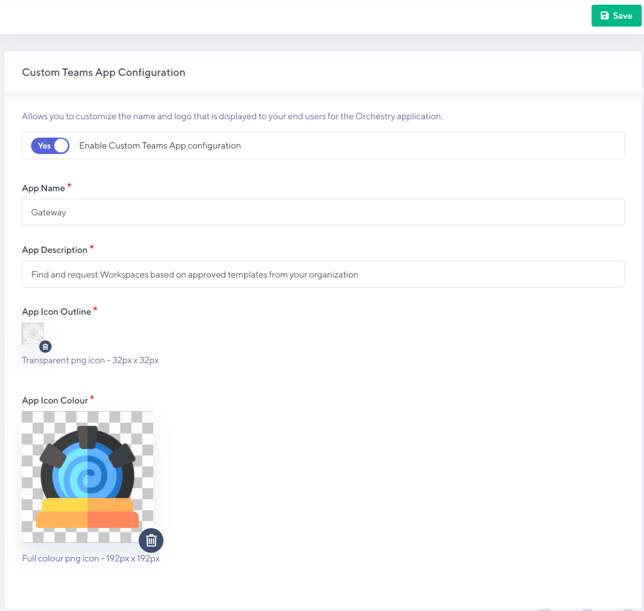
Navigate to Settings > Teams Application.
A new section will appear on the right allowing you to customize your app.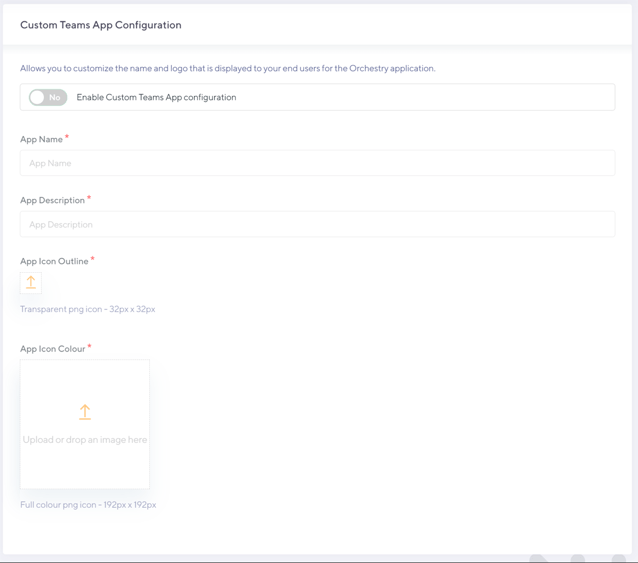
Enable the Custom Teams App feature

Populate a new App Name
The name must be fewer than 30 characters and should ideally be a single word to be visible on the users' Team App Bar.
Populate a new App Description
- The description must be fewer than 80 words.

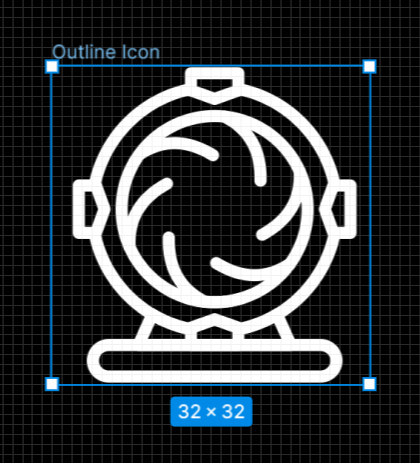
Populate an App Icon (Outline)
- The image must be a PNG
- The image must be 32px by 32px
- The icon should be full bleed to the frame
- The icon must be white (#FFFFFF)
- The background must be transparent
Note: The app icon will automatically adjust from an inactive state (Dark Grey) to an active state (Teams Purple) when clicked by the user.
Populate an App Icon (Colour)
- The image must be a PNG
- The image must be 192px by 192px
- The icon should not be full bleed to the frame but allow a safe zone between the frame edge and the icon (see links below from Microsoft)
- The icon can have a transparent background, or not
Save your changes
Publish your changes
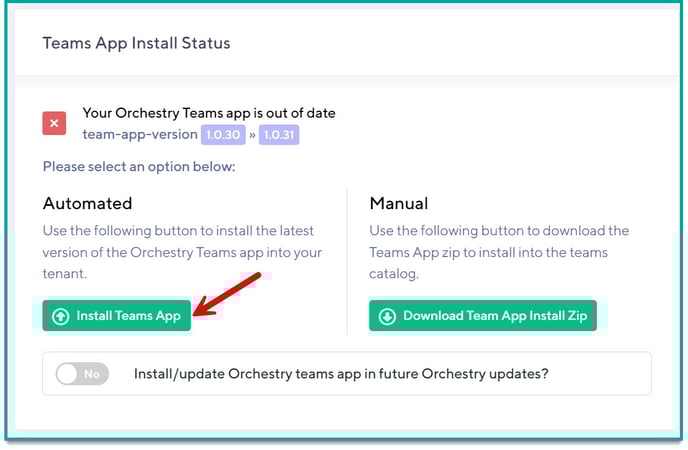
To ensure all users see the new icon, you must re-deploy the Teams App with the new customizations. To do this, navigate to https://app.orchestry.com/settings/installation and in the Teams App Install Status, click Install Teams App.
Where/How Your Custom App Will be Seen
Your changes will be visible within the Teams experience only but will include the following places:
- App Name and Colour Icon when seen in the App Store
- App Name and Colour Icon when seen when adding new Tabs to a channel
- App Name and Colour Icon when the app is hovered over in some locations
- App Name and Colour Icon when the app "About" is clicked
- App Name and Colour Icon when seen in Teams Notifications sent via Orchestry
- App Name and Outline Icon when seen 'hoisted' on the App Bar