
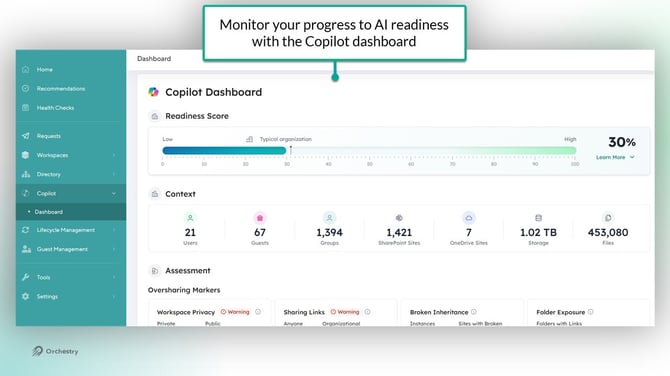
The Copilot Dashboard provides a comprehensive, tenant-wide assessment of your organization's posture for Microsoft Copilot deployment. These insights can help you find blind spots in your governance, monitor progress and more.
Click-Through Reporting
Many of the dashboard tiles link to the existing workspace reports available in Orchestry. This allows you to see the data that contributes to each readiness metric on the dashboard.
The Readiness Score
The Readiness Score is a calculated of your tenant's overall Copilot readiness. It provides a score (out of 100) that summarizes the 10+ signals shown further down in the report.
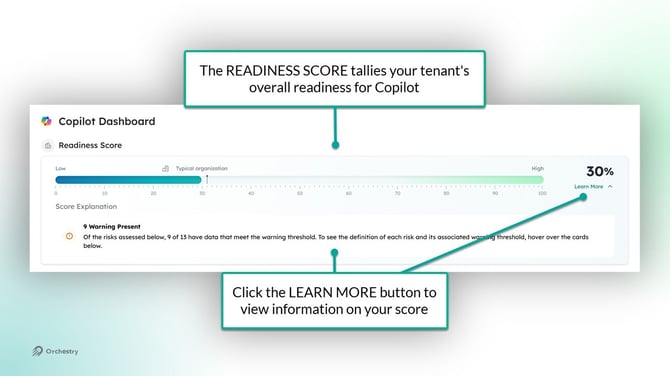
TIP: Click the LEARN MORE button to view an explanation of your score
The Context Section
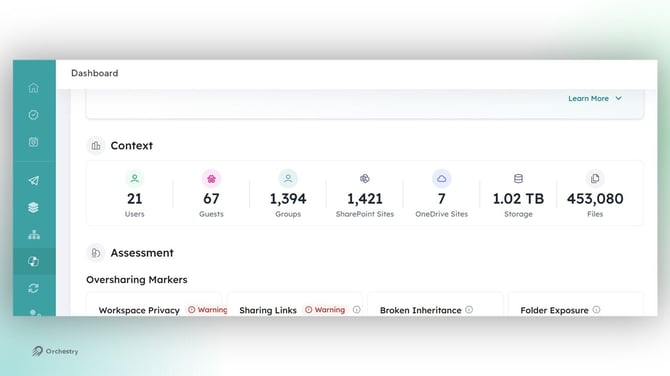
The Context section provides at-a-glance counts on key tenant metrics, such as users, guests, sites, M365 Groups and more.
The Assessment Section
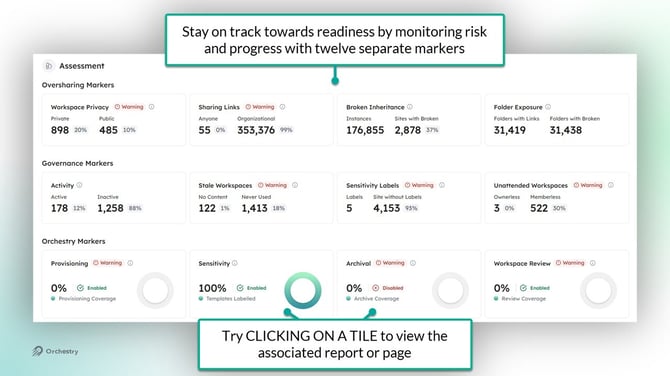
The Assessment section provides a breakdown of your Copilot readiness across over 10 different signals, across three buckets.
Oversharing Markers
Find workspaces that are not protected against oversharing due to a variety of factors, such as workspace privacy settings, and use of share links in SharePoint sites.
Governance Markers
The Governance markers serve to show a breakdown of which workspaces are active, stale, protected with Sensitivity labels, ownerless or memberless.
Orchestry Markers
The Orchestry markers provide breakdowns of total workspaces provisioned with Orchestry, workspace templates with Sensitivity Labels, Workspaces with Archival policies and Workspace Review policies applied.
Questions and Answers
What do the Warning Labels on my Dashboard Mean?
You may see warning labels appear on your dashboard when your tenant has exceeded the risk threshold for a given metric. Hover your cursor over the warning label to see its definition.