Did you know you can grant access to Orchestry based on license and/or security groups? There are several ways to do this, depending on your specific needs and goals.
Method #1: Hide the Teams App through a Teams App Policy
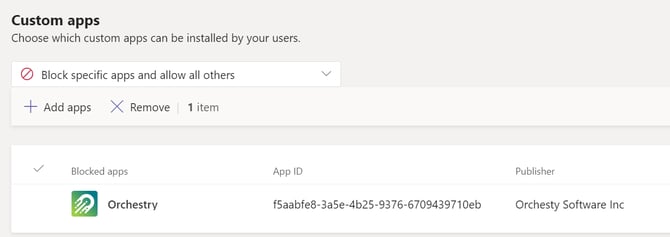
Microsoft Teams allows 3rd party app visibility to be controlled by a Teams App policy.
By following the instructions in our KB article, How to Control Who Has Access to the Orchestry Teams Application, you can hide the Orchestry app using your available policies (i.e.: Global).
Method #2: Restrict Who Can Provision Workspaces
In this scenario you want to give users access to the Orchestry App so they can use the Workspace Directory, but you don’t want them to be able to provision workspaces. You can control this using the field "Limit who can request Workspaces" found under Settings > Accounts.
Method #3: Restrict who can request certain type of Workspaces
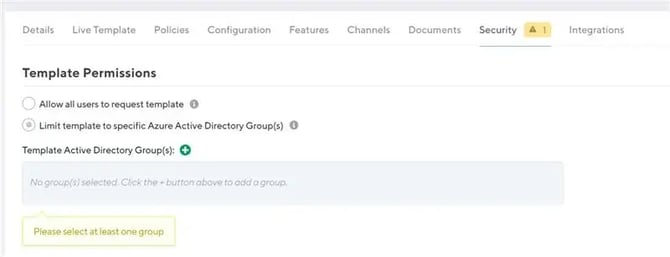
In this scenario, you want to allow users to provision Workspaces, but not all users should be able to request ALL TYPES of workspaces. You can restrict end-user access on a template-by-template basis, using Security Groups.
When editing or configuring a Workspace template, select the option 'Limit template to specific Azure Directory Group(s)' and then list the groups.
Save your changes when finished modifying the template.