
You can access the Workspace Directory configuration options from Directory > Configuration in the Orchestry Admin center.
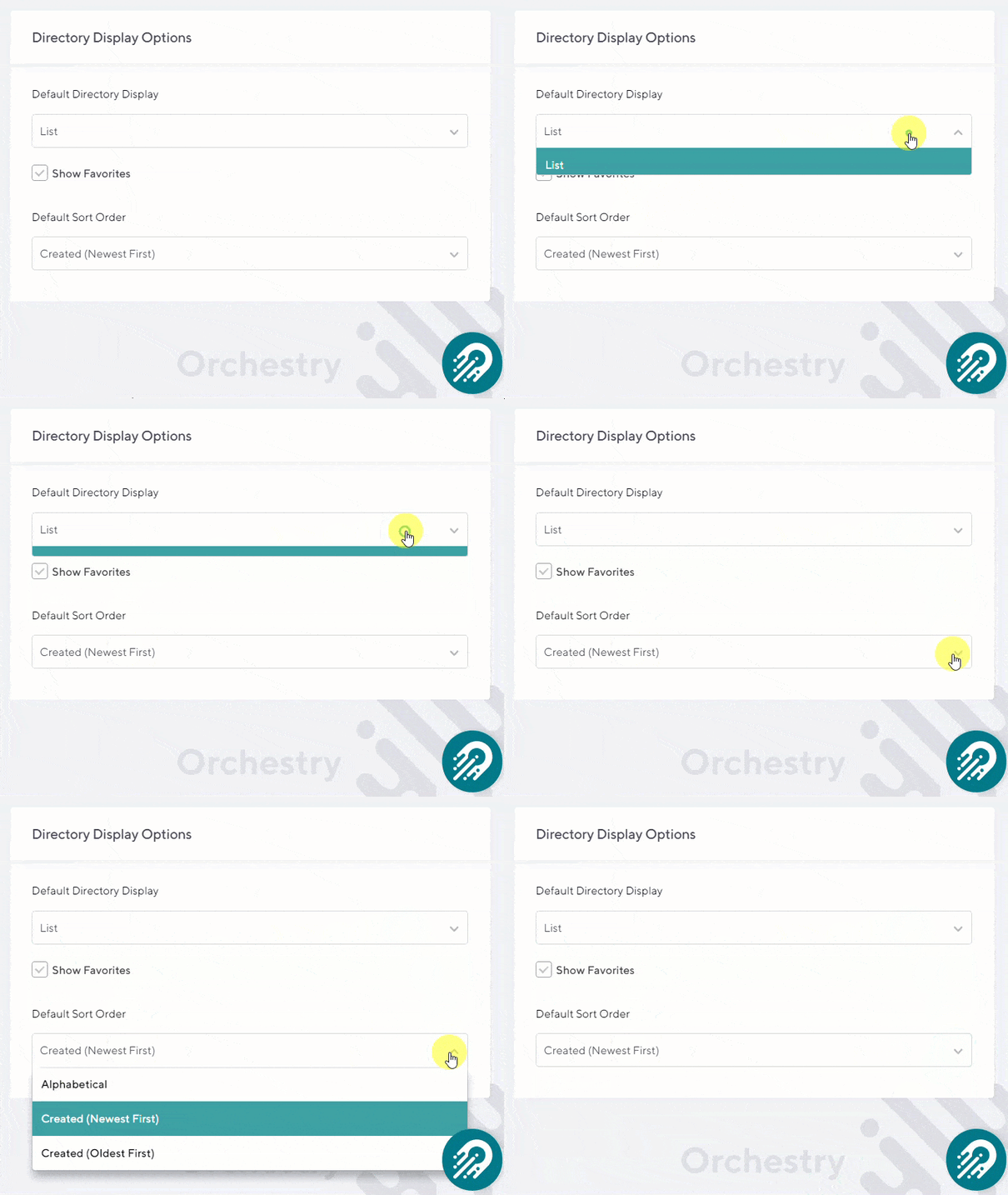
Default Directory Display
This option controls the default format of the directory for end users. It can be set to either List or Card view.
Modify Directory Columns
This option controls which columns are visible in the directory.
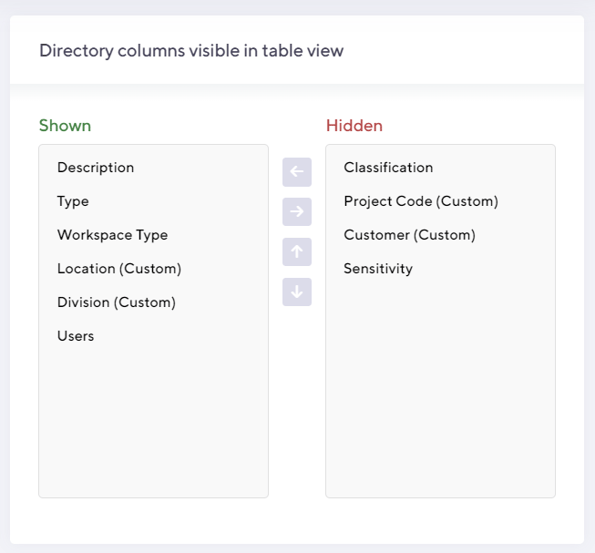
Any metadata that is defined as part of workspace metadata will appear here with the (custom) label next to it.
Directory Data Indexing - Index Options
This option controls if Orchestry will automatically add non-Orchestry created teams, M365 groups and SharePoint sites into the directory.
After the initial install of Orchestry, you can import your existing workspaces into the directory.
How to Automatically Import Workspaces Not Created Through Orchestry
You can configure Orchestry to scan your tenant for workspaces created through the native M365 tools:
- Open the Directory Configuration/Settings page
- Enable the setting "Import teams and sites not created through Orchestry"
- SAVE your changes
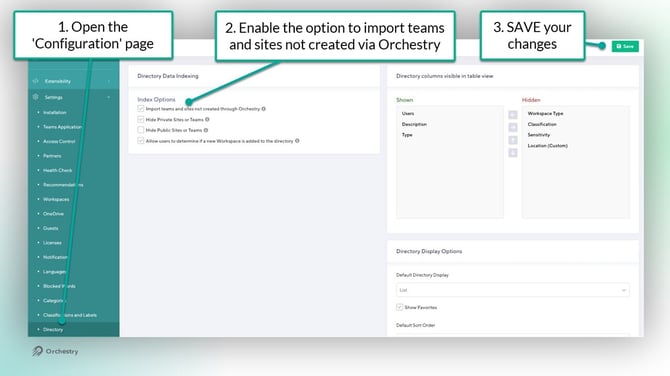
Orchestry will automatically import and index these workspaces during the next overnight scan of your tenant.
If this setting is not enabled, you can manually add non-Orchestry created teams, groups and SharePoint sites manually as per the article Adding existing Teams, SharePoint Sites or Groups to the Workspace Directory.
Want to stop users from creating workspaces outside of Orchestry?
Check out the article: How to Prevent Users from Creating Workspaces Outside of Orchestry