
Guest review policies allow your organization to enforce periodic reviews of workspaces have have guest members.
Learn how to get started with Guest Review Polices in this video:
The Guest Review End User Experience
Guest reviews can be delegated to team owners, or to specific users in the organization to evaluate whether these accounts should have their access to these spaces extended or removed.
When the policy is triggered, they will be notified by Orchestry via Teams and/or email.
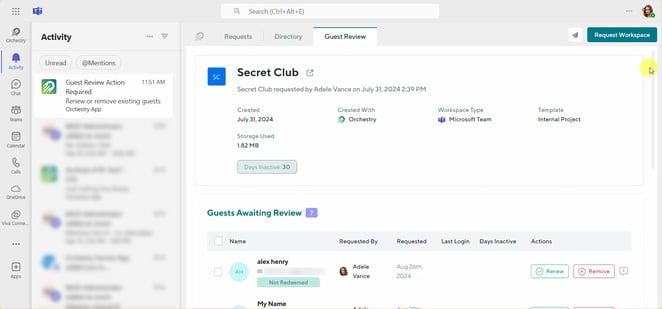
All guests are reviewed at the same time, regardless of when they were added to the workspace.
Creating Guest Review Policies
On the Guest policies page, you can create new policies and manage your existing ones. Orchestry comes with a few review policies out of the box, but we encourage you to create your own that are designed for your organizations needs.
To create a new policy, click the "New Guest Review Policy" button on the Guest Policies page.
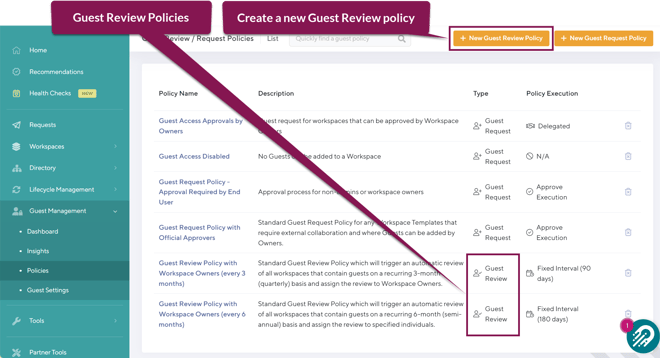
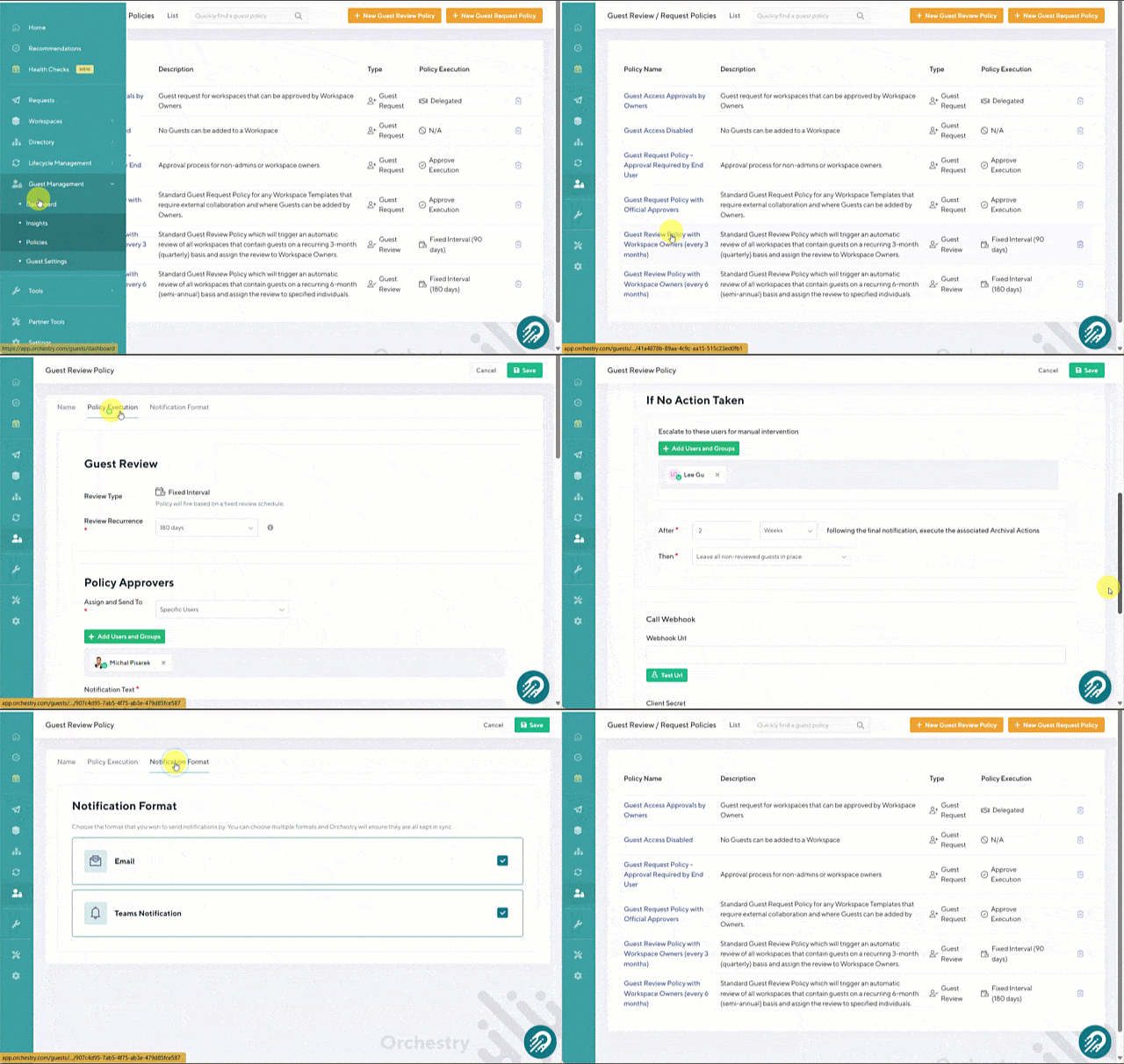
Complete all required fields across the NAME, POLICY EXECUTION AND NOTIFICATION FORMAT tabs and then SAVE your changes.
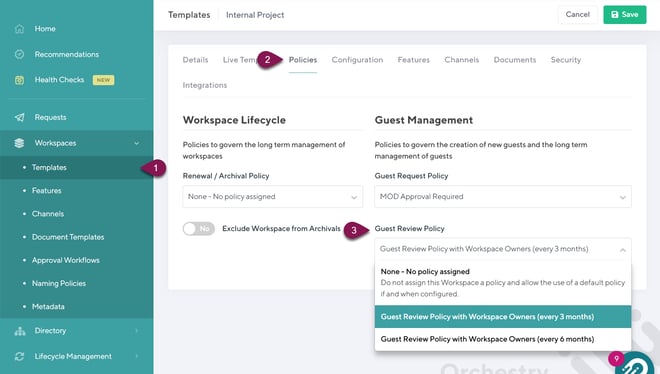
Your new policy can then be assigned to any existing workspace of the same type (i.e.: teams workspace). You can also proactively assign guest review policies by attaching them to your workspace templates.
Guest Review Policies - The NAME Tab
On the first tab of your policy, give it a clear name and description.
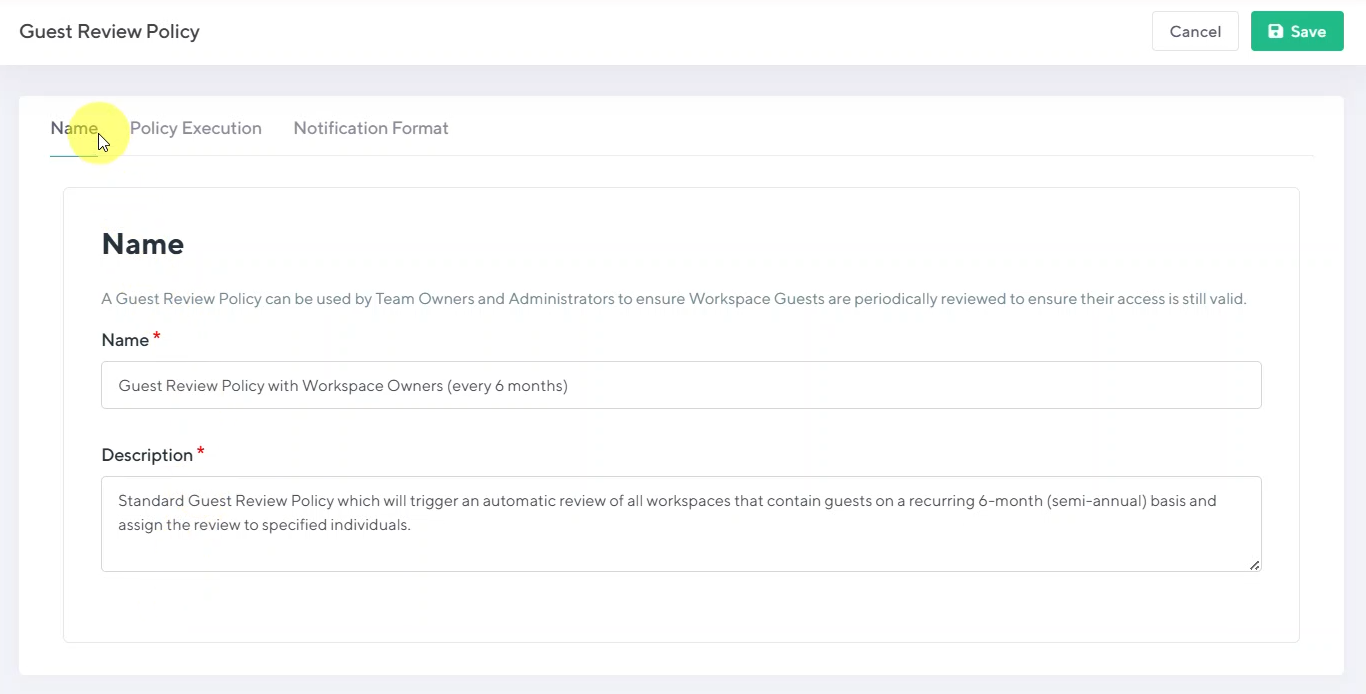
TIP: In the NAME field, include a brief summary of what the policy does. This can help other admins know what each policy does at a glance.
Guest Review Policies - The Policy Execution Tab
On the 'Policy Execution' tab, you can configure the policy's recurrence schedule, assign policy approvers, and more.
Guest Review Type and Recurrence
All guest reviews are done on a fixed internal, based on the Review Recurrence schedule you set.
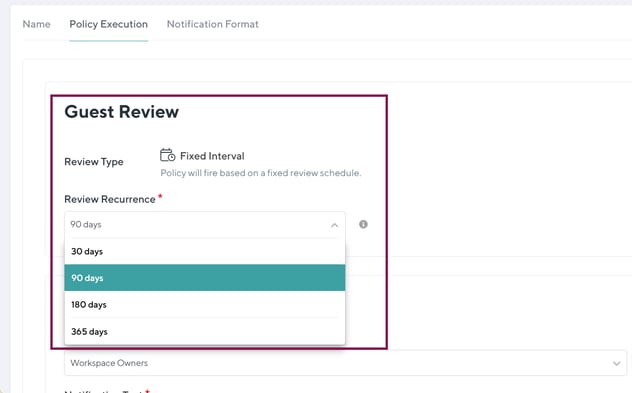
TIP: A 90-day policy will automatically trigger 90 days from when it's assigned to a workspace.
Policy Approvers
In this section, assign the individual(s) that will be responsible for completing the reviews.
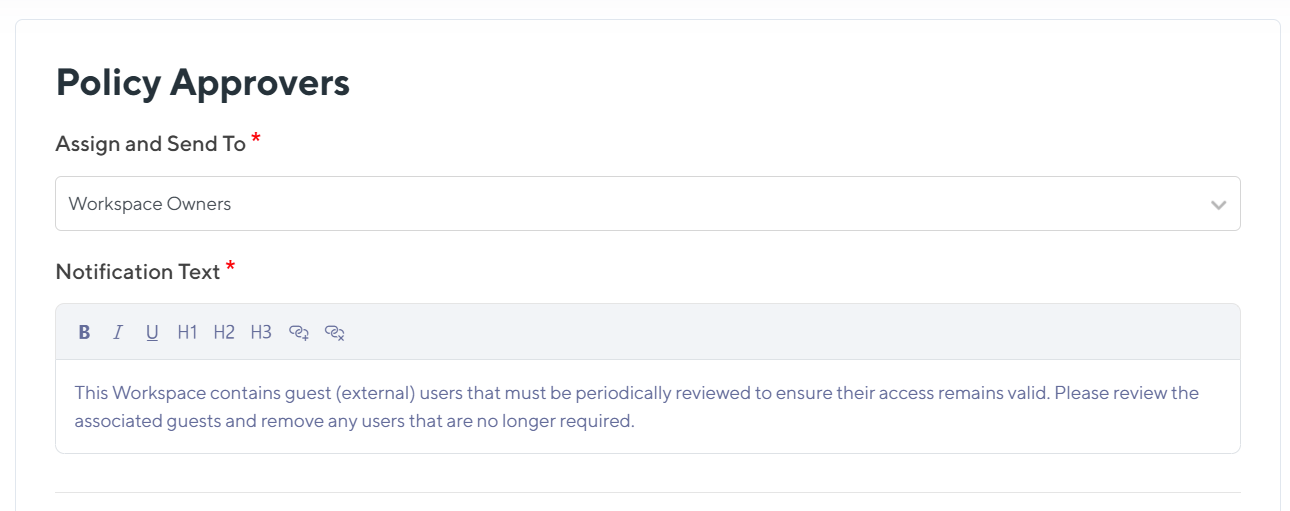
| Assign and Send To: | Designate either Workspace Owners or specific Users/Groups as approvers. |
| Notification Text: | Add custom instructions to the guest review notification. |
Notification Cadence
Configure how many times the approvers will be notified before the approval is escalated.
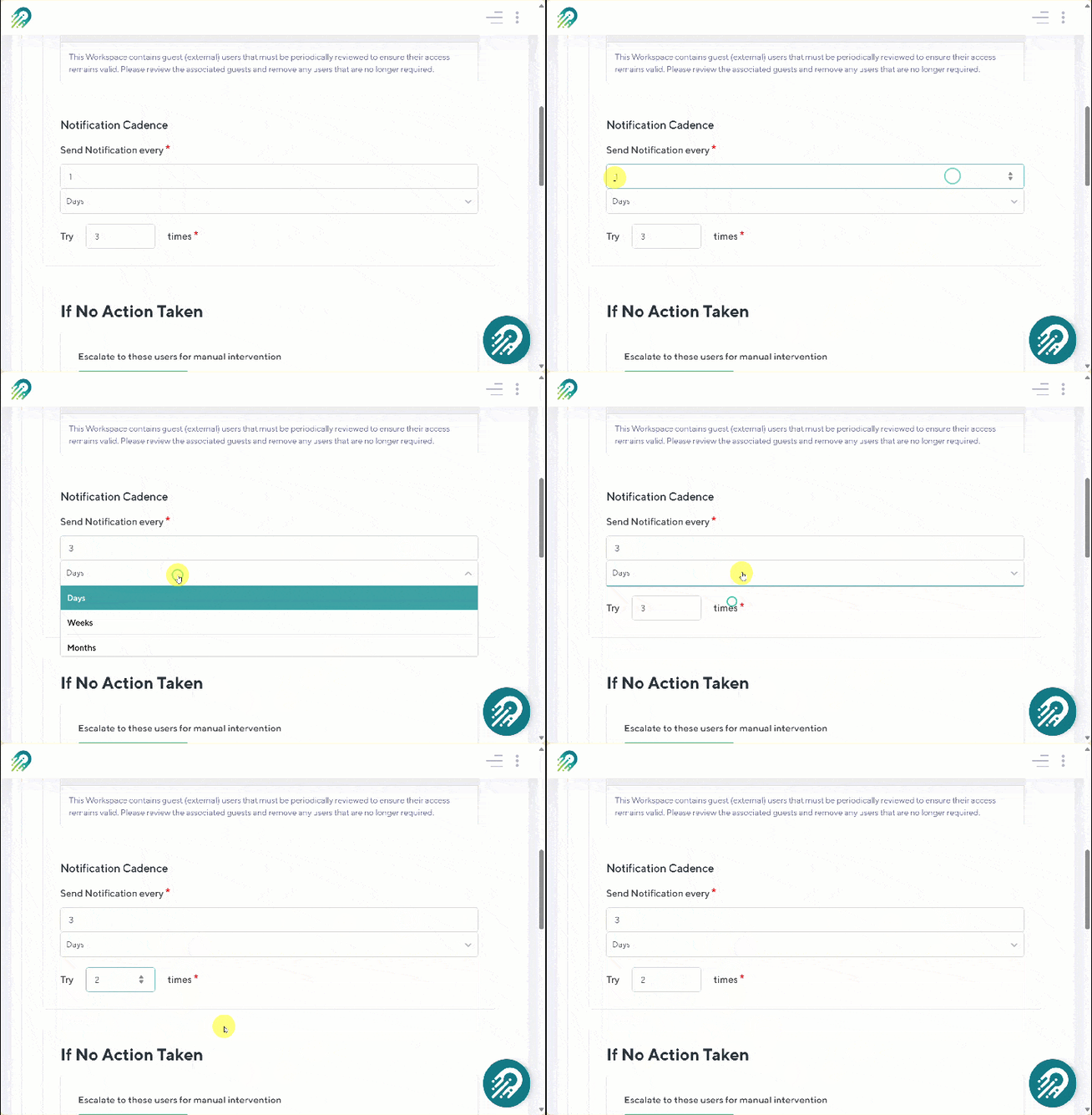
If No Action Taken
Choose individuals or a security group to escalate pending guest reviews after the reminder cadence ends.
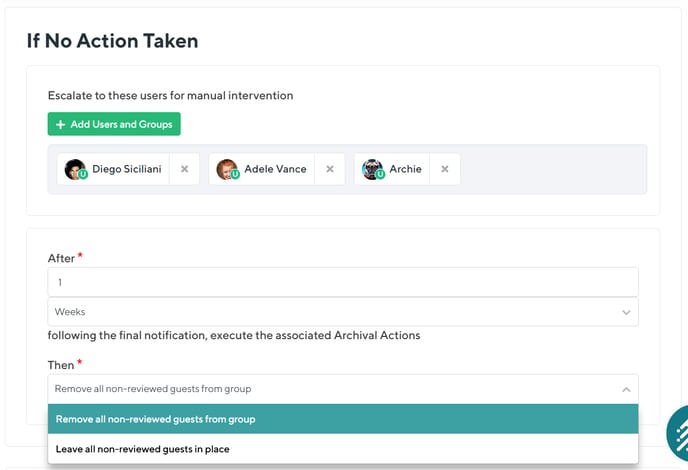
You can choose a default action to take if neither the primary approvers or the escalation team complete the review:
- Remove all non-reviewed guests from group, or
- Leave all non-reviewed guests in place.
Call Webhook:
Add a custom webhook to extend the functionality of this Guest Review policy. To learn more, check out our API documentation.
Guest Review Policies - The NOTIFICATION FORMAT Tab
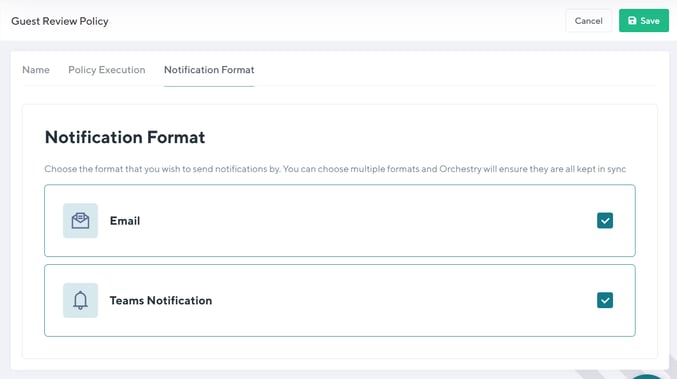
Ensure your policy approvers are notified where they work. Choose to send the notification via email and/or Microsoft Teams.
To learn how to now apply these policies to workspaces, check out Applying Guest Request and Review Policies.