
Orchestry allows admins to extract assets and configuration using PnP. Once custom features are created, they can be optional or mandatory features integrated to Workspace Templates. They can be triggered manually on existing workspaces.
Triggering Features to Apply to Existing Workspaces
- Navigate to Tools > Template Files
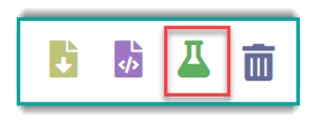
- Locate the Template file that you wish to apply to a workspace, and select the 'beaker' icon
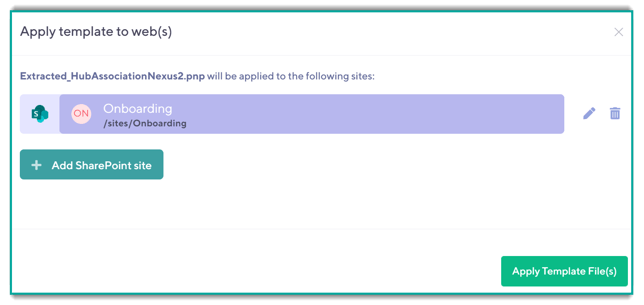
- Using the Site Picker, locate the site that you wish to change
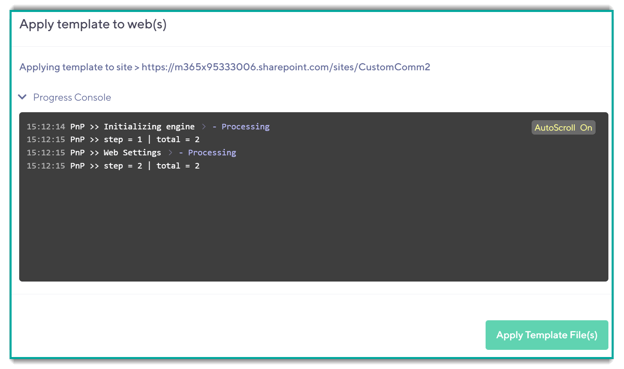
- Monitor progress
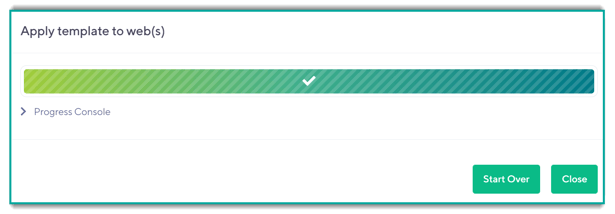
- Validate the desired assets or configuration have been applied to the targeted Site
For a closer look at a custom feature please read: Custom Feature Configuration (Hub Association).
To see how to associate Features to workspace templates see: Applying Features to Workspace Templates.