NOTE: To receive notifications directly on Microsoft Teams, the Orchestry app must be installed on your Microsoft Teams app.
Before we start, make sure you have the Microsoft Teams App downloaded and installed on your desktop!
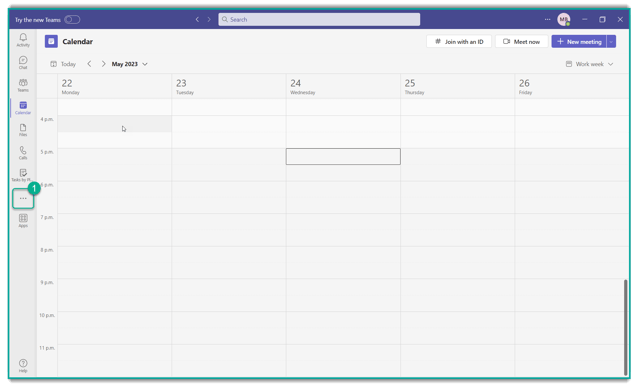
- In your Teams App, from the left navigation bar press the "…" section
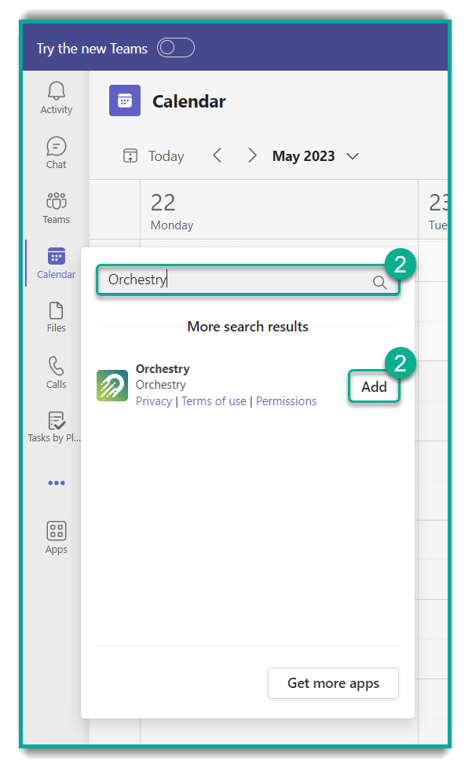
- Type “Orchestry' and click the Add button
Alternatively, you can…
-
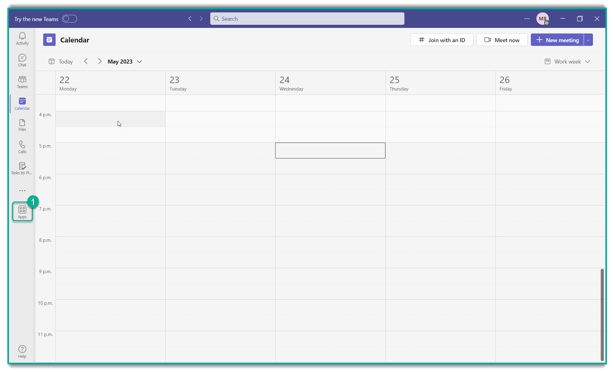
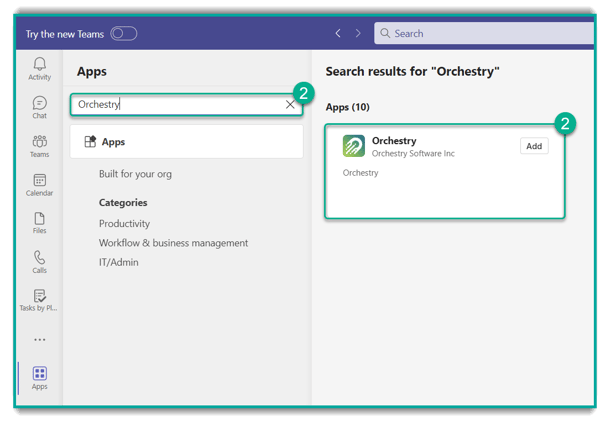
From the left of Teams, select Apps
-
In the Search bar type "Orchestry" and select the app
-
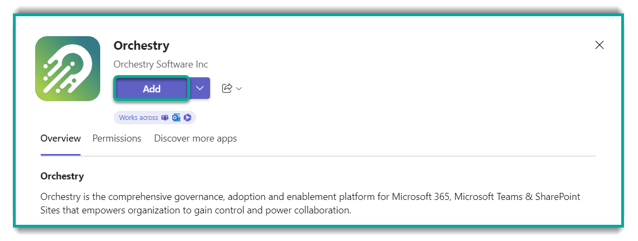
Select Add to add the Orchestry app
Once installed, the Orchestry app will open and it will appears on the left side navigation bar
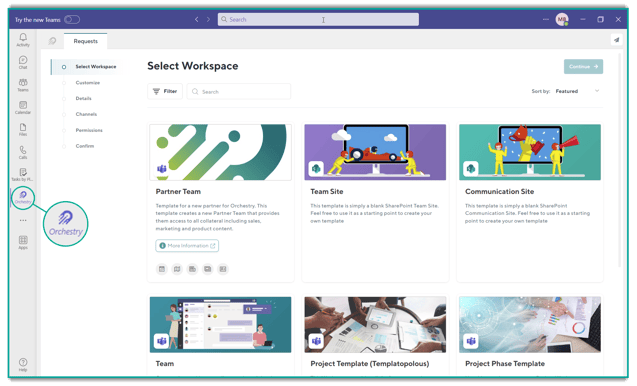
Now you will receive Orchestry notification through your Teams desktop app.
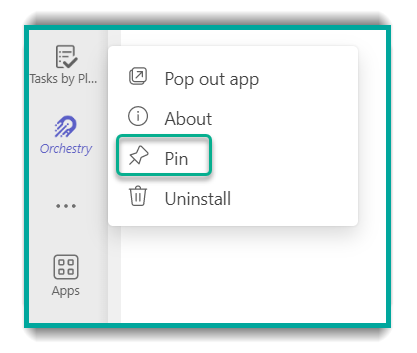
TIP: You can pin our app for ease of access by right-clicking our Logo from the navigation bar and using the Pin option