Orchestry Support Portal Overview
Last updated: April 17, 2026
Orchestry customers can sign into the Orchestry Support portal to:
raise new support requests
respond to existing support requests
view all support requests
add new team members to the customer portal (admins only)
access customer-only knowledge base articles and resources
How to Access the Support Portal and Customer Knowledge Articles
Customer Support Portal
Navigate to our Help Portal.
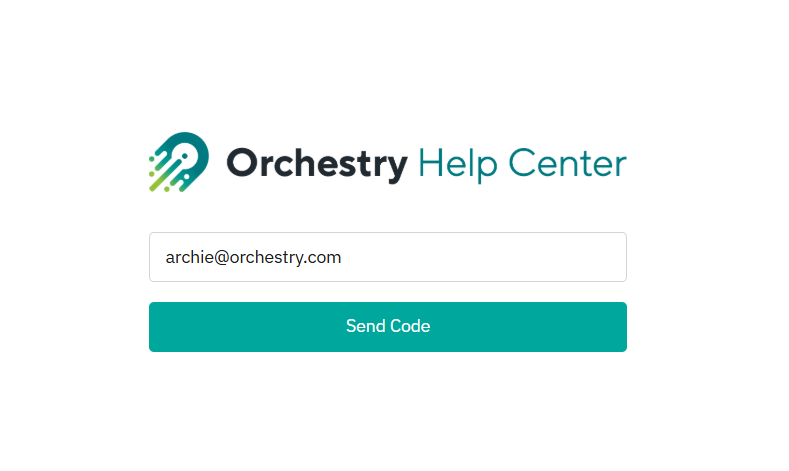
Enter your company email and click SEND CODE
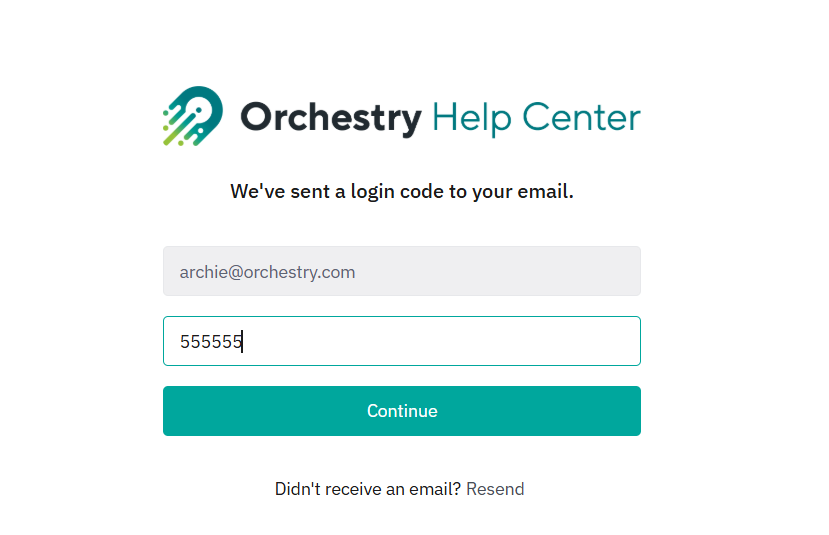
Paste the emailed code into the form and click CONTINUE
If You Have Not Received a Login Code
Check your email spam folder - the verification email may have landed there. Look for emails from notifications@usepylon.com
Ensure that the domain @usepylon.com is whitelisted in your tenant
Customer-only articles in Knowledge Base
Some Knowledge Base content, such as Orchestry updates, can only be accessed by registered users. To access this material:
Navigate to our Knowledge Base.
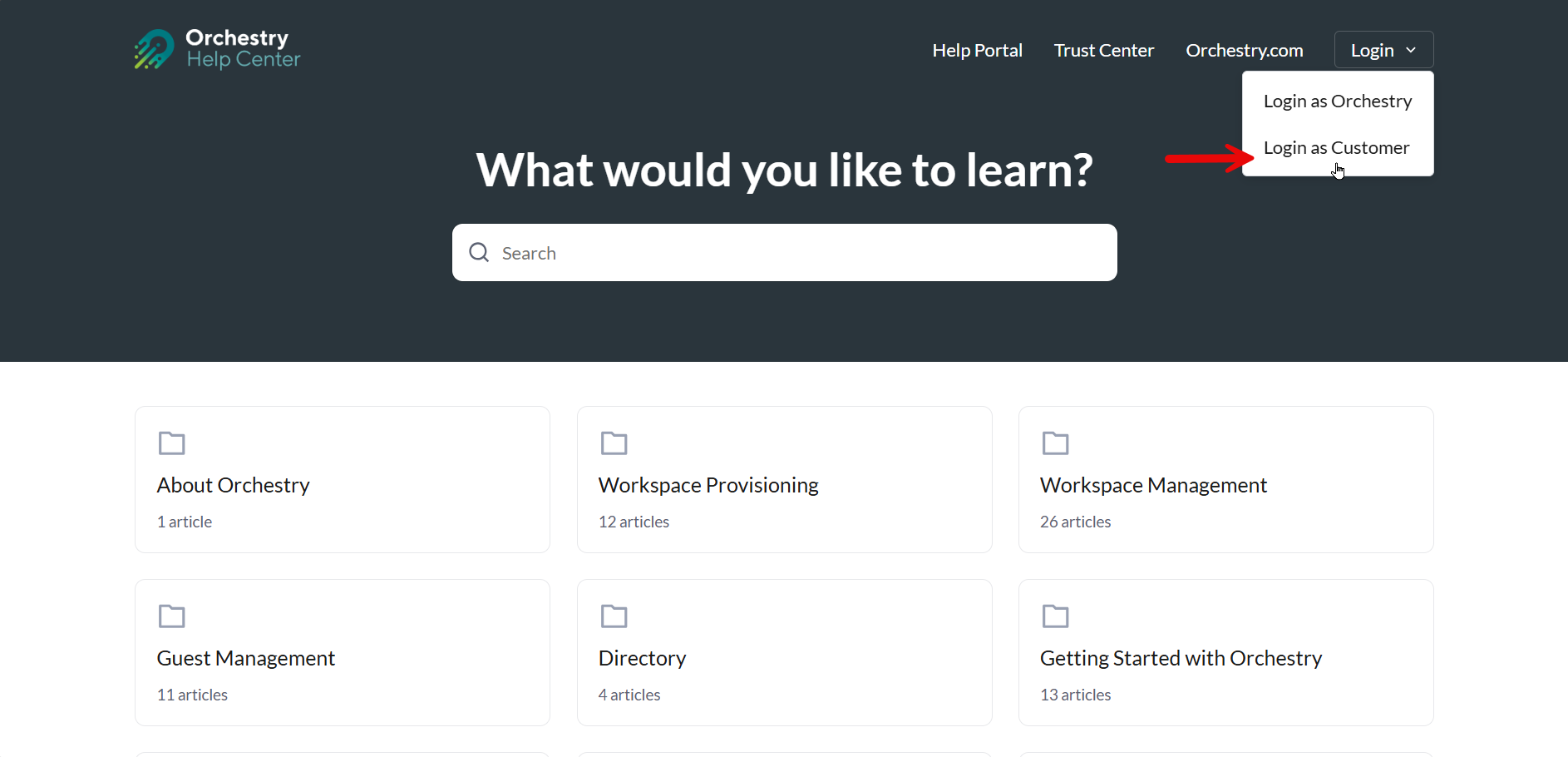
Click Login > Login as Customer. This will redirect you to the login page:
Enter your company email and click SEND CODE
Paste the emailed code into the form and click CONTINUE
Stuck or Need Help?
Email support@orchestry.com for additional support.