Power Automate: HTTP Trigger to Route an Orchestry Workspace Approval Through Power Automate
Last updated: October 29, 2026
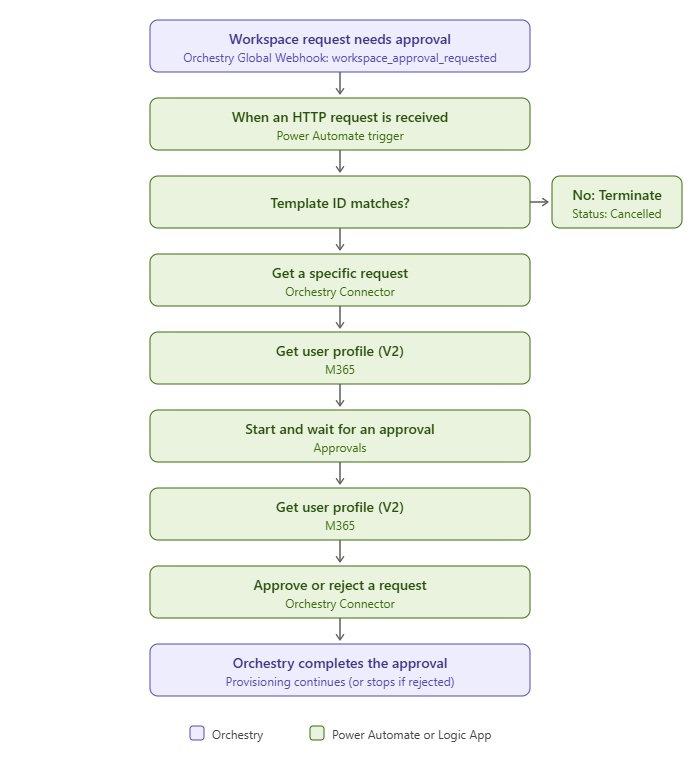
This guide walks you through creating a Power Automate workflow that is triggered by an Orchestry global webhook when a workspace request needs approval. The purpose of the guide is to demonstrate "routing" an Orchestry workspace request approval to a different system (Power Automate workflow) so that the approval is obtained elsewhere. The workflow sends an approval to two people using Power Automate Approvals (Teams or email). When the first of them responds, the workflow passes the decision, and their comment, back to Orchestry to approve or reject the request, so provisioning can continue or stop.
Prerequisites
Power Automate Premium license (per-flow or per-user). This is required because the workflow uses the "When an HTTP request is received" trigger and a custom connector, which are premium features.
A Dataverse database in your Power Automate environment. Power Automate Approvals stores approvals in Dataverse. See Get started with Power Automate approvals for details.
The Orchestry custom connector created and connected in your Power Automate environment. Follow Power Automate: Create the Orchestry Custom Connector.
An Orchestry global webhook with the event type
workspace_approval_requested, pointing to the trigger HTTP URL of the Power Automate workflow. Do this after the workflow is ready and the HTTP URL is known.Use Create a New Orchestry Global Webhook Script Quickstart for the shortest path to register the outgoing webhook.
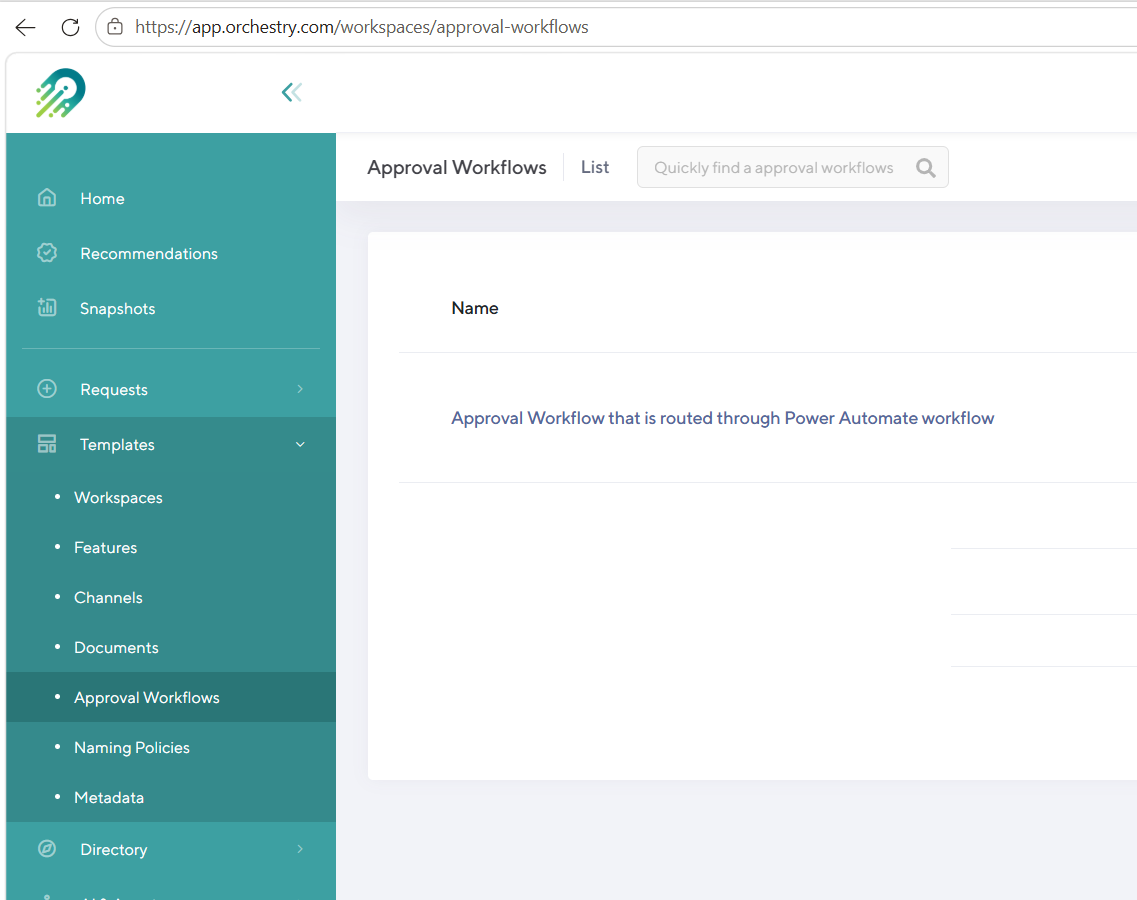
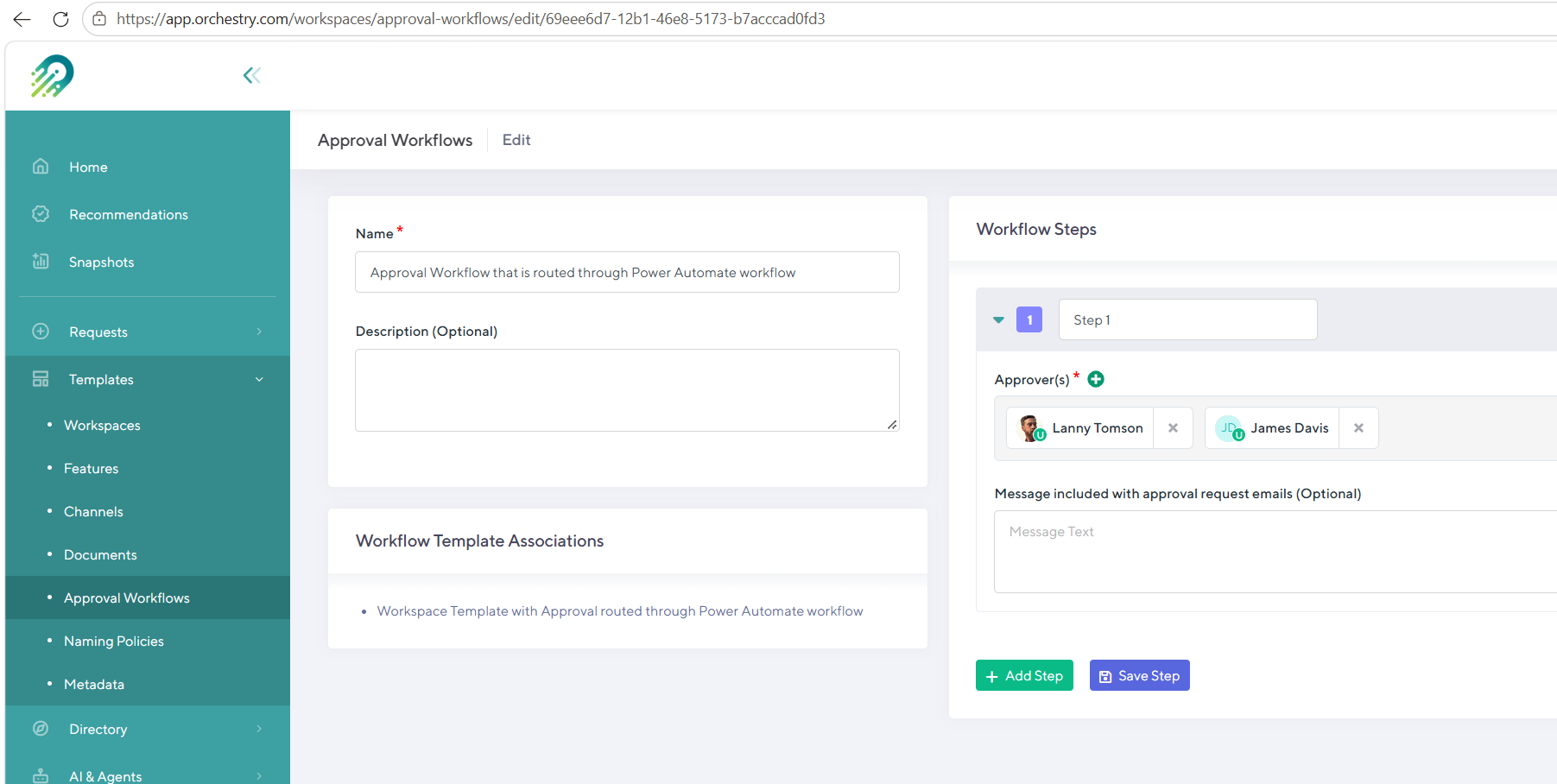
An Orchestry workspace template with an approval workflow assigned that has two defined approvers.
These same two people must be the assignees of the approval in this Power Automate workflow.
Get the Orchestry Template ID
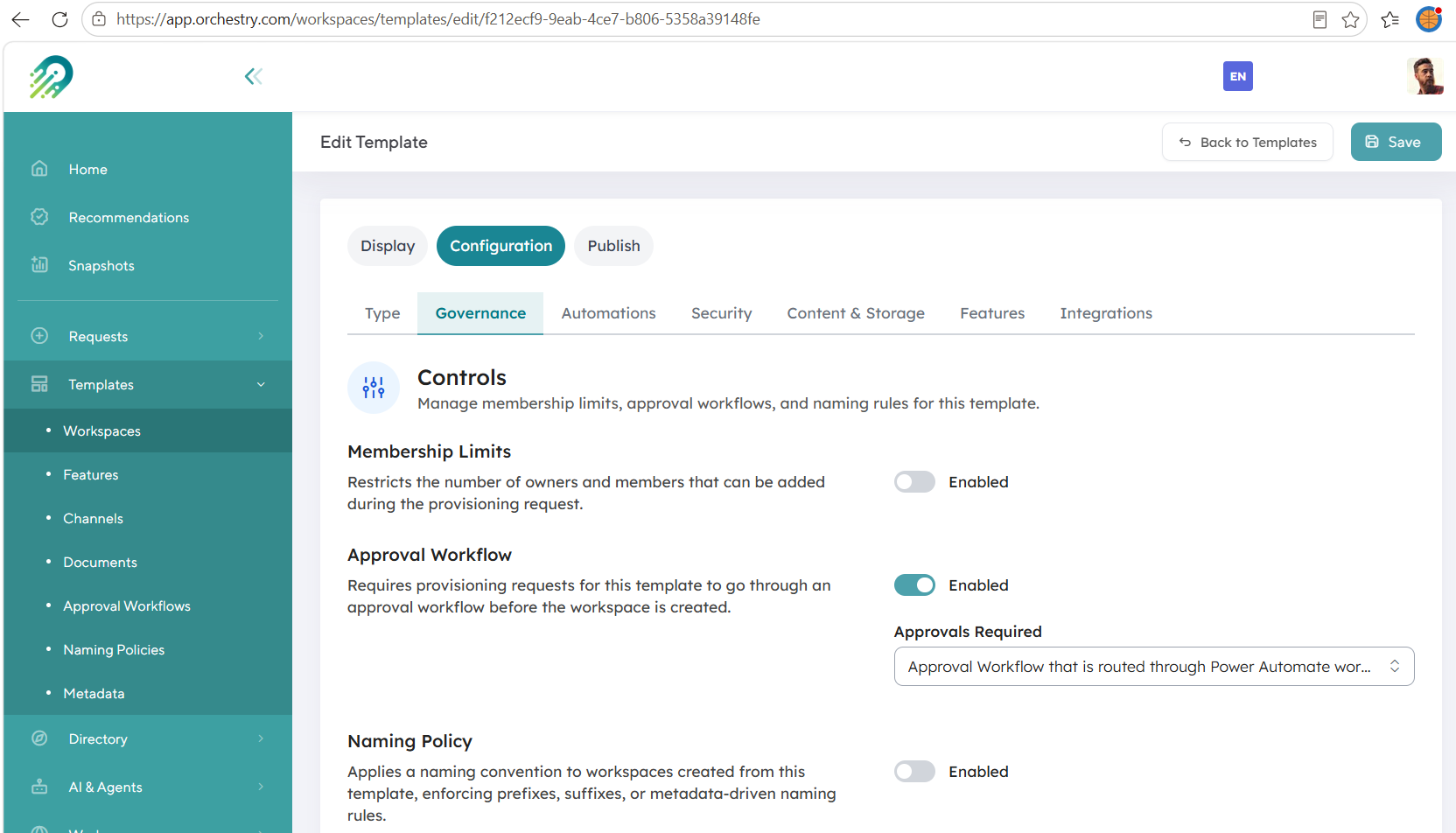
In Orchestry, go to Templates > Workspaces and open the workspace template that uses the approval workflow
Copy the template ID from the browser address bar. It is the GUID after
/templates/edit/. You will paste it into the workflow later.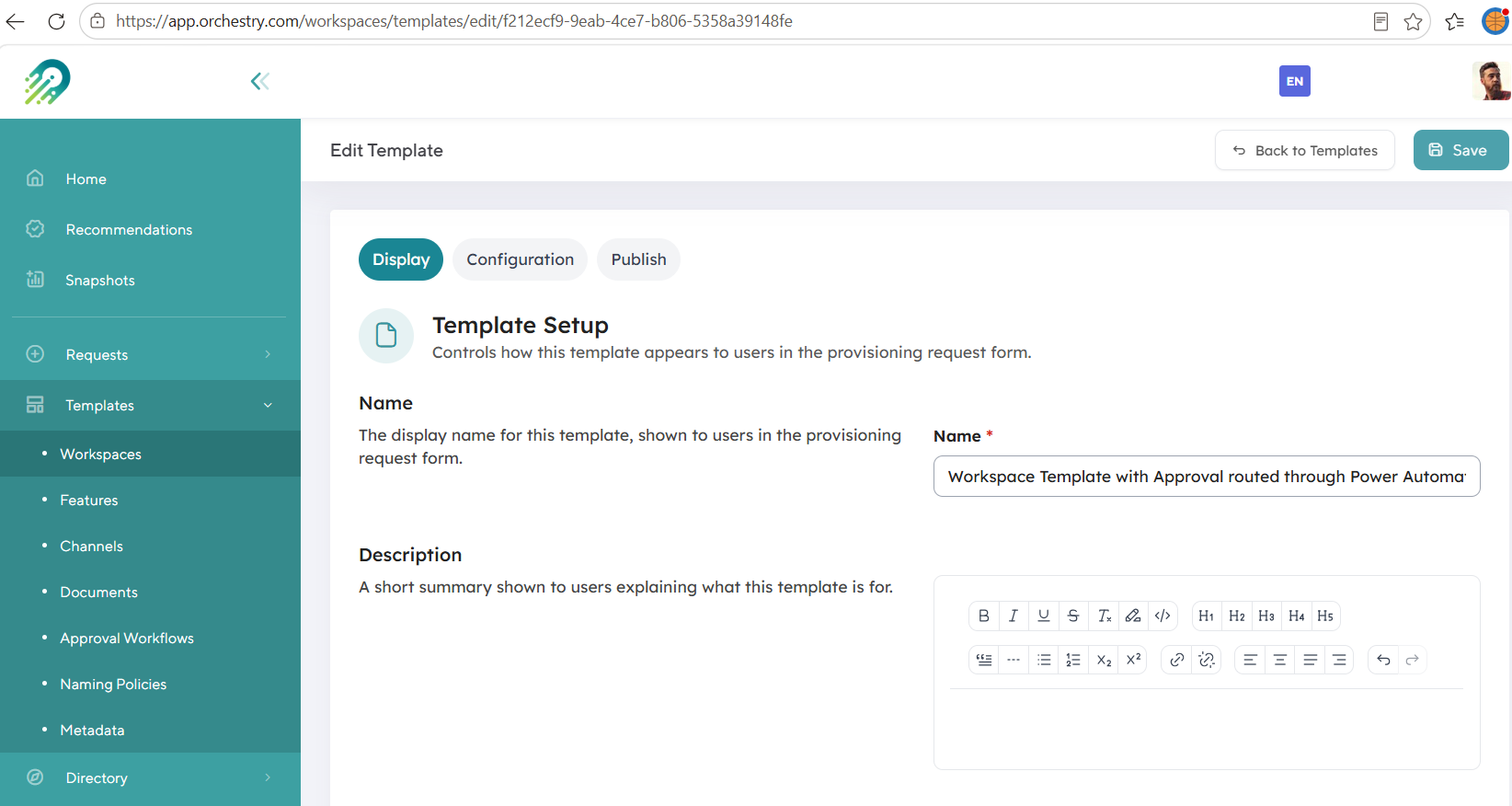
Create a new Power Automate workflow
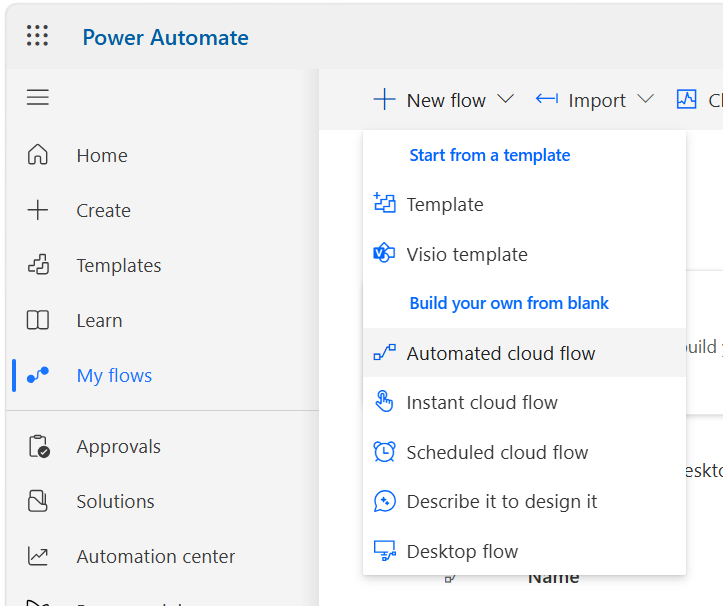
Navigate to My flows > New flow > Automated cloud flow
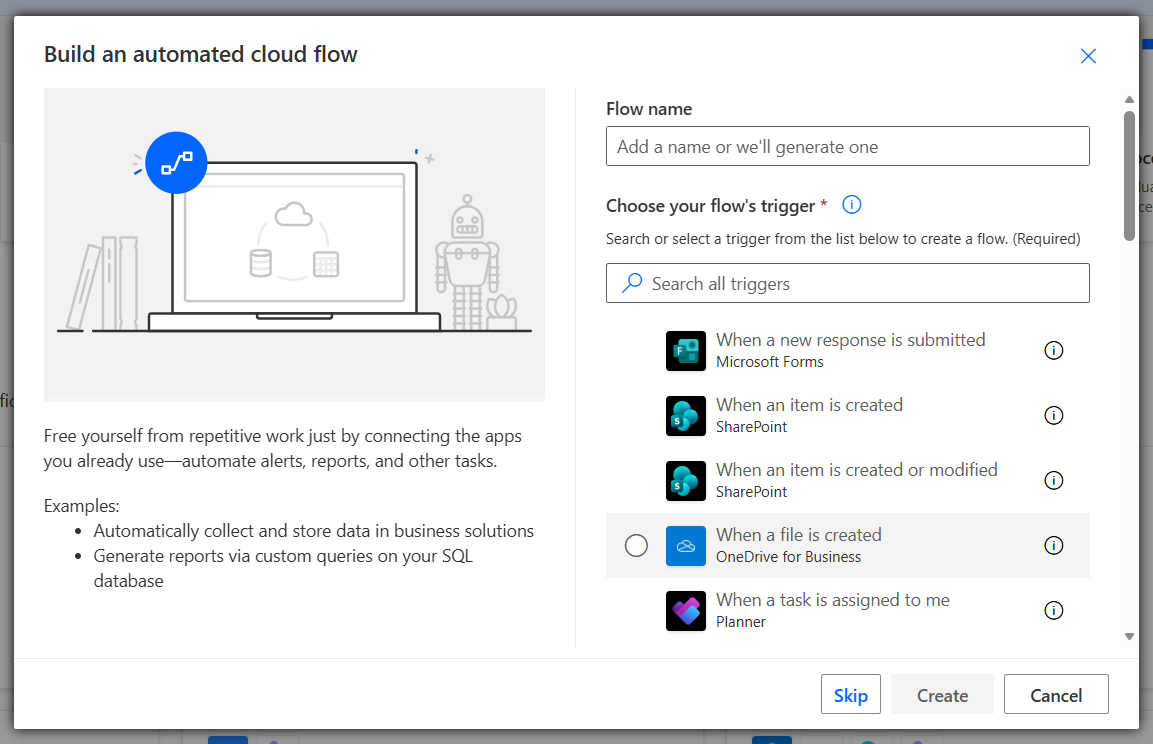
Enter a flow name:
Route Orchestry workspace approval to Power Automate ApprovalsClick Skip to create the flow without choosing a trigger here. You will add the HTTP trigger in the next step.
Configure the Trigger
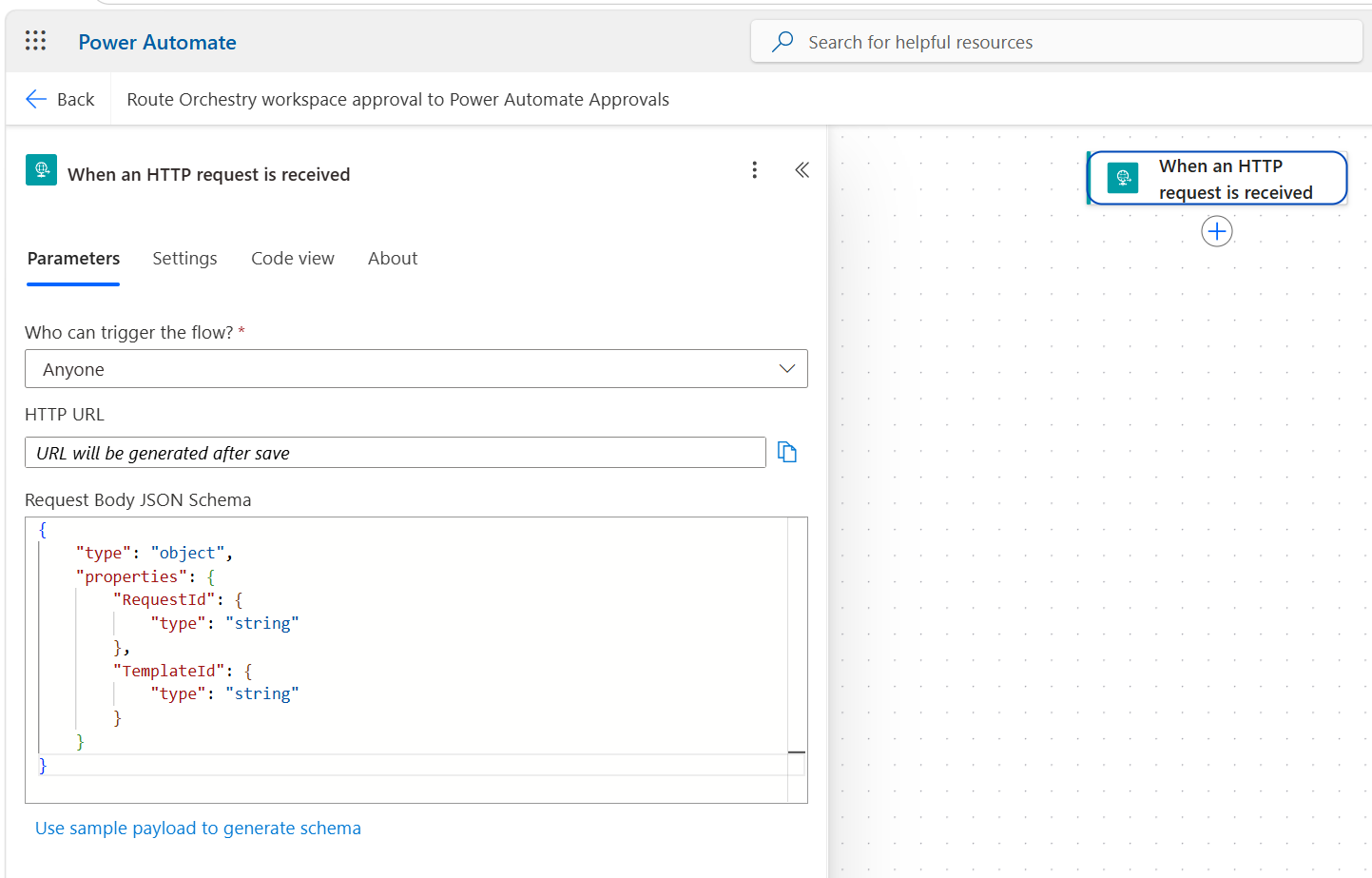
Click Add a trigger, search for When an HTTP request is received, and select it
[SCREENSHOT PLACEHOLDER: Add a trigger search with When an HTTP request is received selected]
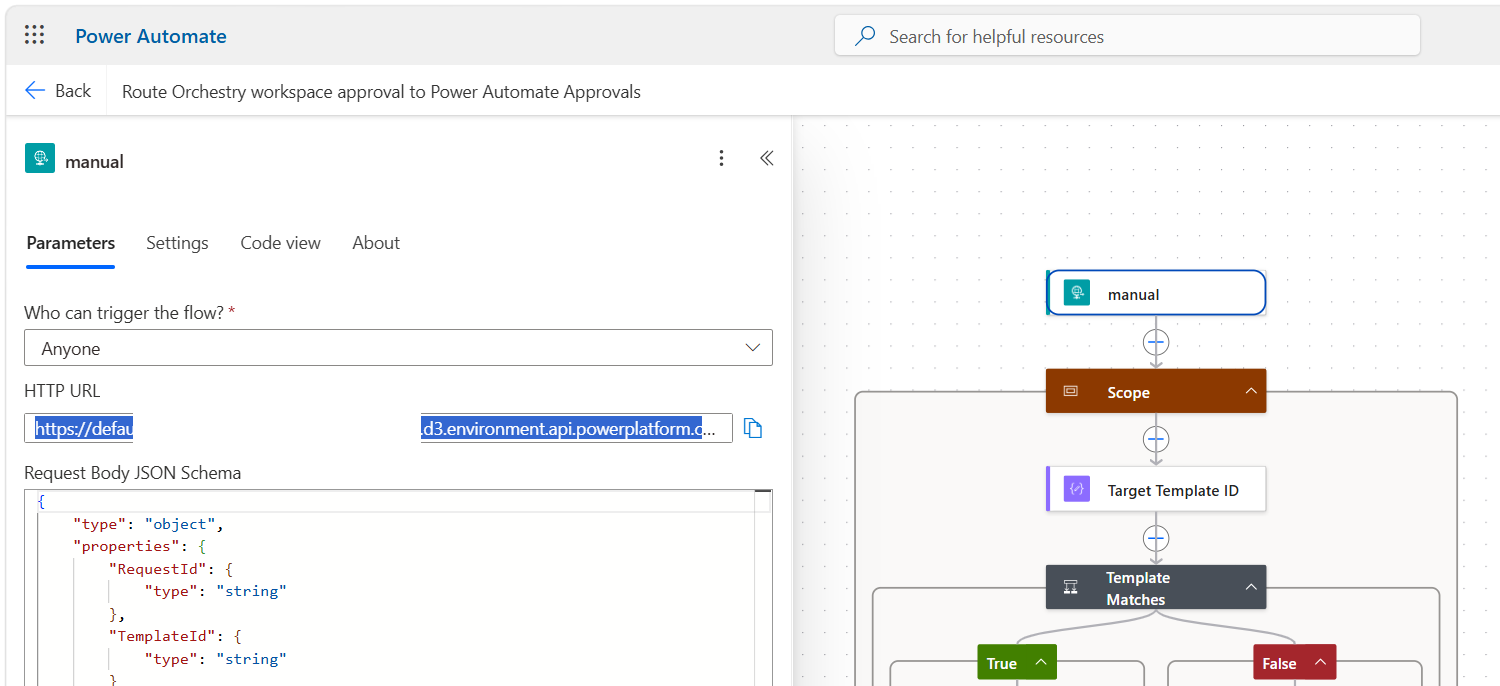
Set Who can trigger the flow? to Anyone. Orchestry calls the webhook without signing in, so any other option rejects the request. Keep the HTTP URL a secret, because anyone with the URL can trigger the workflow.
In the Request Body JSON Schema box, copy the JSON below and paste it in:
{
    "type": "object",
    "properties": {
        "RequestId": {
            "type": "string"
        },
        "TemplateId": {
            "type": "string"
        }
    }}
Add the Workflow Actions
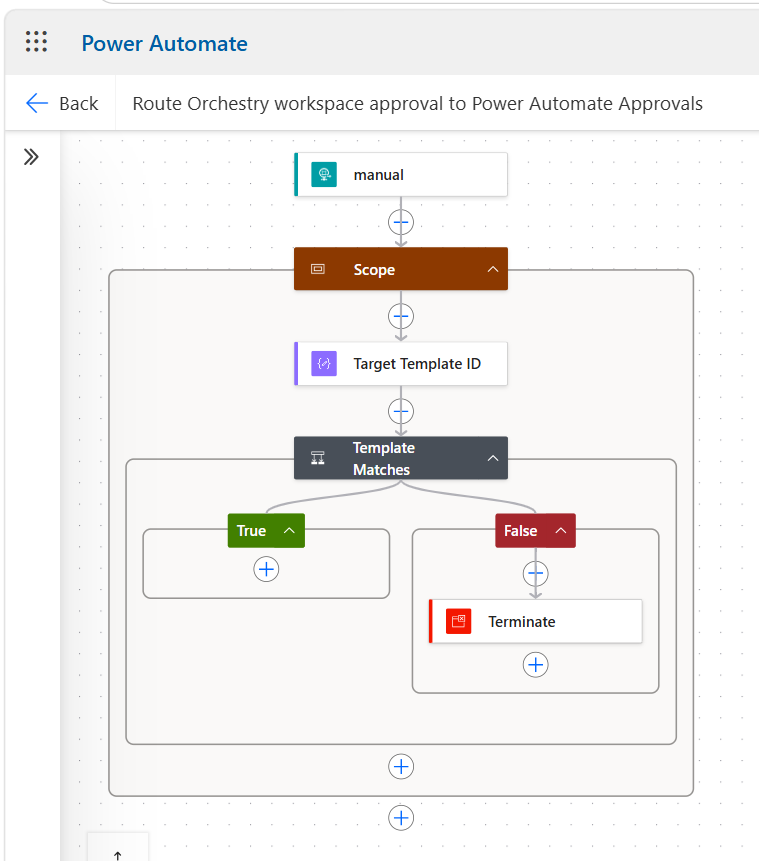
Copy the JSON below. It adds a Scope with the template check. The True branch is empty, and you add its actions one by one in the next section.
{"nodeId": "Scope","serializedValue": {
    "type": "Scope",
    "actions": {
      "Target_Template_ID": {
        "type": "Compose",
        "inputs": "00000000-0000-0000-0000-000000000000"
      },
      "Template_Matches": {
        "type": "If",
        "expression": {
          "and": [
            {
              "equals": [
                "@triggerBody()?['TemplateId']",
                "@outputs('Target_Template_ID')"
              ]
            }
          ]
        },
        "actions": {},
        "else": {
          "actions": {
            "Terminate": {
              "type": "Terminate",
              "inputs": {
                "runStatus": "Cancelled"
              }
            }
          }
        },
        "runAfter": {
          "Target_Template_ID": [
            "Succeeded"
          ]
        }
      }
    },
    "runAfter": {}},"allConnectionData": {},"staticResults": {},"isScopeNode": true,"mslaNode": true}
Paste the JSON into Your Workflow as an Action
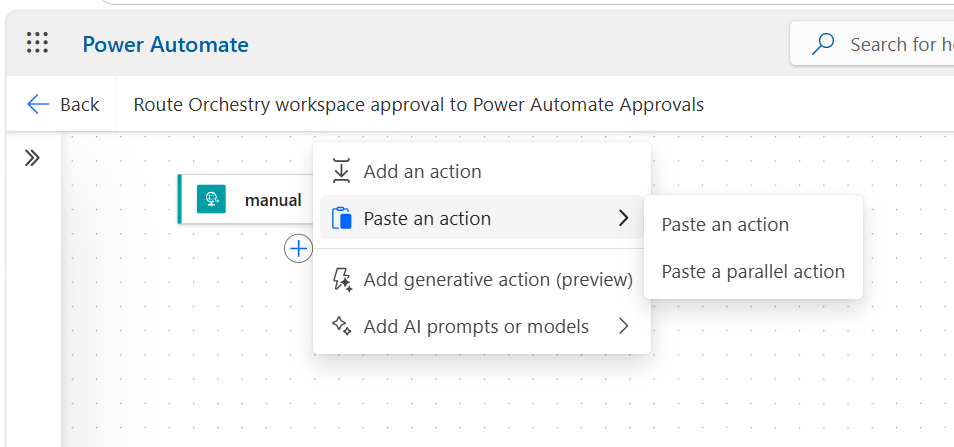
In your workflow editor, right-click on the (+) below the first action and click Paste an action
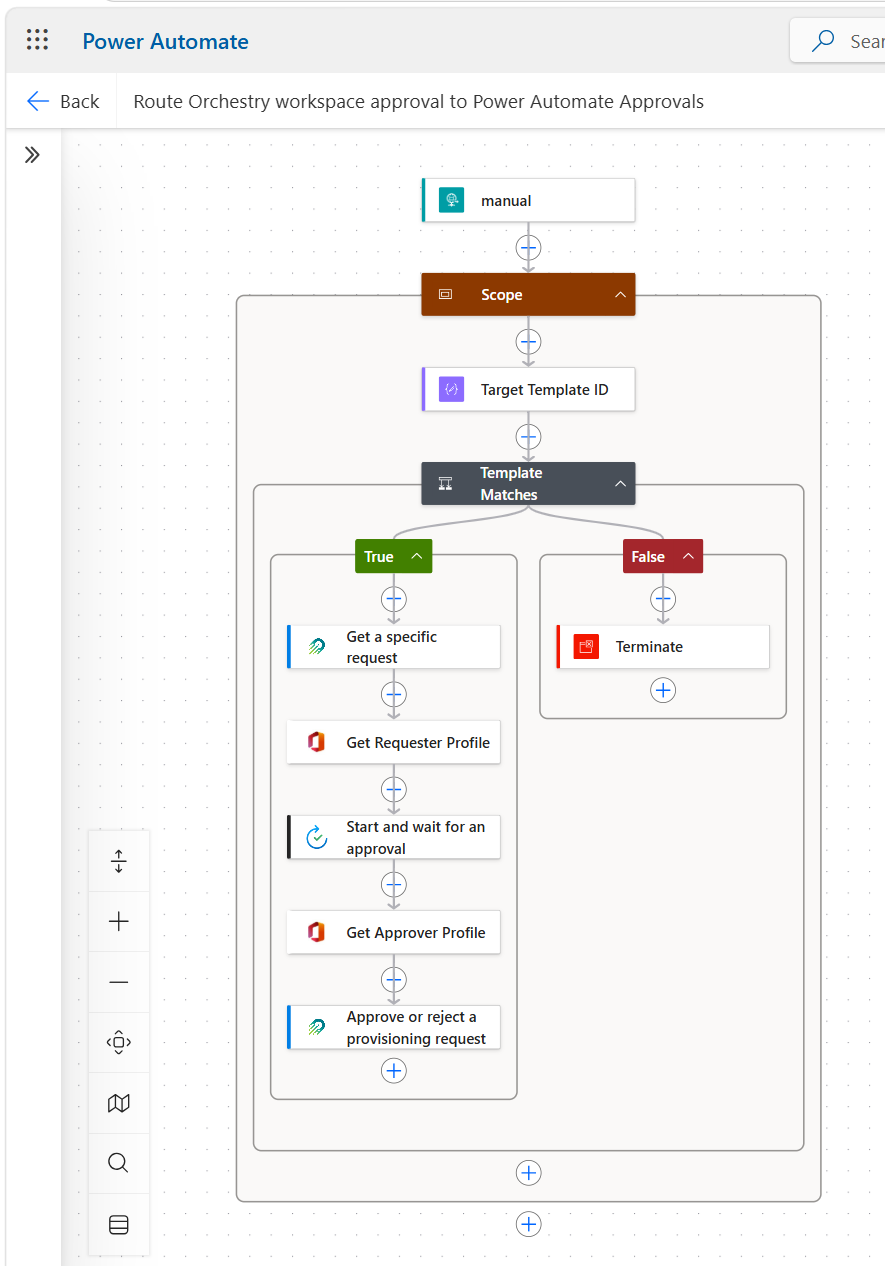
Click the down arrow next to the Scope action to expand it. Your workflow should look like this:
Configure the Workflow Actions
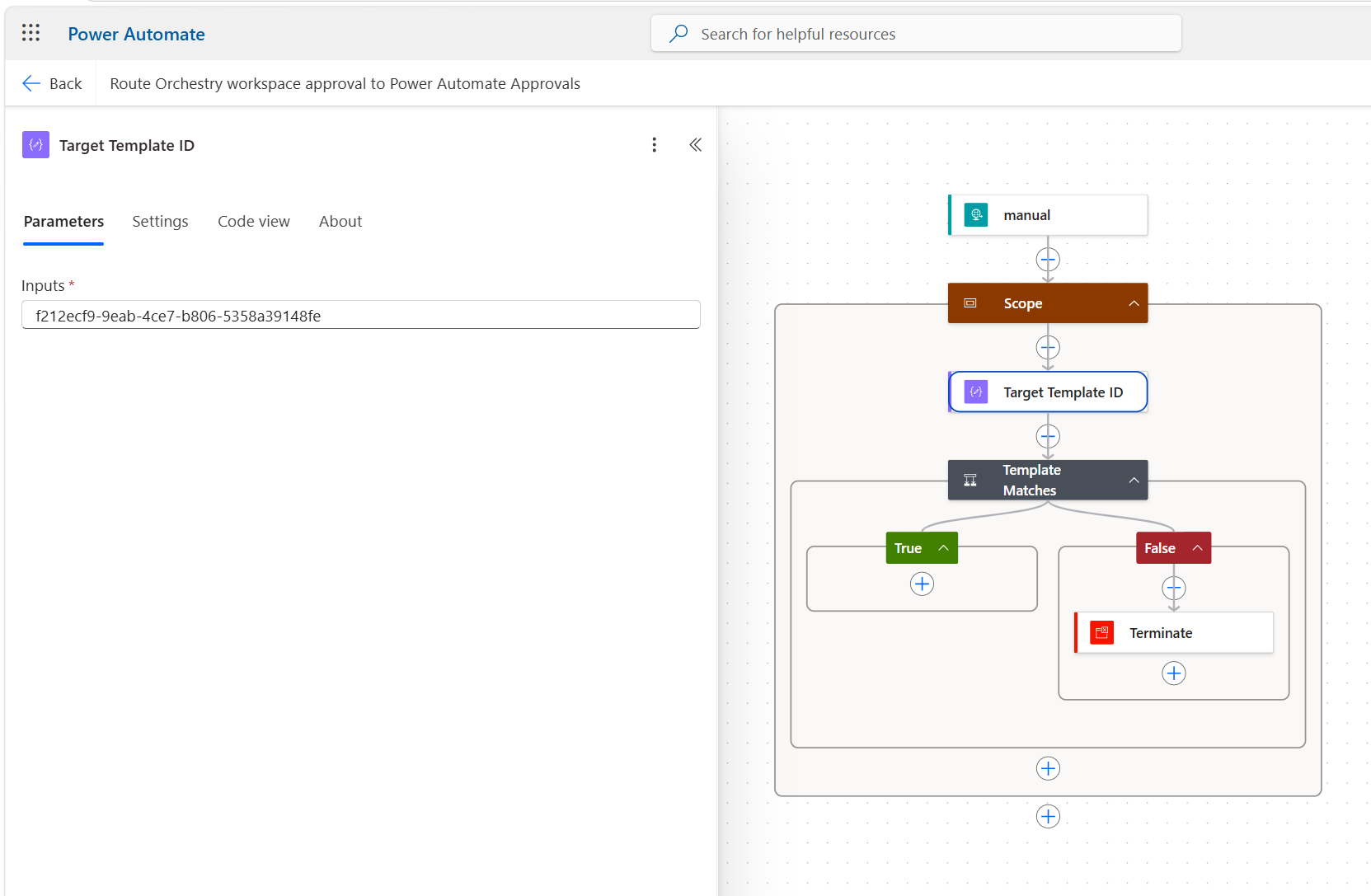
Target Template ID
Click the action "Target Template ID"
Replace the zeros with the template ID you copied from Orchestry. The webhook is global, so it fires for every template that has an approval step. Template Matches uses this value to ignore all others.
Template Matches
Click the action "Template Matches"
Confirm the condition compares
TemplateIdfrom the trigger with the output of Target Template IDIn the False branch, confirm there is a Terminate action with the status Cancelled. Requests from other templates end the run here, and the run history shows them as cancelled.
Every remaining action goes in the True branch
Get a Specific Request
In the True branch, click the (+) > Add an action
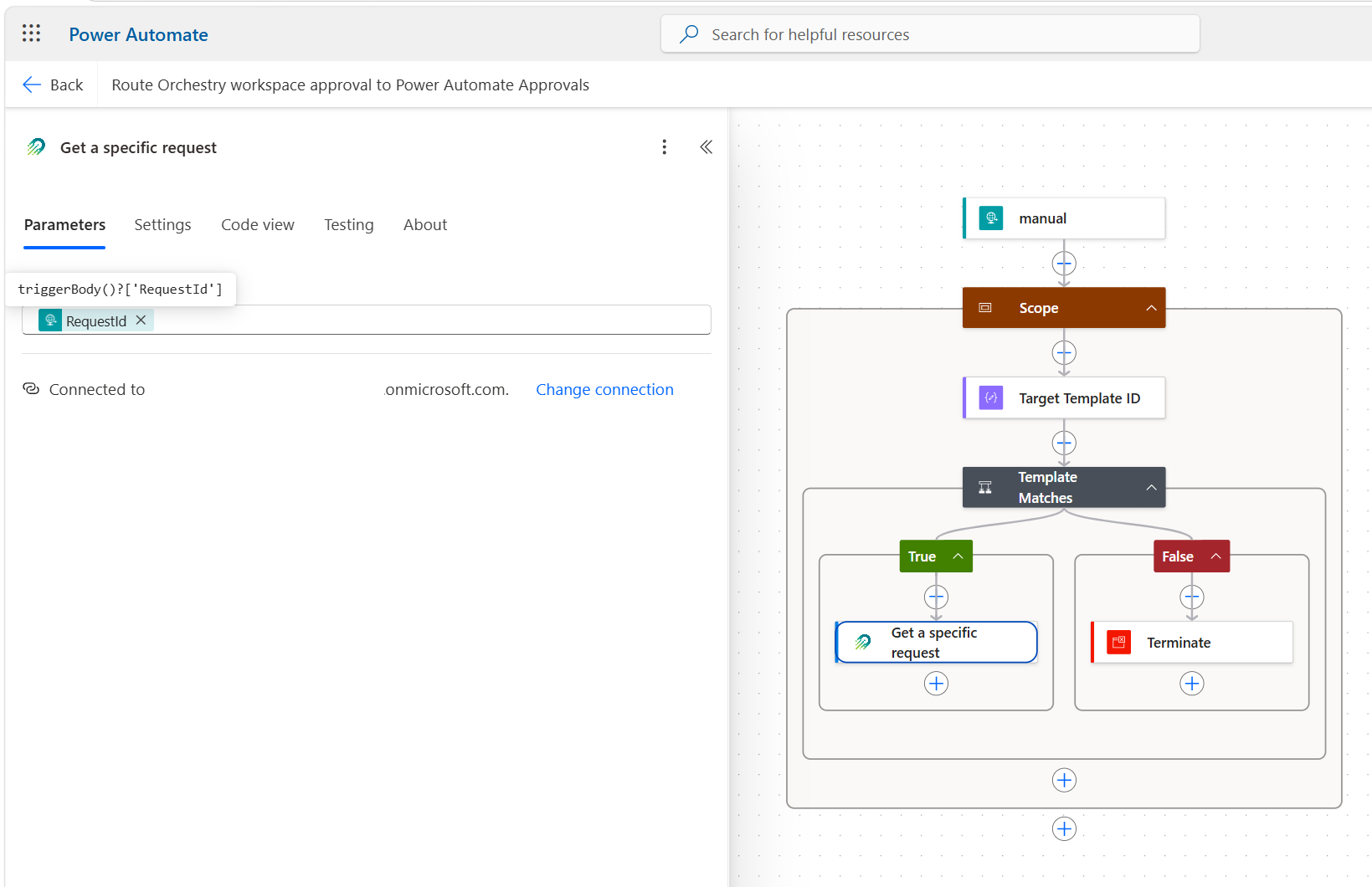
Search for Orchestry and select the Get a specific request action from the Orchestry custom connector
If prompted, select the Orchestry connection you created with the custom connector guide
Click in the RequestId field and select RequestId from the dynamic content of When an HTTP request is received
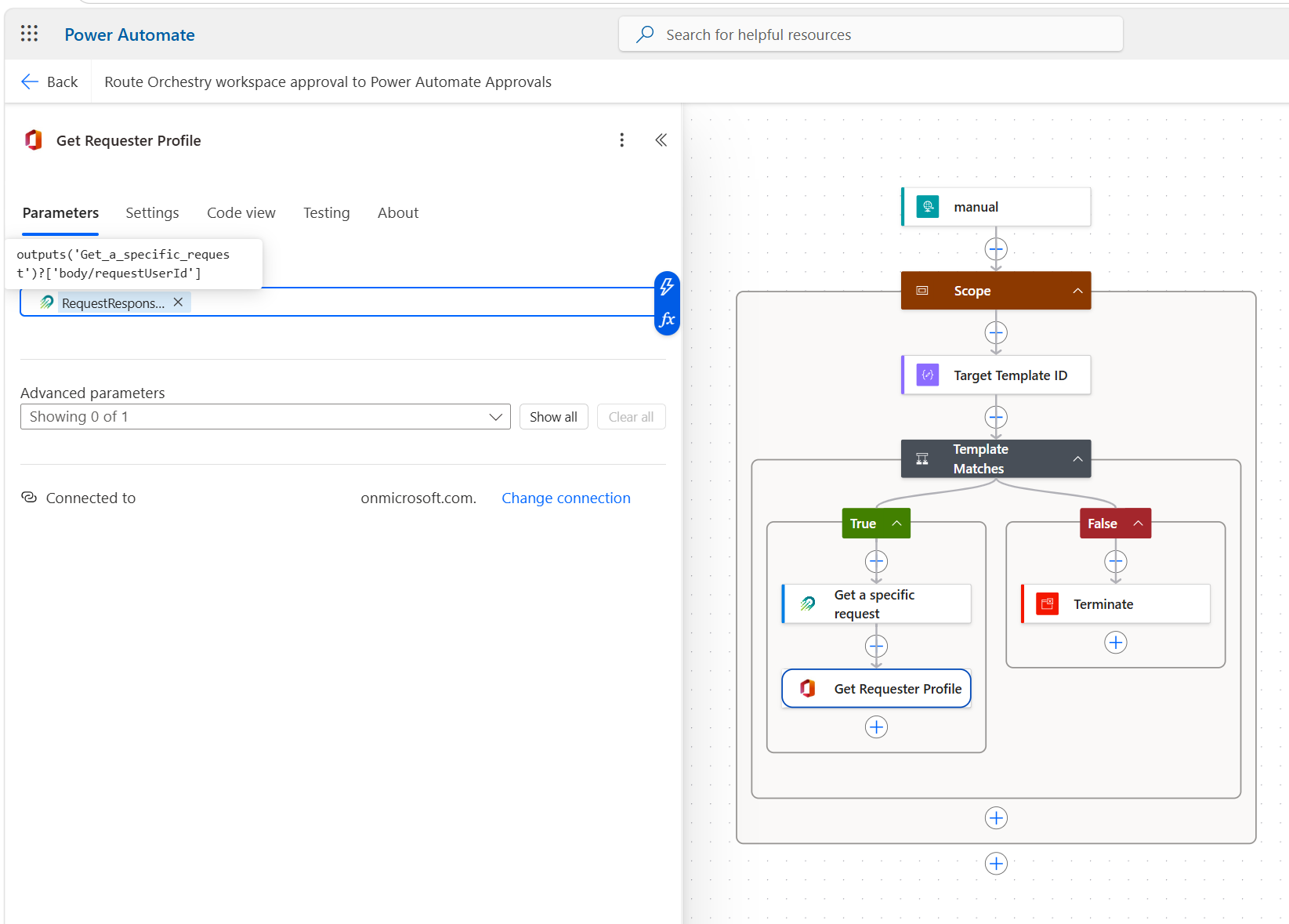
Get Requester Profile
Click the (+) below Get a specific request > Add an action
Search for Office 365 Users and select Get user profile (V2)
Click the ... menu > Rename and rename the action to
Get Requester ProfileIf prompted, sign in to create the Office 365 Users connection
Click in the User (UPN) field and select requestUserId from the dynamic content of Get a specific request. The action returns the requester's display name and email.
Start and Wait for an Approval
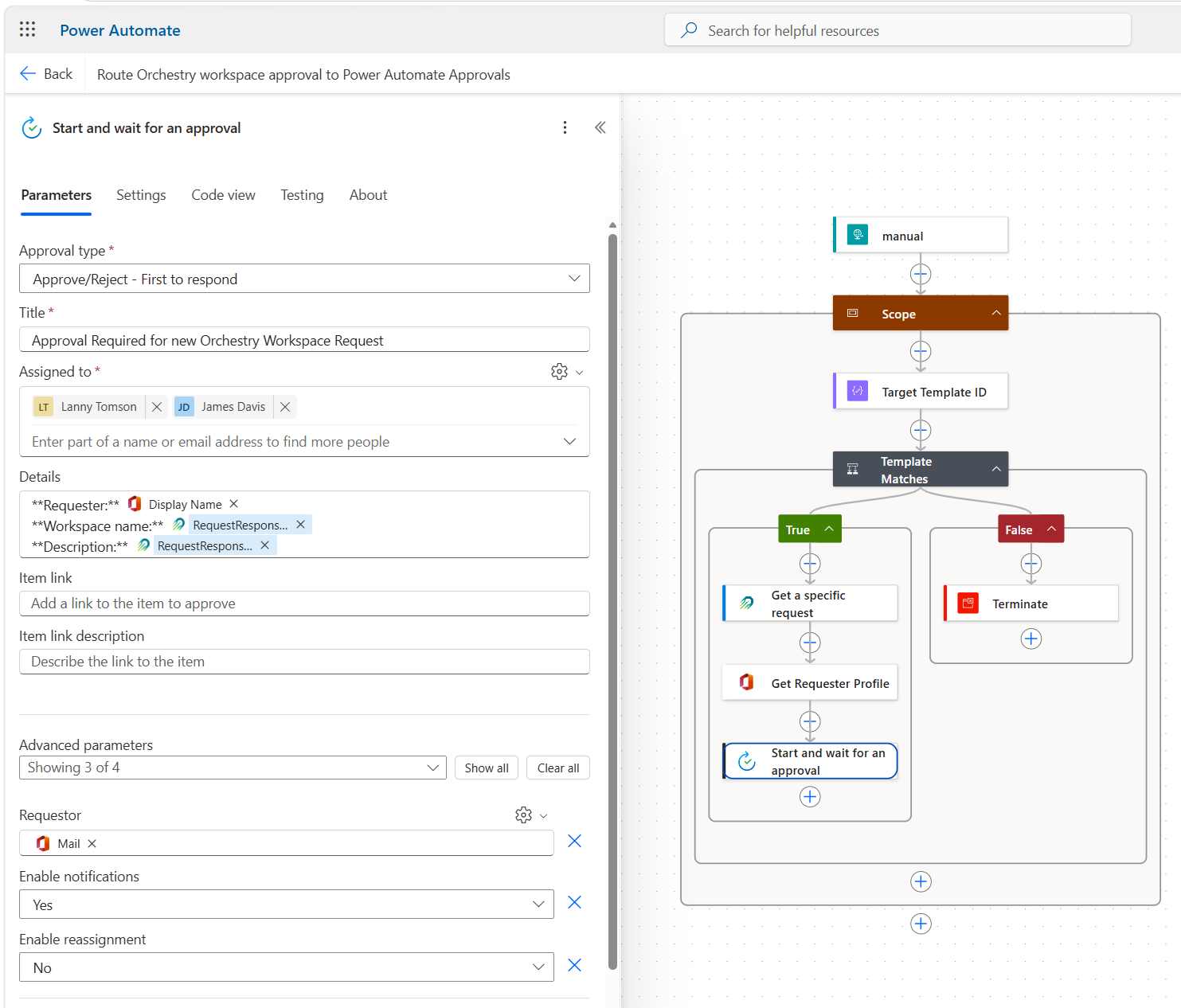
Click the (+) below Get Requester Profile > Add an action
Search for Approvals and select Start and wait for an approval
Configure:
Field
Value
Approval type
Approve/Reject - First to respondTitle
A short title, for example
Approval Required for new Orchestry Workspace RequestAssigned to
The two approvers. They must be the same two approvers as in the Orchestry approval workflow.
Details
Three lines, with this text and dynamic content:
**Requester:**followed by Display Name from Get Requester Profile,**Workspace name:**followed by RequestResponse body/name from Get a specific request, and**Description:**followed by RequestResponse body/description from Get a specific requestRequestor
Under Advanced parameters, select Requestor, then select Mail from Get Requester Profile
The workflow stops here and waits. The first approver to respond decides the outcome.
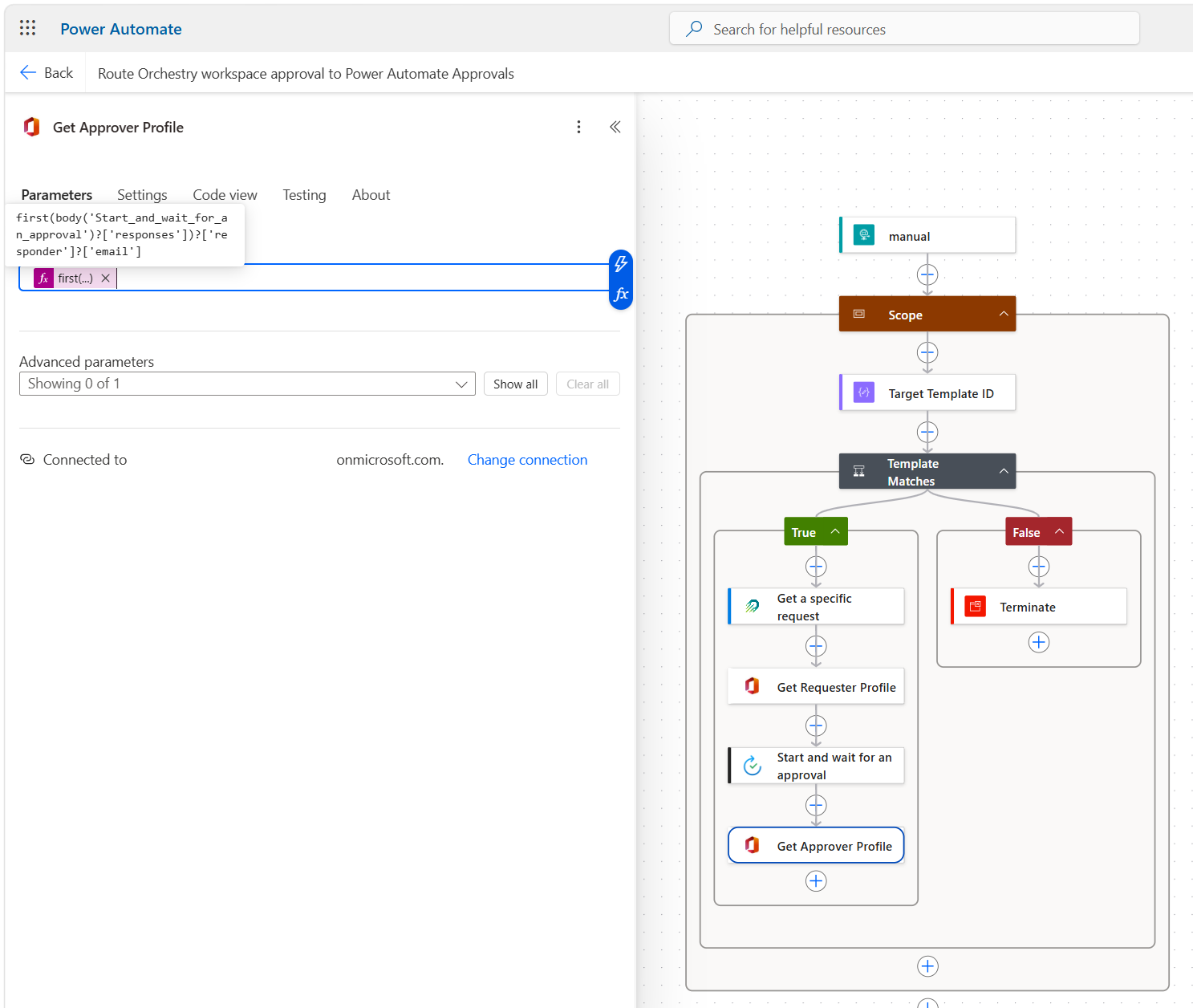
Get Approver Profile
Click the (+) below Start and wait for an approval > Add an action
Search for Office 365 Users and select Get user profile (V2)
Rename the action to
Get Approver ProfileClick in the User (UPN) field, open the Expression tab, paste the expression below and click Add. It returns the email of the person who responded.
first(body('Start_and_wait_for_an_approval')?['responses'])?['responder']?['email']The action returns the approver's id (GUID), which Orchestry needs in the next step.
Approve or Reject a Provisioning Request
Click the (+) below Get Approver Profile > Add an action
Search for Orchestry and select Approve or reject a provisioning request from the Orchestry custom connector
Set RequestId to RequestId from the dynamic content of When an HTTP request is received
Under Advanced parameters, select User Id, Approval Comment and Action - (Approve/Reject), then configure:
Field
Value
User Id
id from Get Approver Profile
Approval Comment
The approver's comment, or
[no comment]if they left none. Add this as an expression, the same way as in the previous action:Action - (Approve/Reject)
Outcome from Start and wait for an approval (it returns
ApproveorReject)if(empty(first(body('Start_and_wait_for_an_approval')?['responses'])?['comments']), '[no comment]', first(body('Start_and_wait_for_an_approval')?['responses'])?['comments'])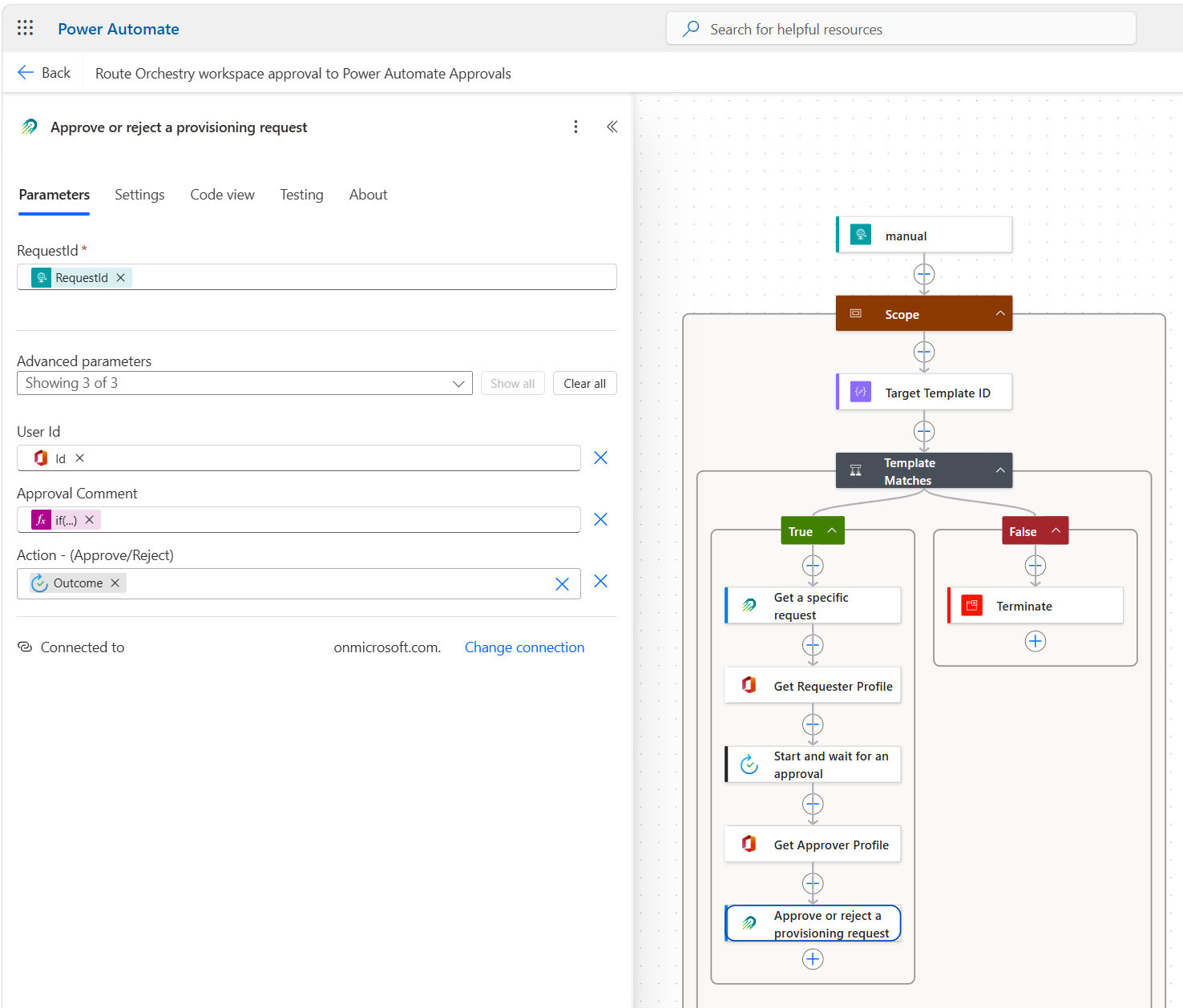
Your finished workflow should look like this:
Save and Get the Webhook URL
Click Save. It should save without errors.
Click the "manual" trigger action again. Copy the HTTP URL value — you will need this in the next step.
Connect the Workflow to Orchestry
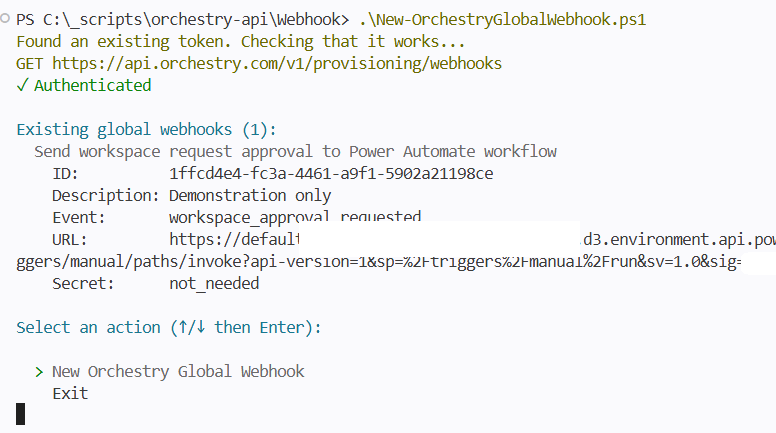
Register the global webhook with the event type workspace_approval_requested, using the HTTP URL you copied as the webhook's Url. Follow the quickstart linked in the prerequisites. No template setting is needed. The registered webhook should look like this:
Testing
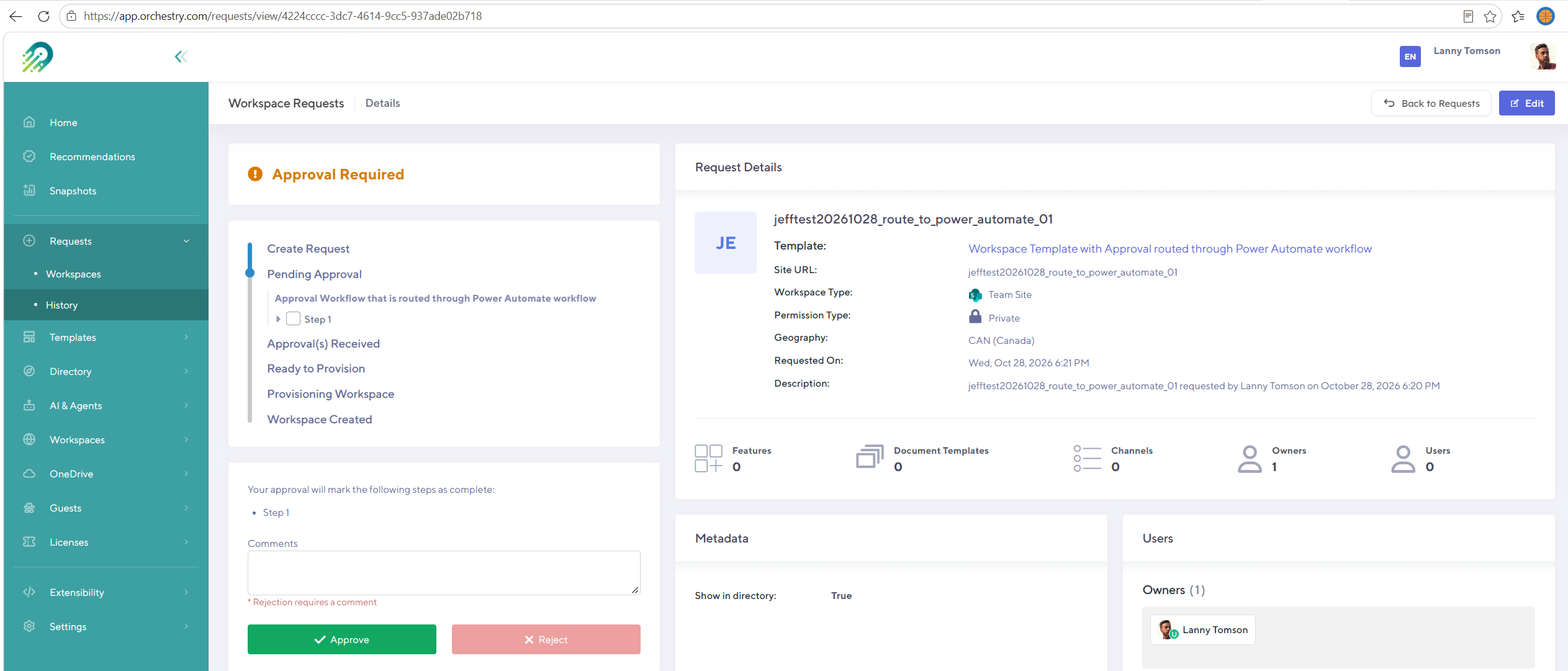
Request a Workspace
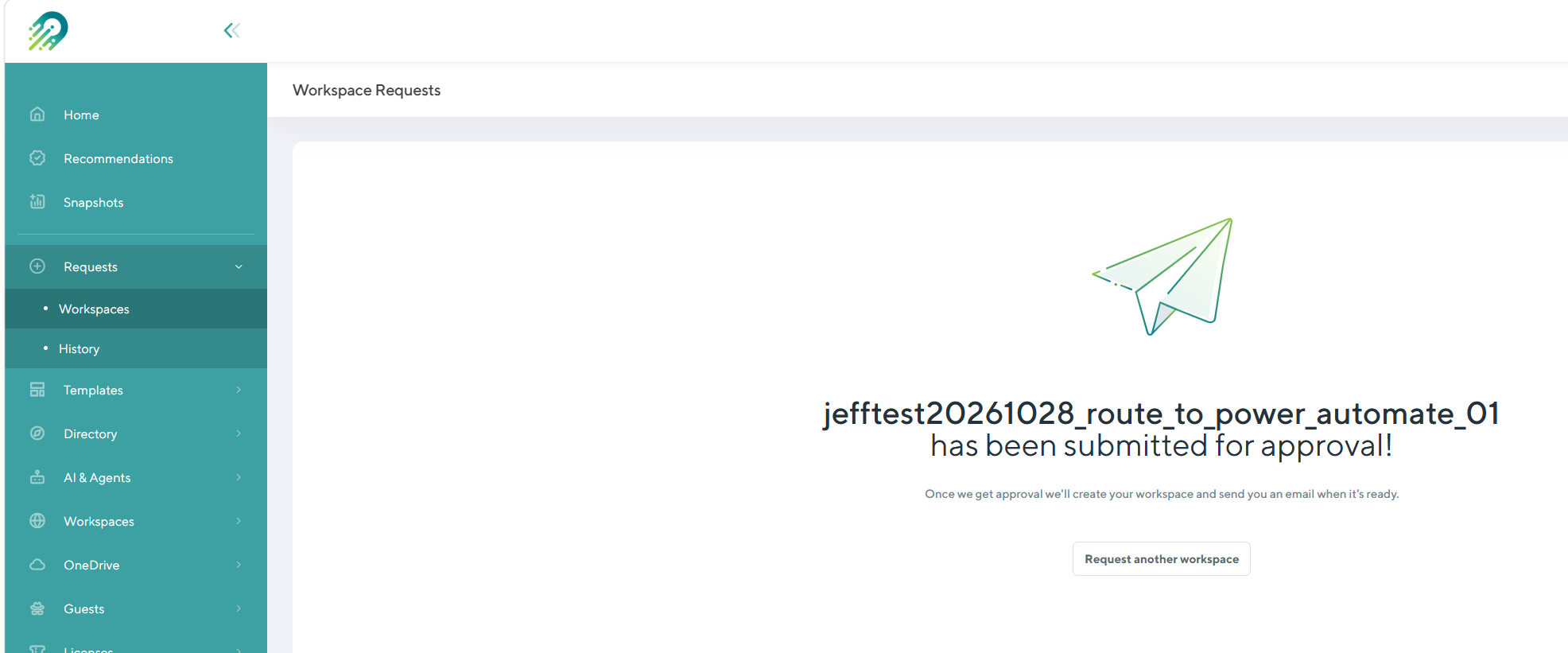
In Orchestry, request a new workspace using the template you set as Target Template ID
Submit the request. It now waits for approval.
Verify the Workflow Started
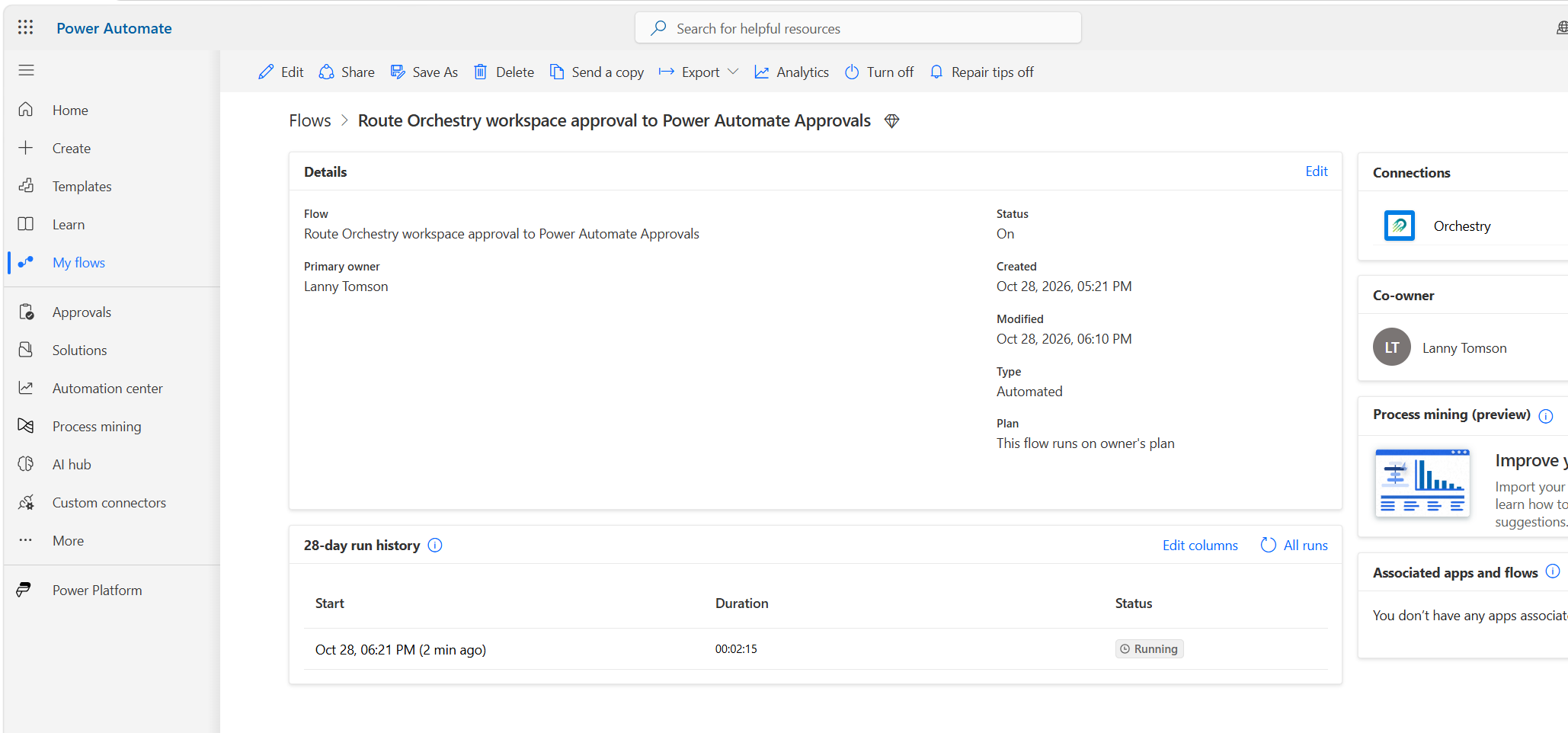
Go to your Power Automate workflow's main page
Confirm a new run appears in the Run history with the status Running. It waits at Start and wait for an approval.
Approve in Power Automate
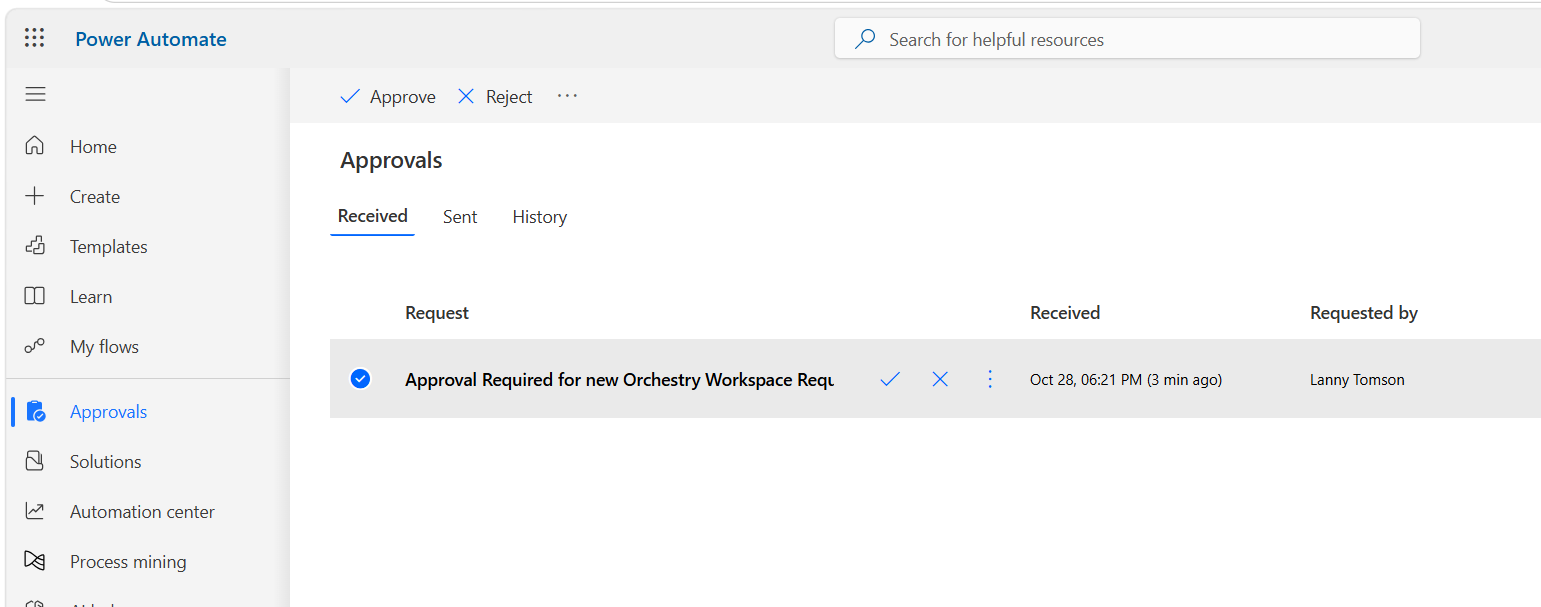
Open the approval as one of the two approvers, in email or the Approvals app
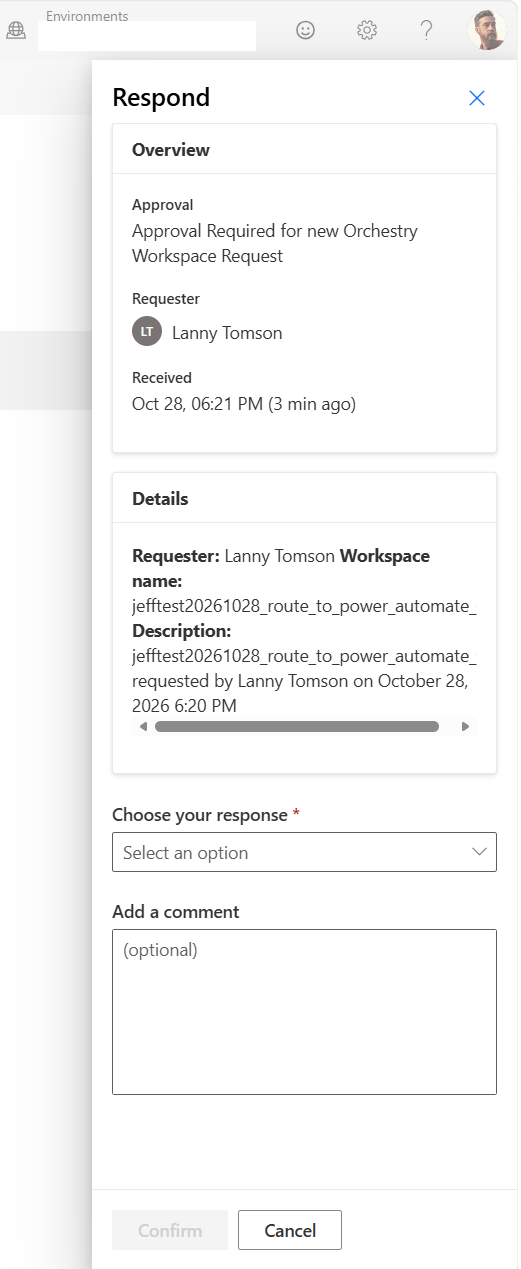
Confirm the title, requester and workspace details look correct
Click Approve, and add a comment if you like
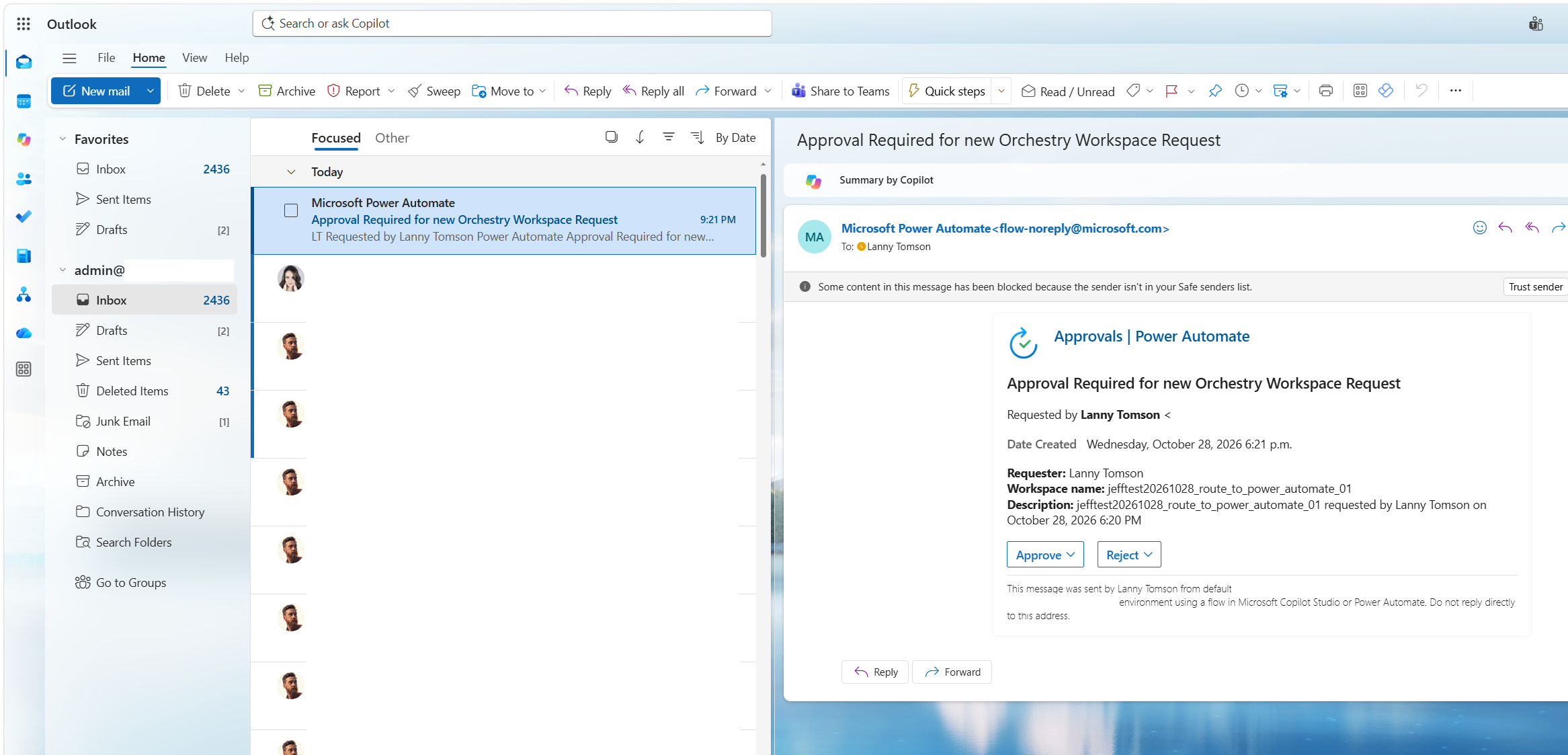
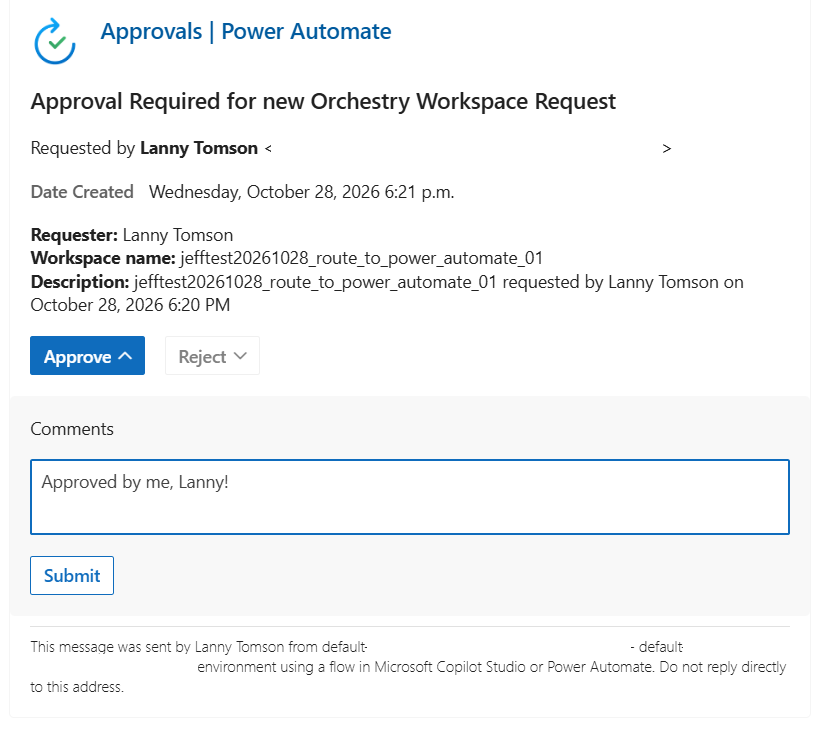
In Outlook, expand Approve, add a comment and click Submit:
Or use the Approvals app: select the request, click Approve or Reject, add a comment and click Confirm.
Verify the Workflow Completed
Go back to the Run history and refresh it
Confirm the run Succeeded
Open the run and check that Approve or reject a provisioning request received the approver's GUID,
Approve, and the comment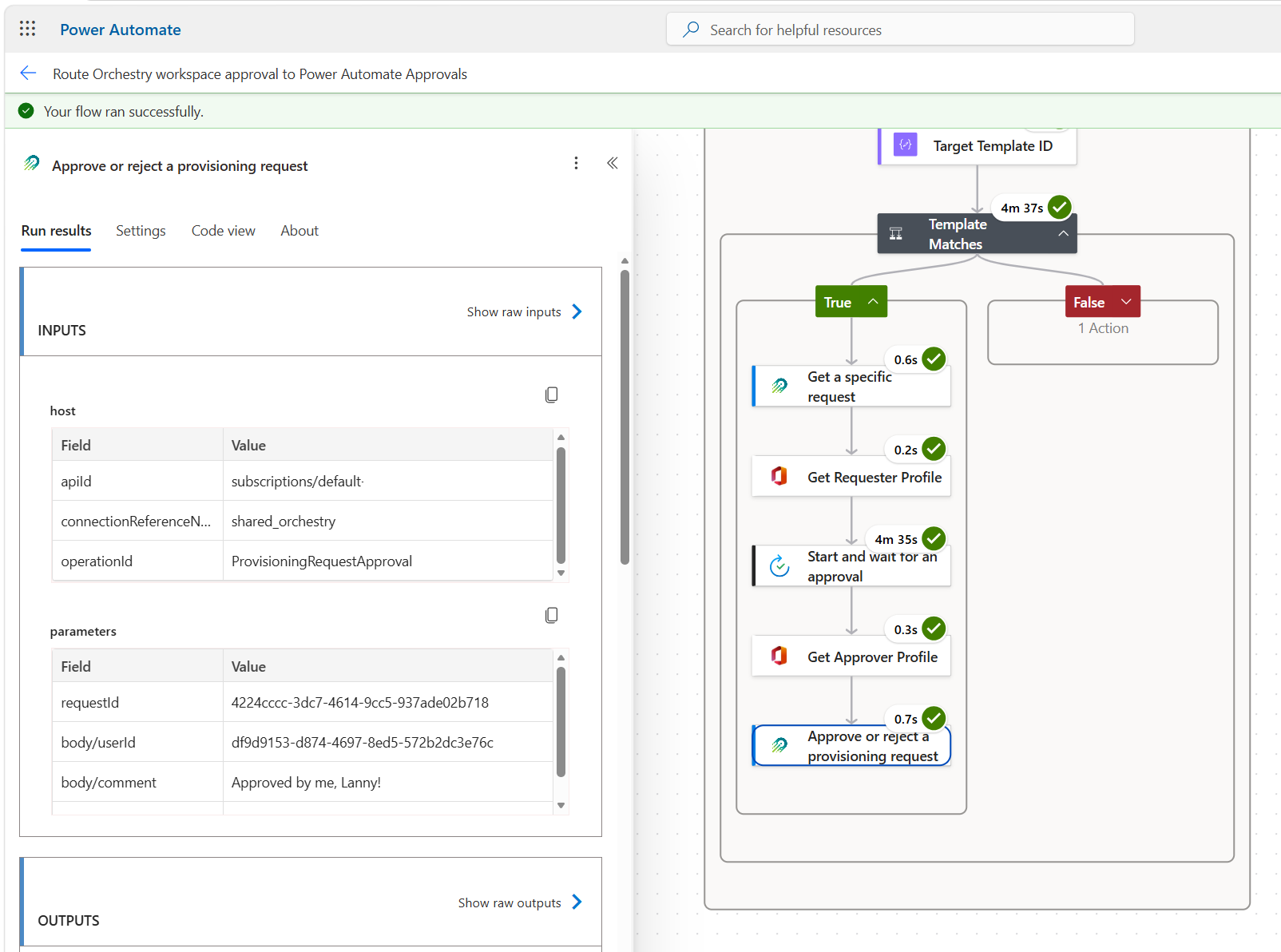
Verify the Request in Orchestry
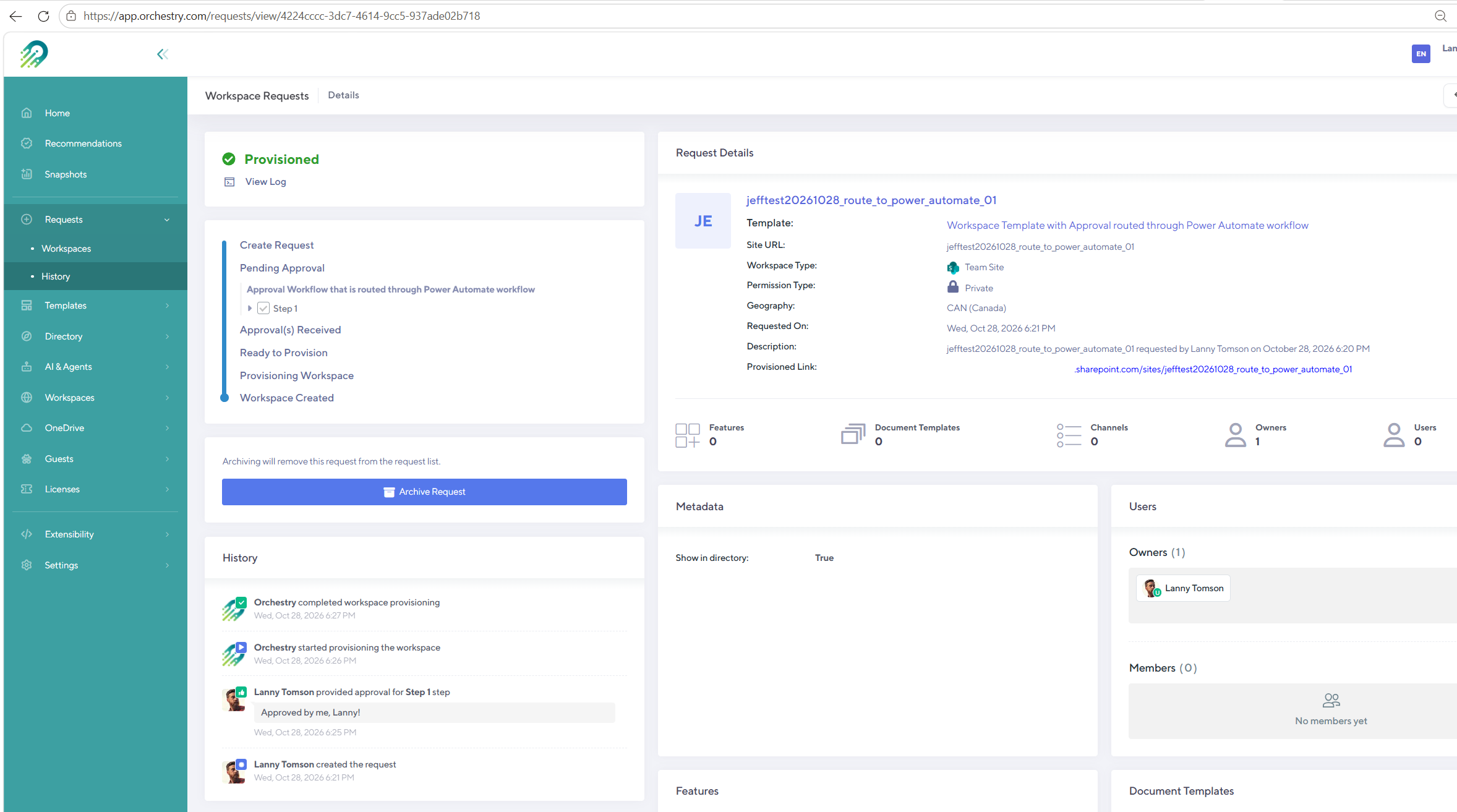
In Orchestry, go to Requests > History and confirm the request status is Provisioning, then Provisioned
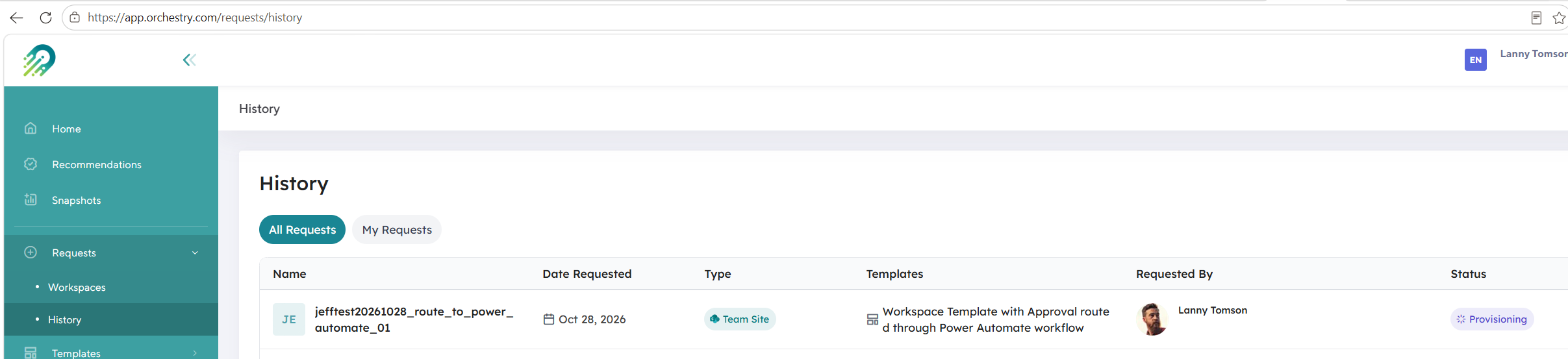
Open the request and confirm the approval step is complete, the approver's comment appears in the request history, and the workspace is created
Test a Rejection
Request another workspace
In the approval, click Reject and add a comment
Confirm the run Succeeded and the Orchestry request shows as rejected
Notes
The webhook is global, so the workflow starts for every template with an approval step. Requests from other templates end as Cancelled at the Template Matches condition. (Note that this does not mean the request was cancelled, just this approval routing workflow)
The approval type is First to respond, so the first answer decides the request, and the second approver's response is not used.
Optional: the webhook payload also includes the
Secretyou chose when registering the webhook. To confirm that calls come from Orchestry as an added security measure, add a condition that compares it with your secret, and terminate the workflow with an alert email if it does not.
Limitations
A Power Automate cloud flow run, including one waiting for an approval, can last at most 30 days. If nobody responds in that time, the run times out and the Orchestry request stays pending. See Limits of automated, scheduled, and instant flows.
Troubleshooting
Have a look at our guide on Power Automate / Logic Apps: Common Issues and Troubleshooting for HTTP Trigger Workflows
Issue | Resolution |
|---|---|
Workflow does not trigger | Confirm the global webhook exists with the event type |
"DirectApiAuthorizationRequired" or 401 error when Orchestry calls the webhook (in the Orchestry webhook delivery or your webhook test) | Set the HTTP trigger's Who can trigger the flow? to Anyone, save, then register the webhook again with the new HTTP URL. Changing this setting changes the HTTP URL. |
Runs show as Cancelled in the workflow run history | The request came from a template other than the one in Target Template ID. This is expected. If it is the right template, check that the ID in Target Template ID is correct. |
Connection error on an Orchestry action | Click the action > Change connection > select your Orchestry connection. If it still fails, recreate the connection as described in the custom connector guide. |
No approval request arrives | Check the email addresses in Assigned to on the Start and wait for an approval action, and confirm a Dataverse database exists in the environment. |
Get Approver Profile fails in the workflow run history | The approver's email did not match a user in Microsoft 365. Confirm the Assigned to addresses are the users' primary email addresses. |
Approve or reject a provisioning request fails with a 400 error in the workflow run history | Confirm the User Id is the GUID of one of the Orchestry approval workflow's approvers, and that the request has not already been approved or rejected. |