How to Add the Orchestry App to Microsoft Teams
Last updated: April 1, 2026
NOTE: To receive notifications directly on Microsoft Teams, the Orchestry app must be installed on your Microsoft Teams app.
Why Install Orchestry in Microsoft Teams?
For end users:
Receive notifications from Orchestry in the Teams activity feed
Complete Orchestry tasks from the activity feed
Access the "Orchestry Information Panel" in team channels
Submit workspace requests
Access to 'My OneDrive' (Enterprise only)
Access and complete Orchestry tasks via 'My Tasks'
Access the Directory
For Admins:
Access the Orchestry admin UI from Teams
How to Install the Orchestry App in Teams
Before we start, make sure you have the Microsoft Teams Desktop App installed on your computer.
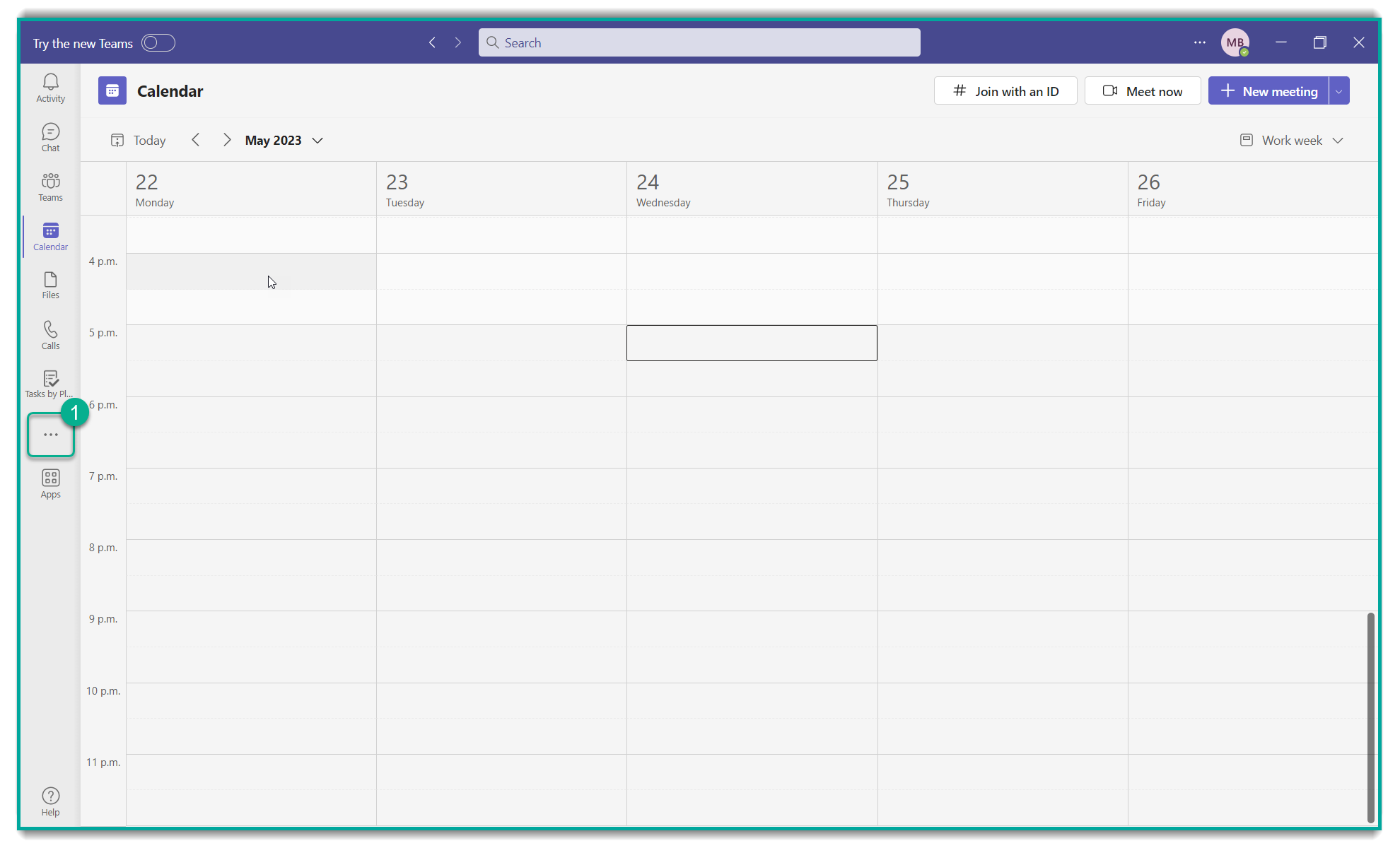
In your Teams App, from the left navigation bar press the "…" section
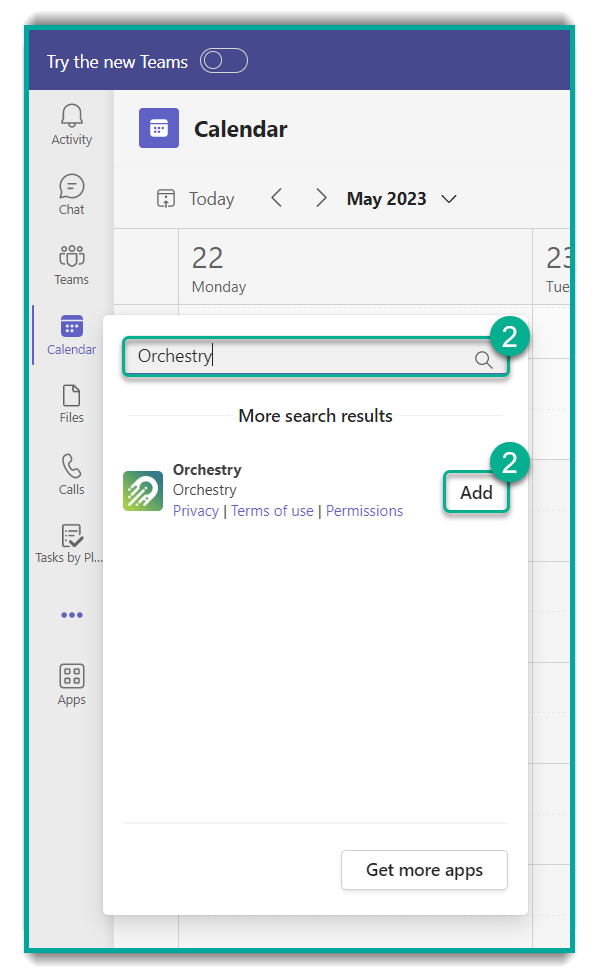
Type “Orchestry' and click the Add button
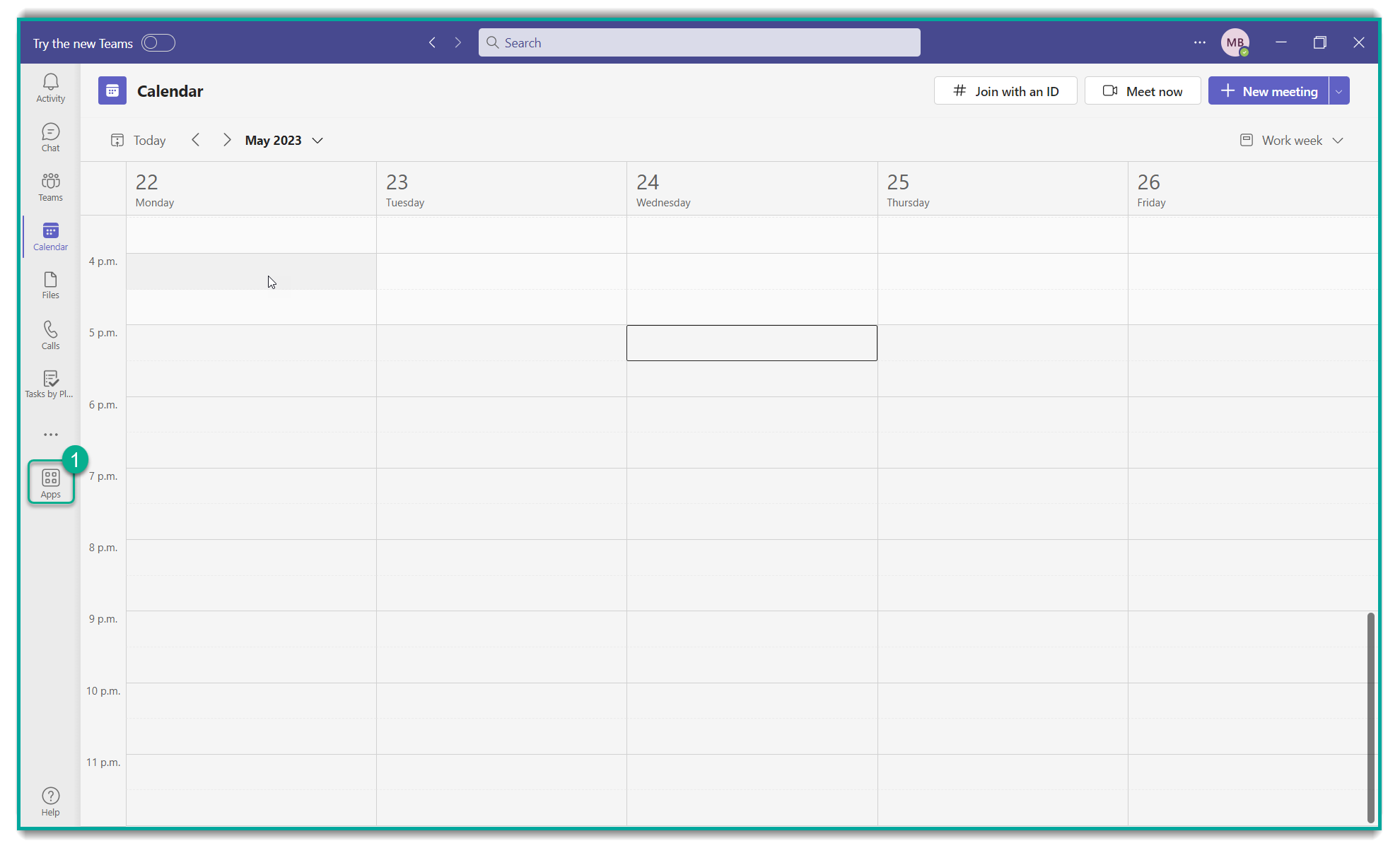
Alternatively, you can…
From the left of Teams, select Apps
In the Search bar type "Orchestry" and select the app

Select Add to add the Orchestry app
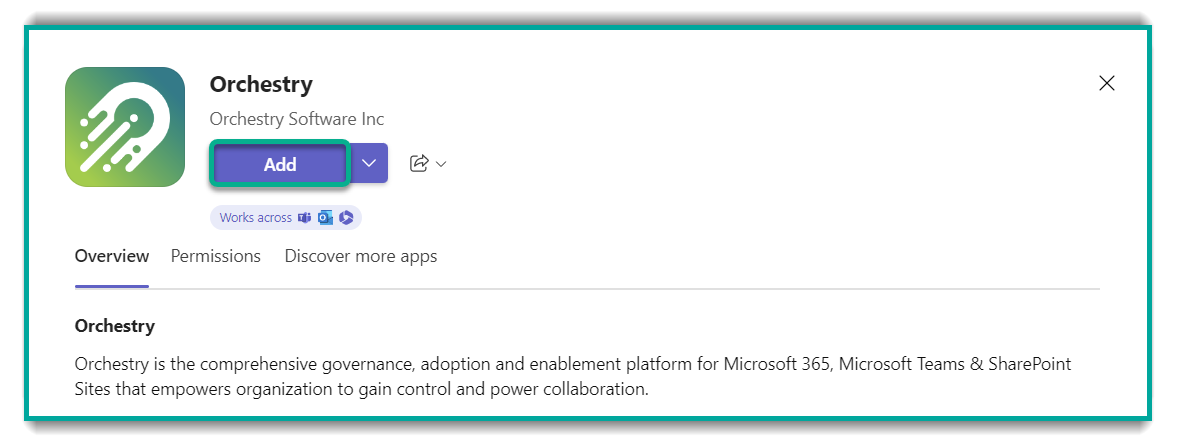
Once installed, the Orchestry app will open and it will appears on the left side navigation bar.
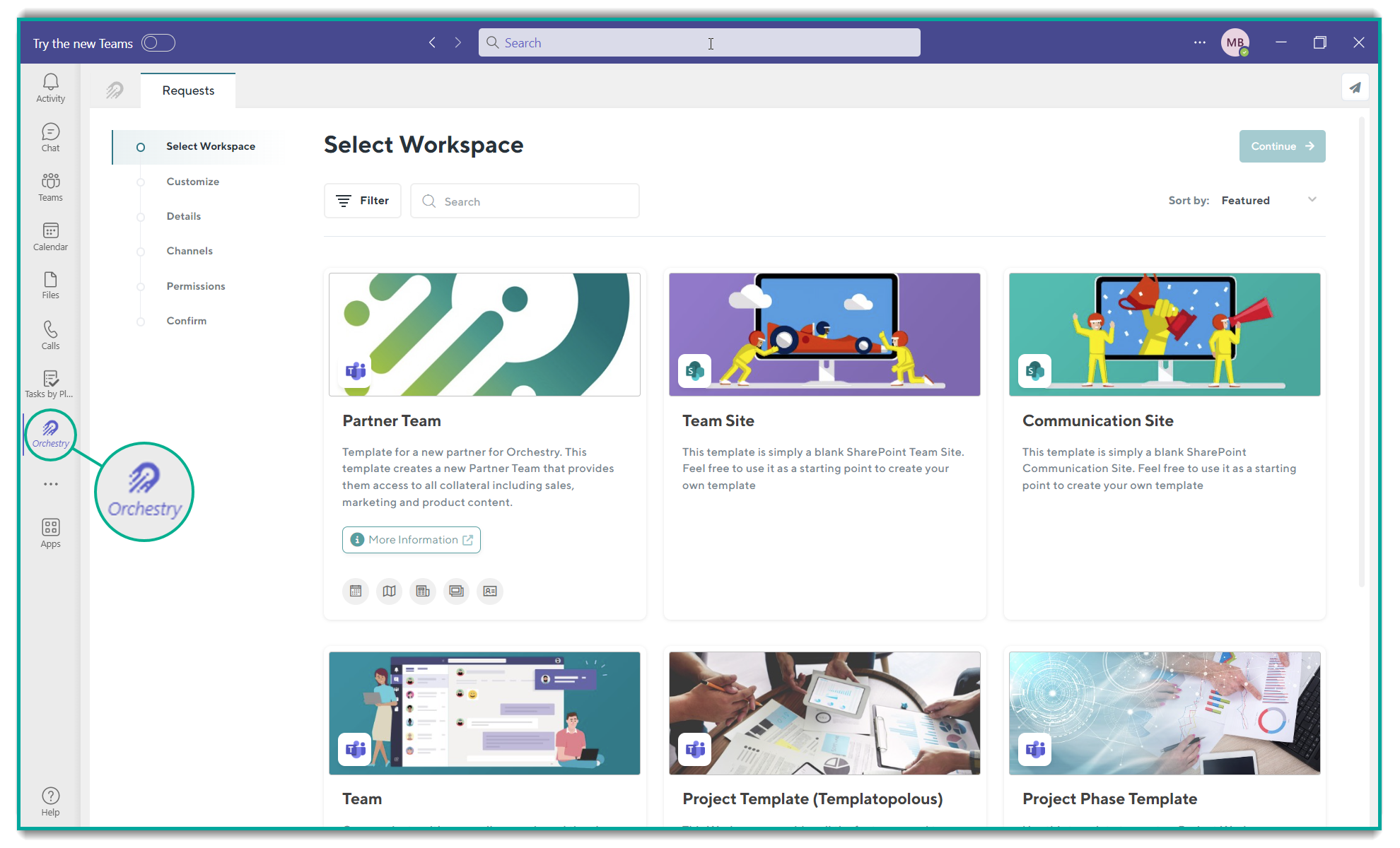
Now you will receive Orchestry notification through your Teams desktop app.
TIP: Don't forget to PIN Orchestry to the Teams app bar for easy access.