Workspace Naming Policies Overview
Last updated: July 22, 2026
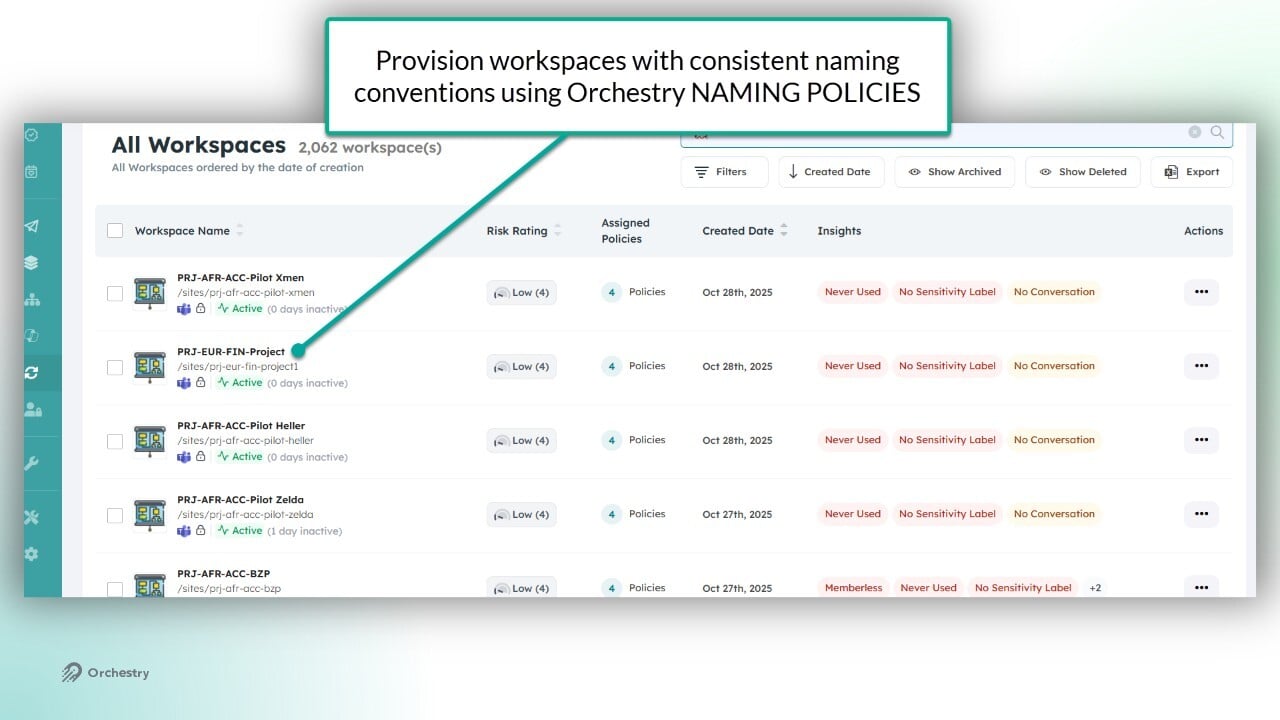
Naming policies in Orchestry allow you apply naming standards to newly provisioned workspaces. Consistent naming practices can help end users identify workspaces, reduce sprawl, and reduce duplication.
Workspace naming policies are applied to:
the team name,
SharePoint site name,
SharePoint site URL, and
the M365 Group name
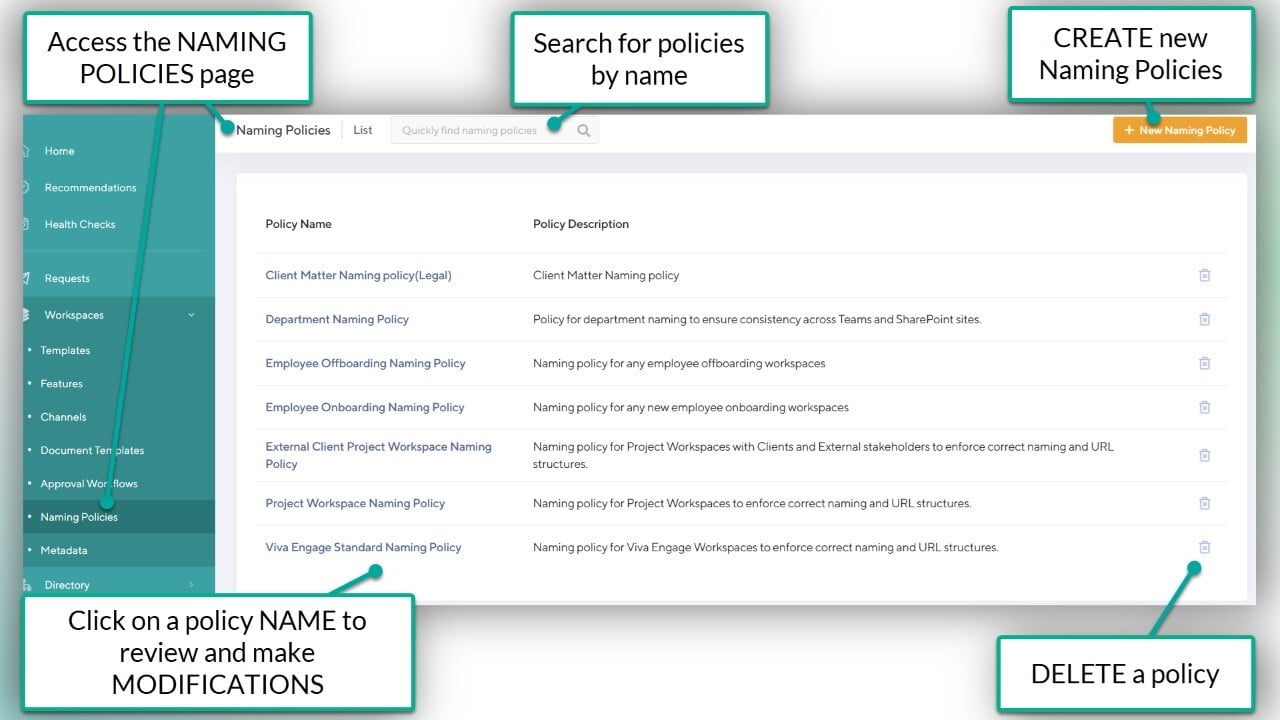
How to Create a Naming Policy
Orchestry admins can create and manage naming policies from the 'Naming Policies' page.
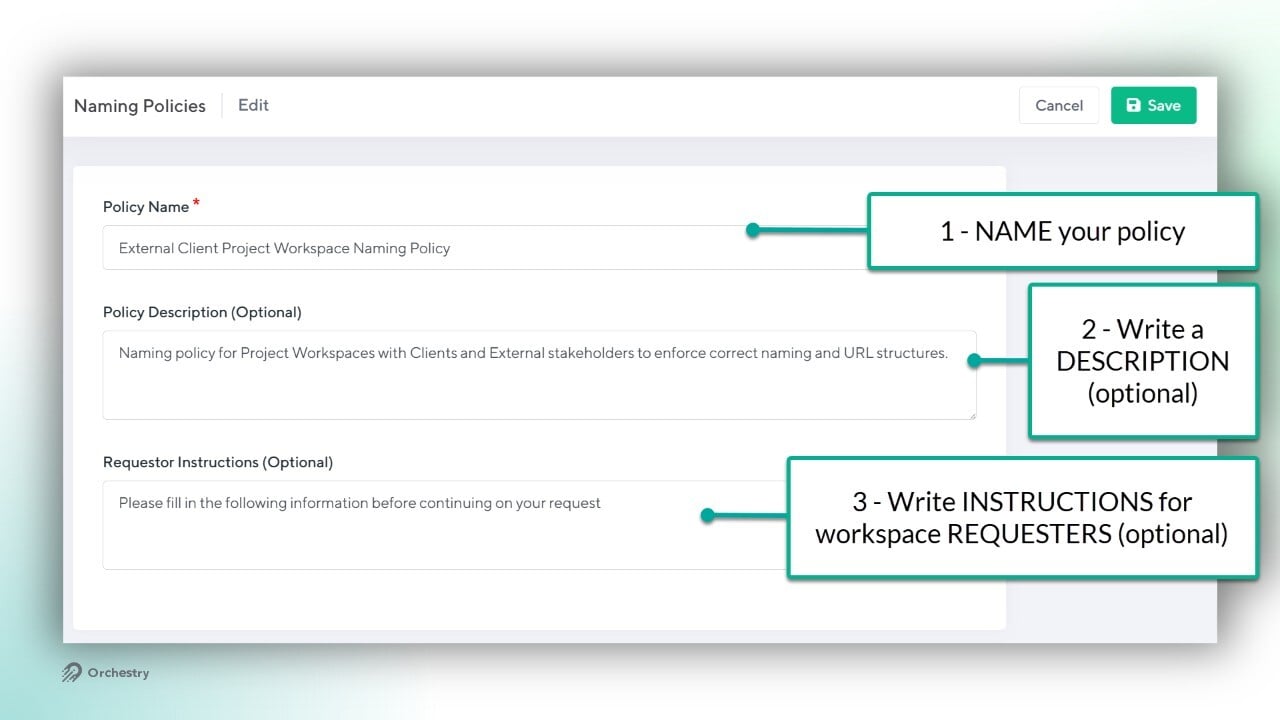
How to Configure your Naming Policy
NAME your policy
Add an internal DESCRIPTION (optional)
Add INSTRUCTIONS for your end users (optional)
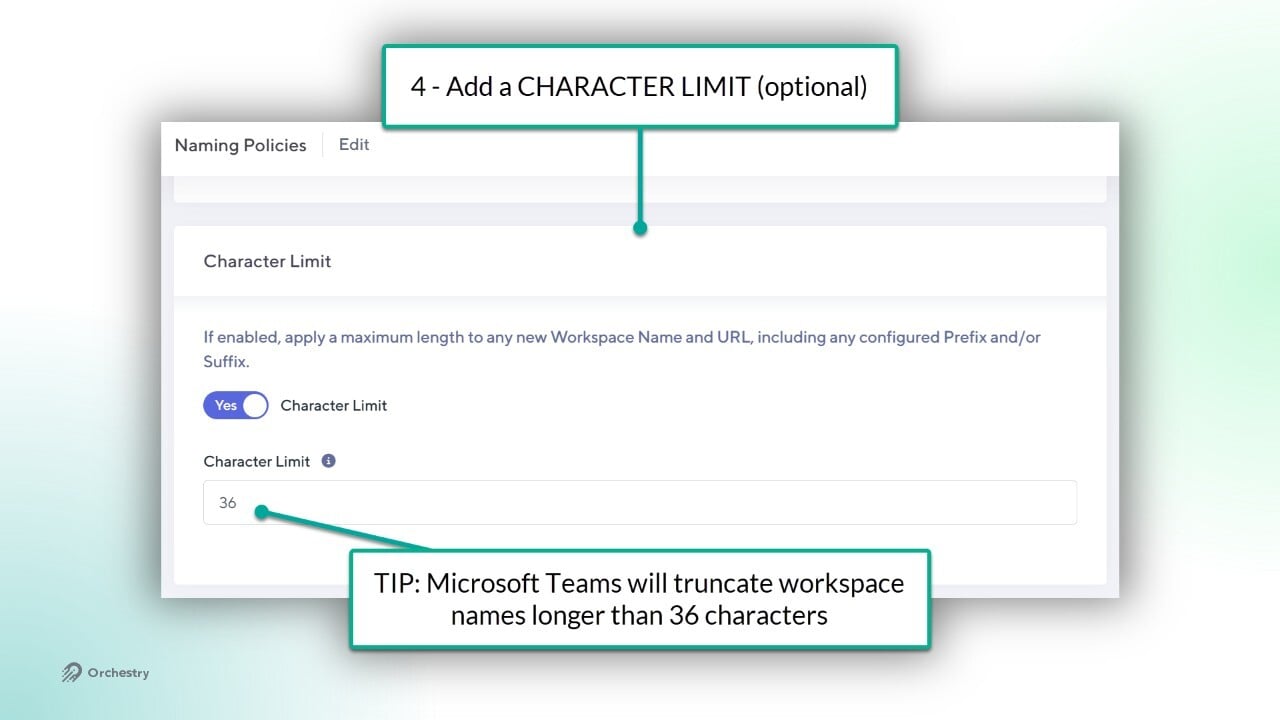
Add a CHARACTER LIMIT (optional)
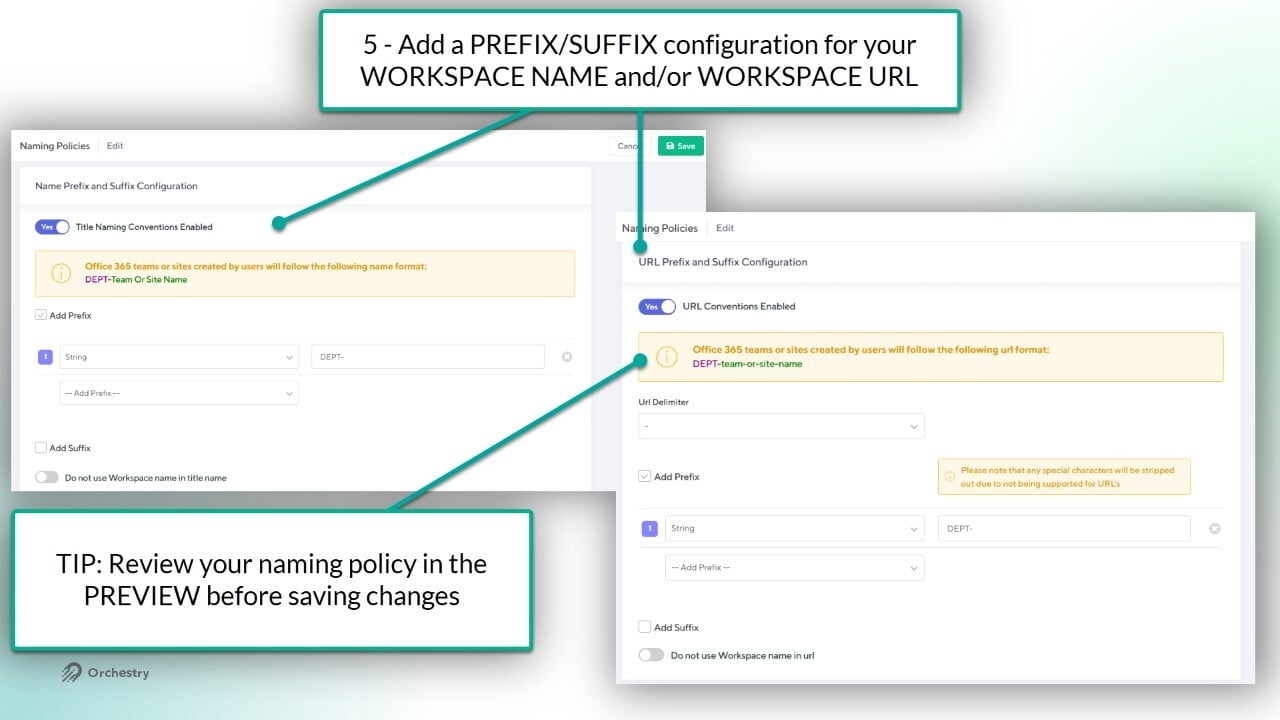
Add a workspace NAME and/or a URL prefix/suffix configuration
SAVE your changes
Naming Policy Character Limit
You can limit the character length of your workspace names by adding a limit to your naming policies.
Naming Policy Prefixing and Suffixes
You can append your naming policy to the left or right of the workspace name, or both if desired. Prefixes and Suffixes are also supported in URL naming policies
Workspace Name and URL Property Types
Your naming policy can be designed with four different properties types:
PROPERTY TYPE | DESCRIPTION |
Orchestry Metadata: | Adds Orchestry metadata to your naming policy |
User Attribute: | Adds an Entra ID attribute from the user requesting the workspace (i.e.: department) |
String: | Adds basic text to the naming policy |
Incremental Counter: | Adds automatic sequential numbering to the naming policy |
The URL Delimiter
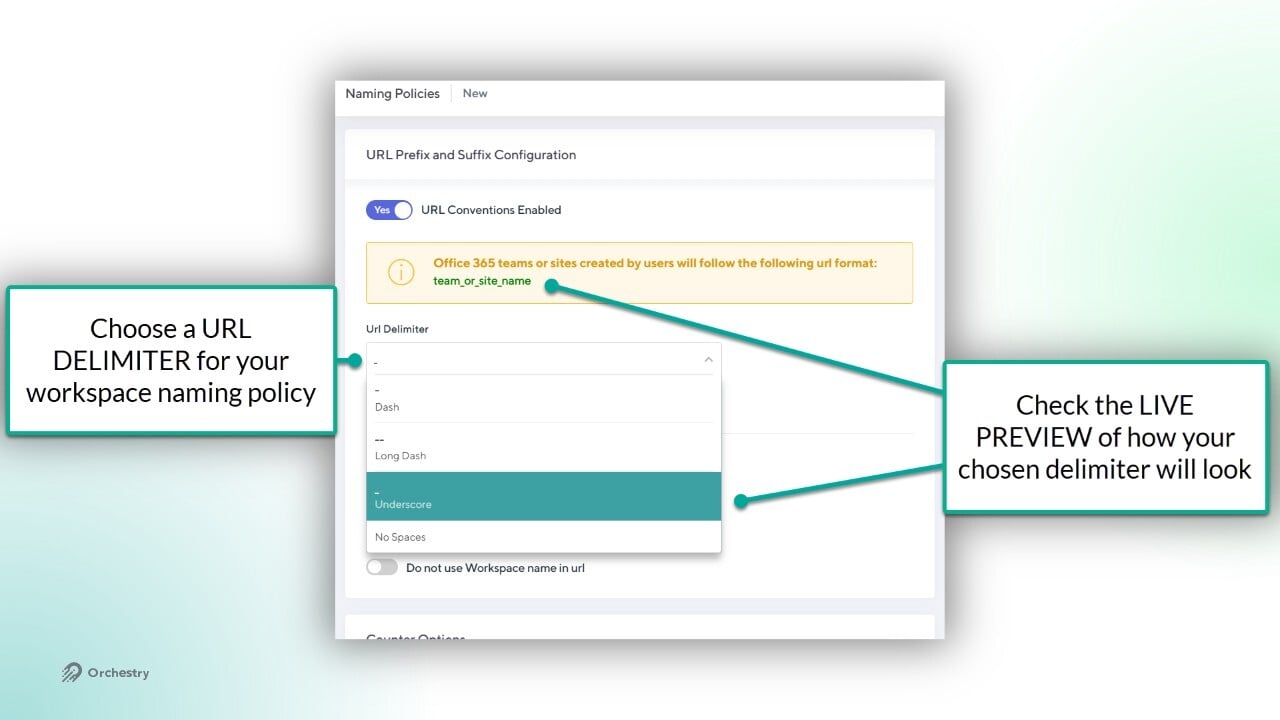
With URL naming policies, you can control how spaces in workspace names are handled. You can choose from the following Delimiter options:
dash
long dash
underscore, or
no spaces
The Incremental Counter Options
Orchestry admins can change the DEFAULT starting number used with the Incremental counter. For example, instead of starting on the number 1, the naming policy can start on the number 101.
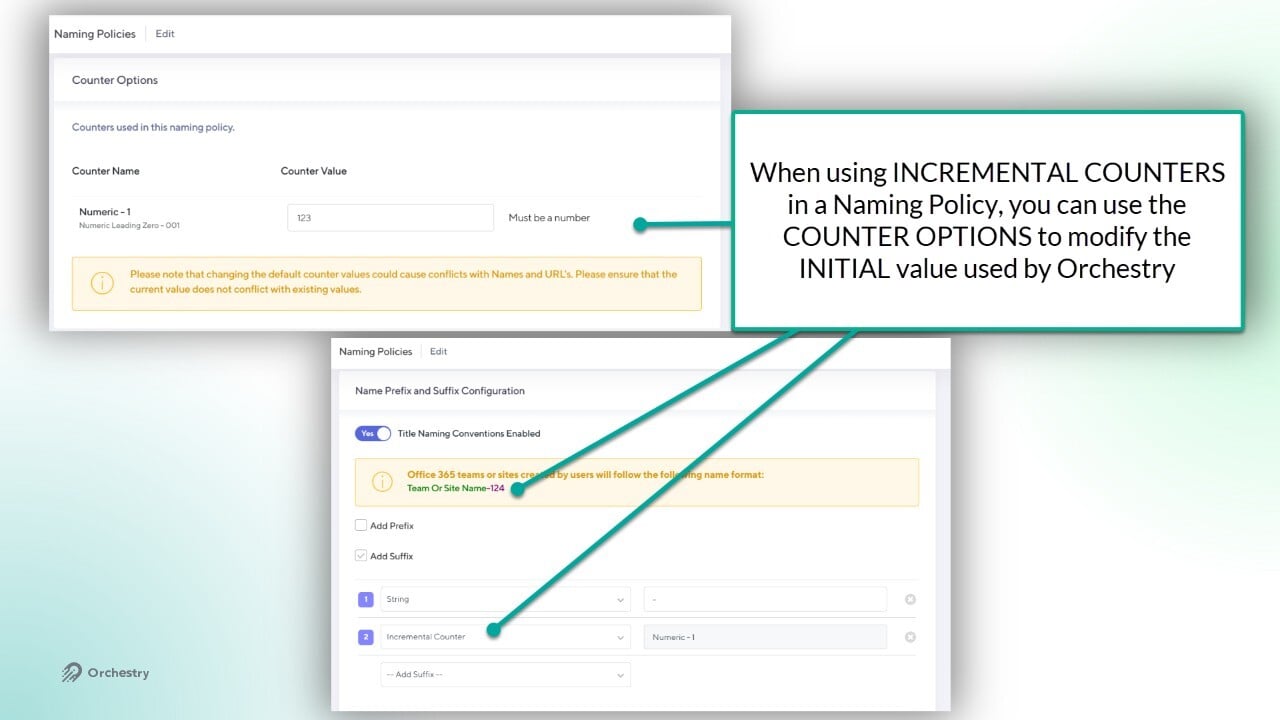
CAUTION: Changing the default value of your naming policy can introduce conflicts with existing workspace names. For example, changing the default value to 01 after already provisioning 10 sites.
How to Assign Naming Policies to Workspace Templates
Orchestry admins can assign naming policies to any workspace template. Note that some templates have limitations.
Naming Policy Support:
WORKSPACE TEMPLATE | WORKSPACE NAMING CONVENTION | URL NAMING CONVENTION |
Microsoft Teams | Supported | Supported |
SharePoint Team Site | Supported | Supported |
SharePoint Team Site (no M365 group) | Supported | Supported |
SharePoint Communication Site | Supported | Supported |
Viva Engage Community | Supported | Not Supported |
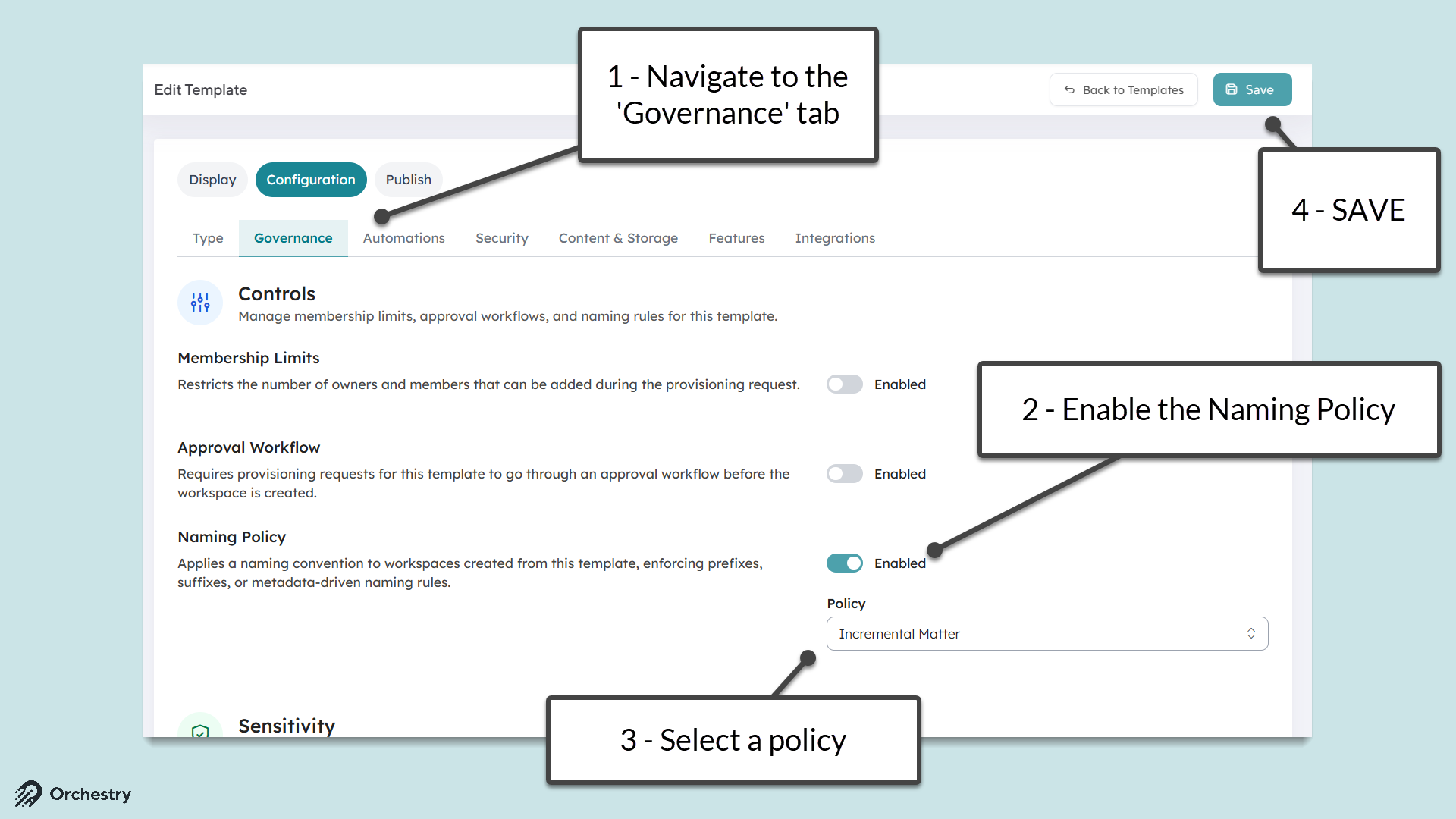
To assign a Naming Policy:
Navigate to the CONFIGURATION tab of a workspace template
ENABLE the Naming Policy function
Choose your NAMING POLICY
SAVE your changes
NOTE: Any METADATA used in your NAMING POLICY will be automatically added to the workspace template and treated as REQUIRED.
End User Experience
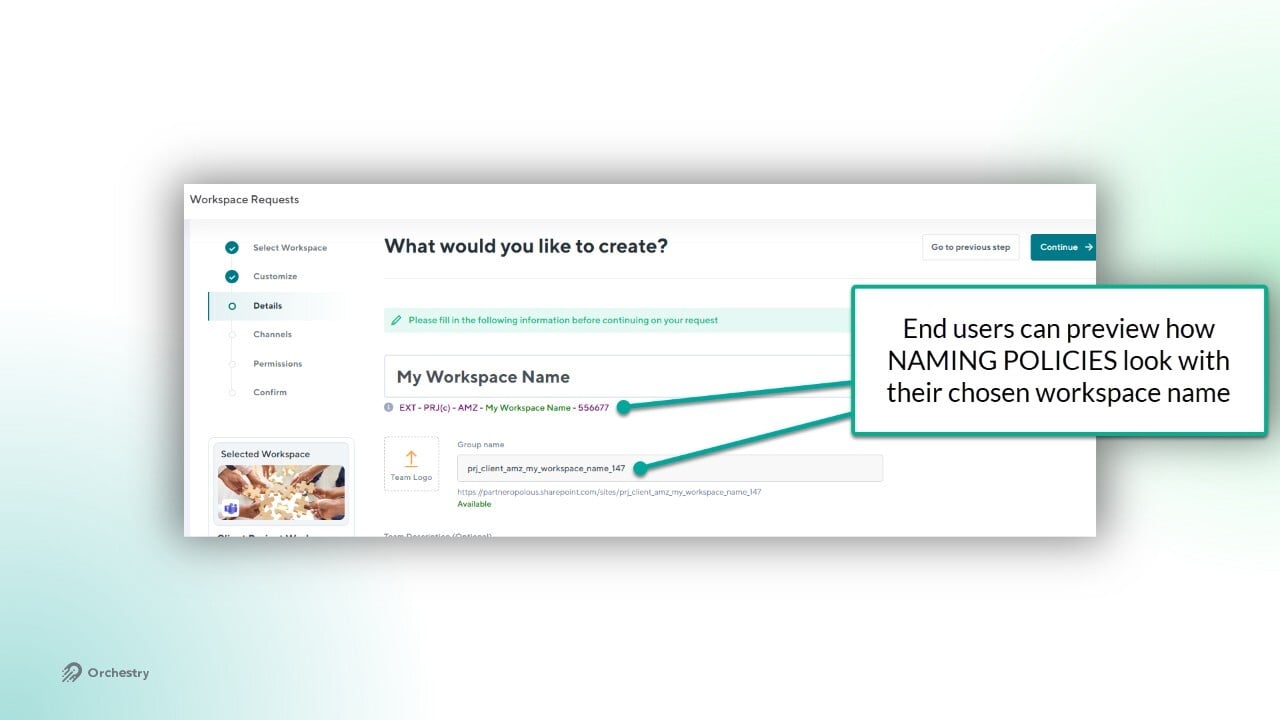
During a workspace request, end users can view the naming policy applied to their (proposed) workspace on the 'DETAILS' page:
Questions and Answers
Can I apply new or different naming policies to existing workspaces?
No, not at this time. Naming policies are only applied during the time of provisioning a new workspace, and cannot be applied retroactively.